When you open a Similarity Report in the Feedback Studio, the right-hand panel now organizes findings by their nature rather than just by their source. This helps you refine the similarity score with just a few clicks.
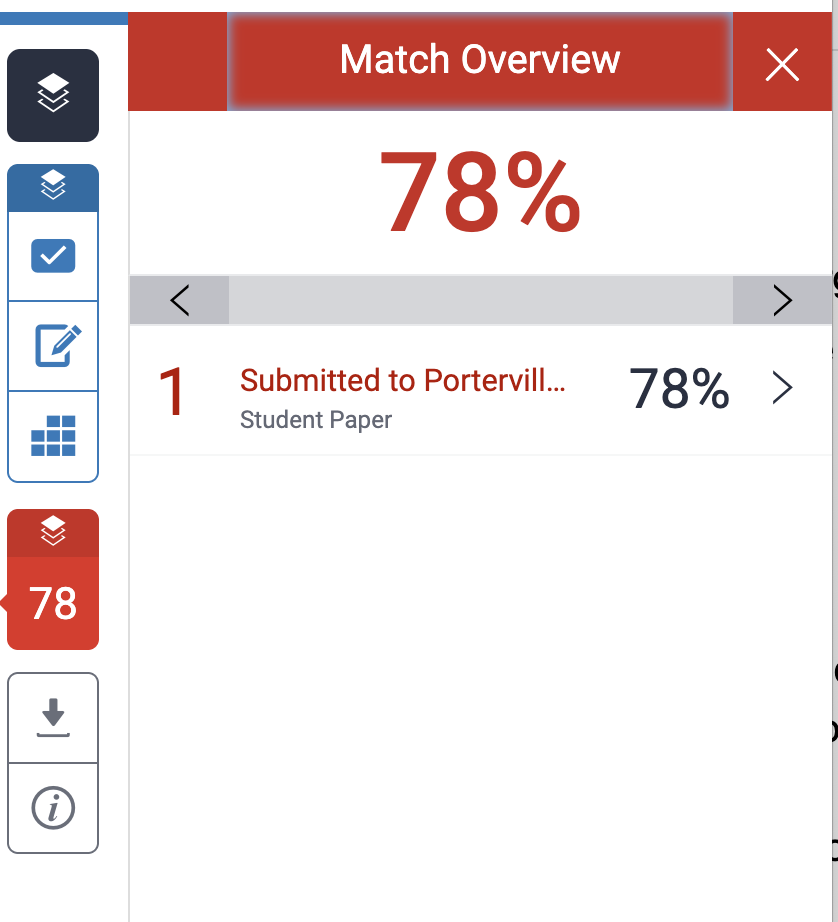
1. The Three Categories
- Matches: This group highlights text that matches other sources but is not enclosed in quotation marks. These are the areas that require the most scrutiny for potential plagiarism or poor paraphrasing.
- Quotes: This group identifies text that is enclosed in quotation marks. Turnitin automatically recognizes these as intentional citations.
- Bibliography: This group identifies the “References” or “Works Cited” section at the end of the paper.
Refining the Percentage Quickly
One of the most powerful features of the Match Groups update is the ability to instantly adjust the similarity score by toggling these categories on or off.
How to toggle findings:
- Open the Similarity Report from the Moodle assignment inbox.
- In the right-hand sidebar, look for the Match Groups overview.
- Next to “Quotes” and “Bibliography,” you will see eye icons or toggle switches.
- Click the toggle to exclude these categories.
The Result: The large percentage at the top of the report will automatically recalculate in real-time. For example, a paper might drop from a 35% total match to a 12% “Matches” score once the Bibliography and properly formatted Quotes are excluded. This 12% represents the “true” area of concern for the instructor.
Deep Dive: Using Match Groups for Instruction
- Identifying “Ghostwriting” or AI: If a paper has a very low “Quotes” count but a high “Matches” count, it may indicate that the student is paraphrasing too closely to the source or using tools to spin text without proper attribution.
- Checking Citation Habits: If the “Quotes” toggle is off but you still see significant matches that should have been quotes, it’s a teaching opportunity to show the student where they missed quotation marks.
- Single-Source Analysis: You can still click into any specific match to see the original source, but the Match Groups view ensures you aren’t distracted by a long list of 1% matches from a bibliography.
Troubleshooting Tip: Missing Quotes
If Turnitin is not recognizing a quote (and therefore not putting it in the “Quotes” group), check the student’s formatting. Turnitin typically looks for standard double quotation marks (" "). If a student uses non-standard symbols or unique block-quote formatting, you may still need to manually exclude those matches using the Exclude Sources tool at the bottom of the sidebar.