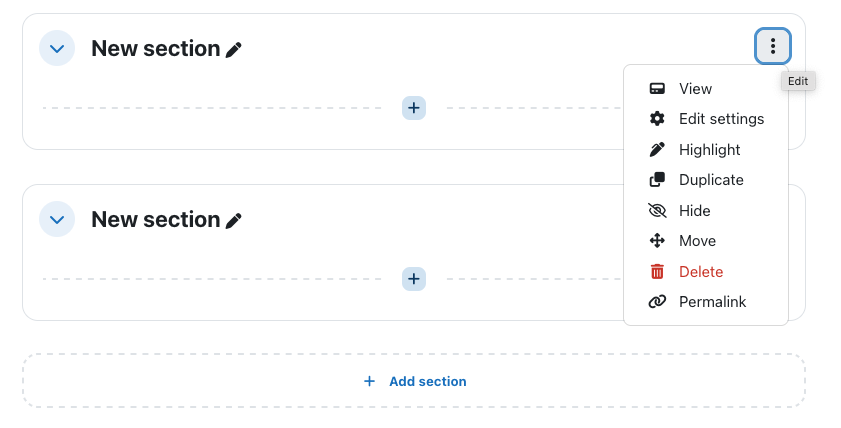
By default, Moodle displays 14 sections. You may add more sections if required, or you may remove sections you will not be using.
Turn editing on by clicking Turn Editing On in the top right corner of your course page.

To add a section, scroll to the bottom of your course page and click on Add Section.
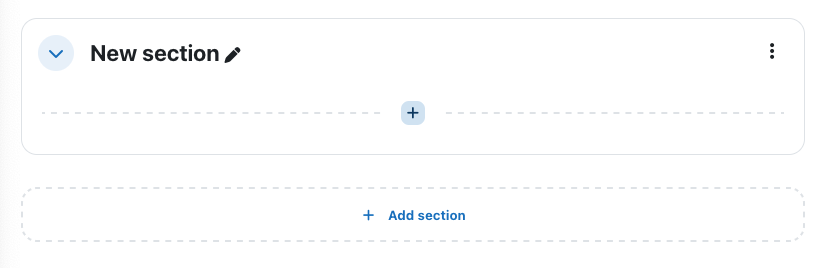
You will see a new section added to your Moodle course page. You can then click and drag this section to anywhere on your course page as needed.
To delete a specific section, click on the 3 dots to the right of that section to get to the edit dropdown list, choose Delete.