To use anonymous marking, you must enable it before any student submits. Once a single paper is submitted, this setting is locked and cannot be turned on for that assignment.
- Create a Turnitin activity in Moodle.
- Click Save and Display to launch the Turnitin window.
- Go to Settings (gear icon) > Optional Settings.
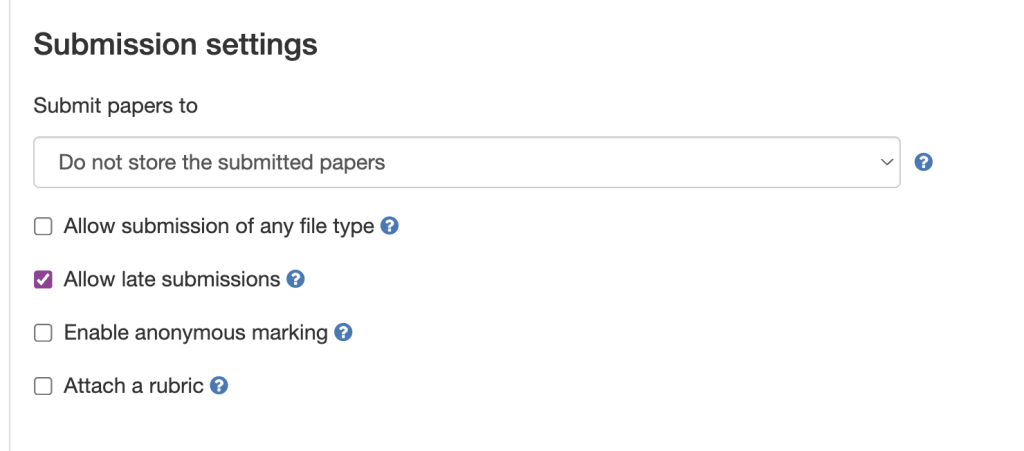
Check Enable anonymous marking
- Check the “Enable Anonymous Marking” box.
- Click Submit.
Grading Anonymously
In your Assignment Inbox, student names will be replaced by a placeholder like “Anonymous User” or “Student 1.” * Feedback Studio View: When you open a paper to grade, the name at the top left will also show as “Anonymous.”
- Similarity Report: The report will function normally, but the author’s identity will remain hidden within the match details.
Video
Anonymous marking in Turnitin
This video provides a walkthrough of managing submissions and identifying matches in the Feedback Studio interface, the environment where you will be grading during an anonymous session.
Grade Syncing and the Feedback Release Date
The most important administrative rule for anonymous marking is how it handles the Moodle Gradebook.
The “Hidden” Grade: In an anonymous assignment, grades will not sync to the Moodle Gradebook while anonymity is active.
All student names and their corresponding grades are revealed and pushed to the Moodle Gradebook the moment the Feedback Release Date passes.
- Manual Reveal: If you need the grades in Moodle before the scheduled release date, you must change the Feedback Release Date to a time in the past or use the “Reveal all identities” toggle in the settings.
Missing Names After Release Date
If the Feedback Release Date has passed but names are still showing as “Anonymous” in Moodle, click the Refresh Roster icon in the Turnitin Inbox.