
You may wish to define a rubric when grading assignments in Moodle.
grading
Adding Team member (graders etc) in Crowdmark

Your course may have TA’s or markers that help facilitate your assessments. Crowdmark allows you to add a team of members into Crowdmark to help you with marking. The following instructions will provide you with the best ways of adding team members such as TA’s to your Crowdmark assessments.
Administered or Assigned Assessments

There are two types of assessments available in Crowdmark. Administered and Assigned.
There are two types of assessments available in Crowdmark. Administered and Assigned. You will want to choose an Assigned assessment. The link below describes the difference between the two.
https://crowdmark.com/help/choosing-an-assessment-type/ (more…)
Crowdmark’s New Grading Interface (Fall/Winter 2025)
Crowdmark introduced a new interface back in the summer of 2023, but they have updated it again in October of 2025. All the same functions and features, but to give you more canvas space when grading, some features have been combined or appear in different menus.
Grading with a Rubric

1. Now that the rubric is all setup, we can start grading the submissions.
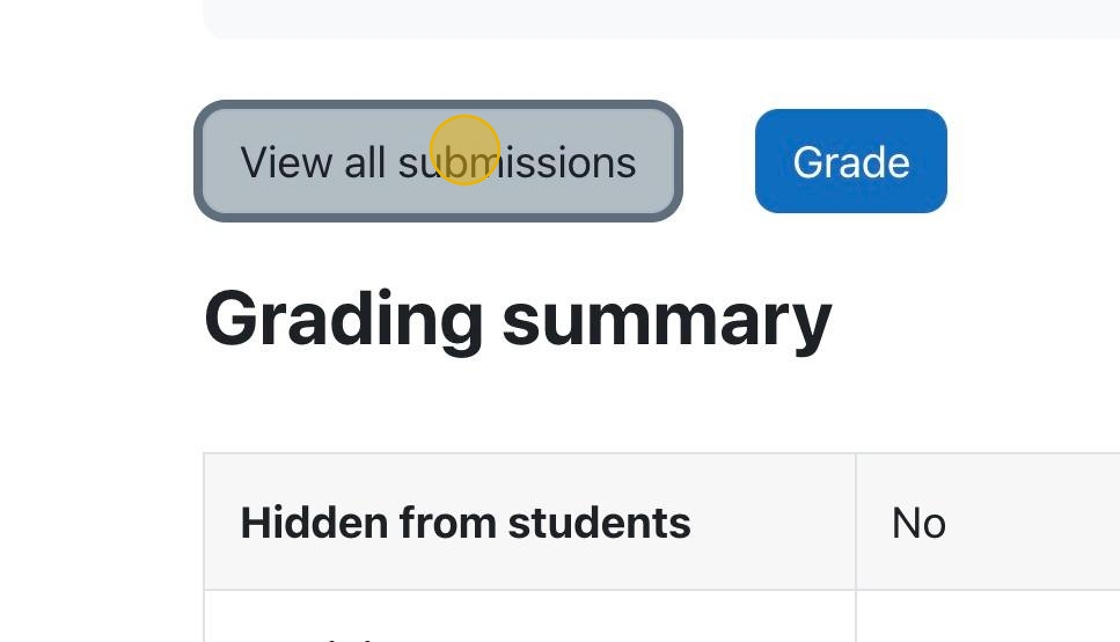
Click “View all submissions” to see all the submissions so you can select specific submissions to grade.

Assignment settings to use a Rubric

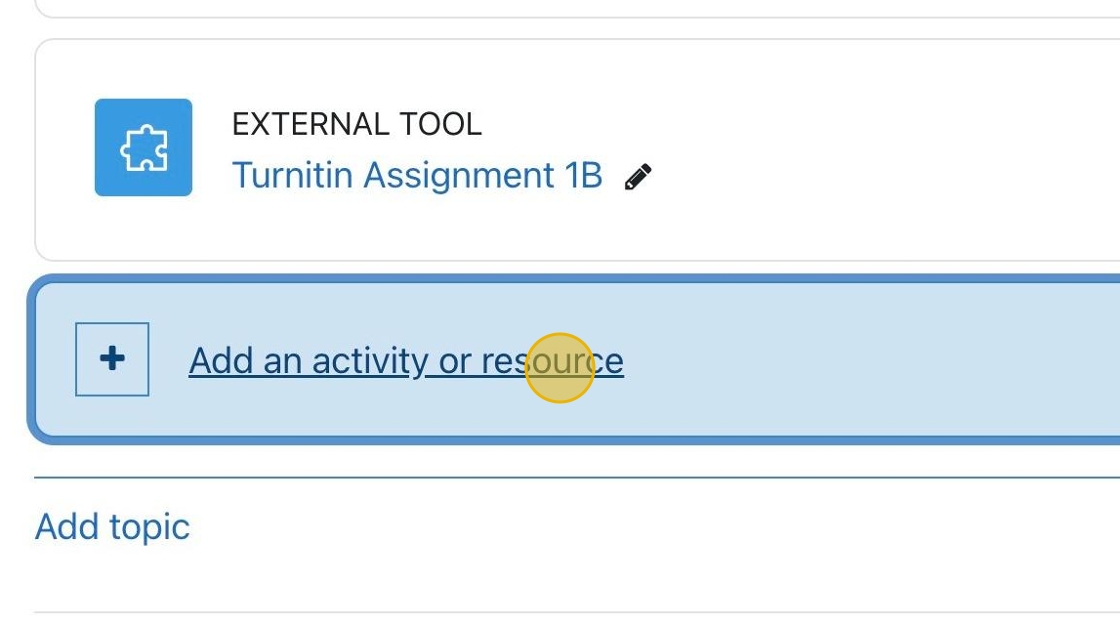
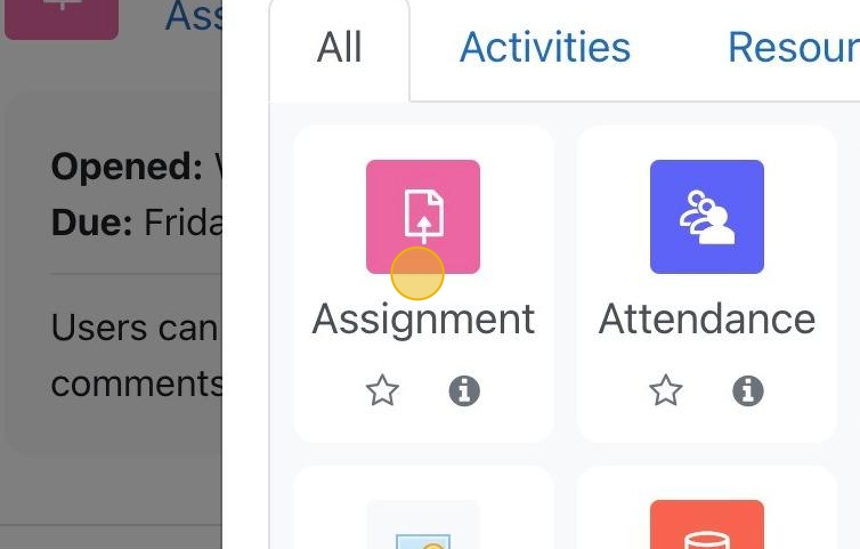
1. Click on an assignment to be taken to the assignment page. Alternatively, you can add a new activity or resource and choose “Assignment.”
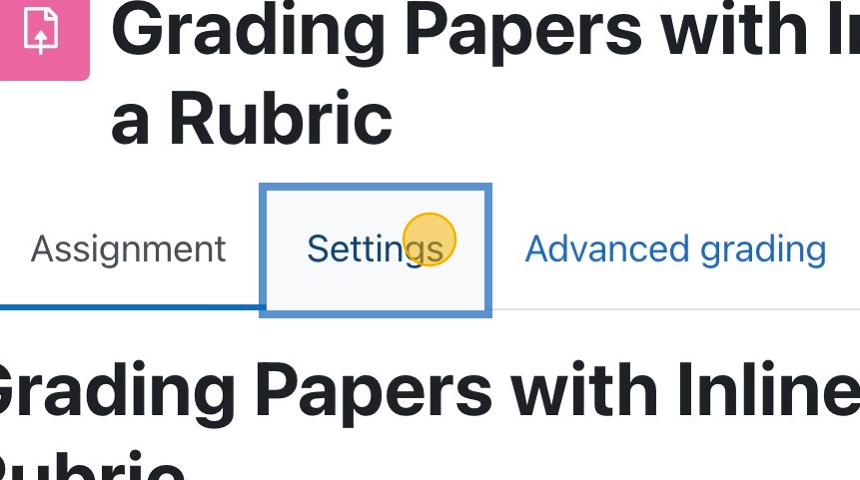
2. Click “Settings” to see ALL the assignment settings.
How To Grade Assignments and Provide Feedback with inLine Comments
1. In your course, click on the assignment for which grading is required.
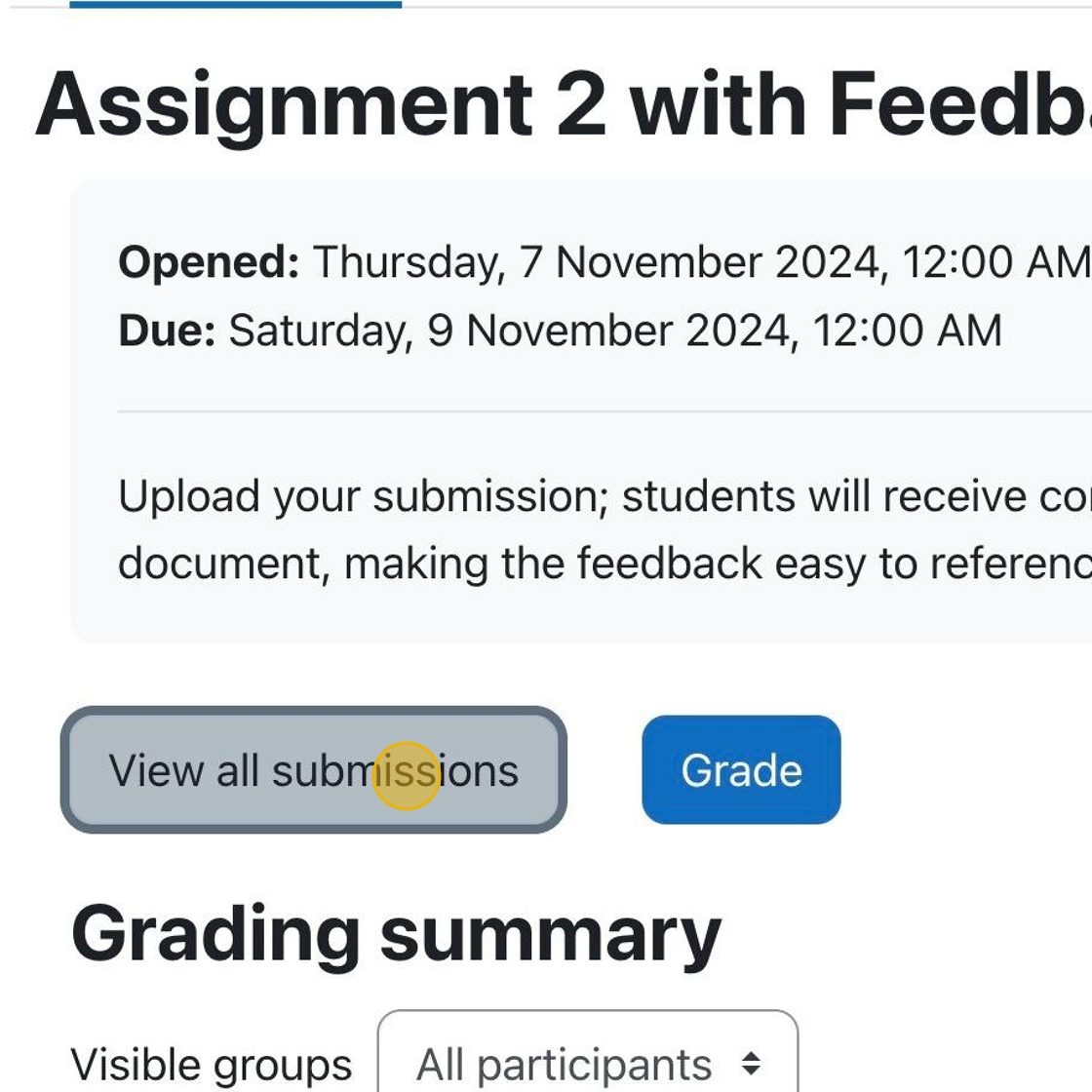
2. You can click “View all submissions ” to choose a specific student to grade.