
August 24, 2026

Creating a Rubric in Moodle

You may wish to define a rubric when grading assignments in Moodle. 

(more…)

What’s New in Moodle – Summer 2025

Moodle has been updated. We’ve outlined some of the new changes and features within this article.

(more…)

Crowdmark LTI not working

Crowdmark works with Moodle’s LTI plugin to sync students and marks. But when a bug occurs and the LTI doesn’t sync properly, there is a work-around. The steps below will help you follow this work around and still use Crowdmark even if the LTI is broken. 

Getting started with YuJa

Initializing Your Course Channel

Navigate to your course homepage in Moodle and toggle Edit mode on (located in the top right corner).
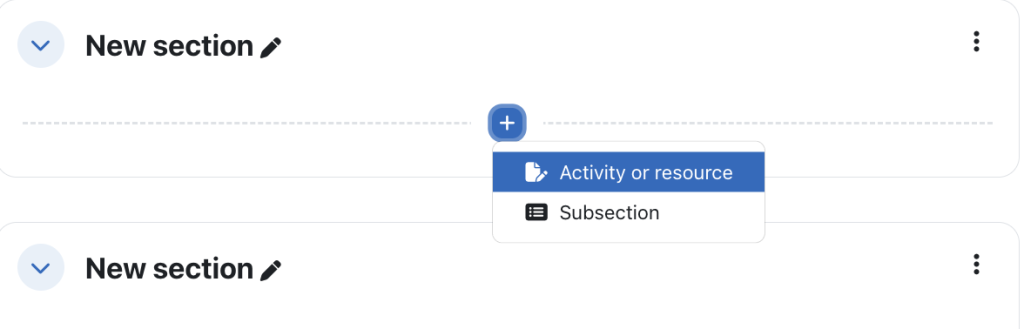
Add an activity or resource

  1. Locate the  “Resources” section you wish to add to, and click Add an activity or resource.
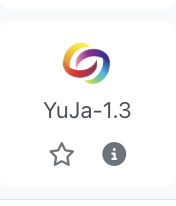
  2. In the activity chooser, select pre-configured YuJa 1.3 

3. Under “Activity name,” type a recognizable title for students, such as “UOFL 1000 X – Video Channel.”

4. Scroll to the bottom, click Save, and return to Course.

Critical Final Step

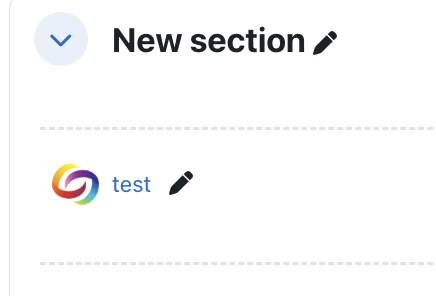
  1. Click the newly created YuJa link on your course page. 

    Click on this link to initialize Yuja in your course.
  2. Clicking this link for the first time authenticates your account and automatically generates the course folder within the YuJa platform.

The following interface will open, displaying all course Yuja resources