Yuja

Getting started with YuJa

Initializing Your Course Channel

Navigate to your course homepage in Moodle and toggle Edit mode on (located in the top right corner).
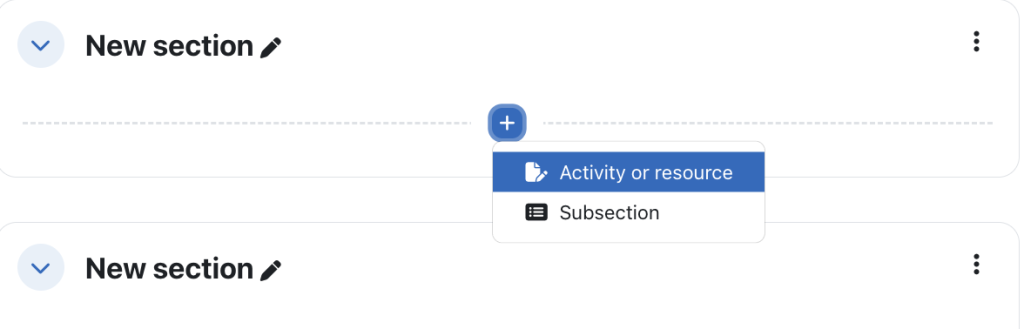
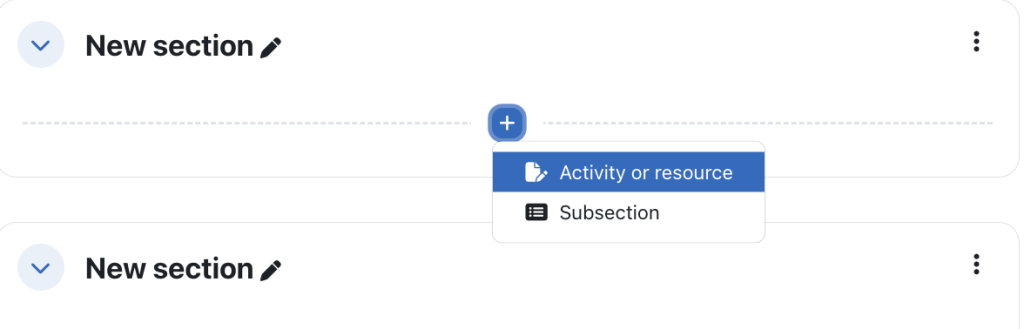
Add an activity or resource

  1. Locate the  “Resources” section you wish to add to, and click Add an activity or resource.
  2. In the activity chooser, select pre-configured YuJa 1.3 
3. Under “Activity name,” type a recognizable title for students, such as “UOFL 1000 X – Video Channel.”

4. Scroll to the bottom, click Save, and return to Course.


Critical Final Step

  1. Click the newly created YuJa link on your course page. 
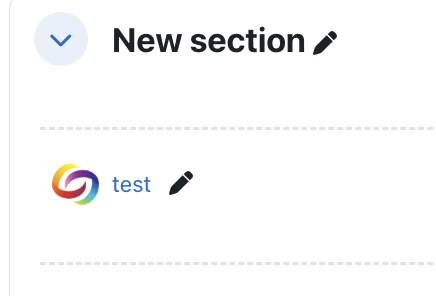
    Click on this link to initialize Yuja in your course.
  2. Clicking this link for the first time authenticates your account and automatically generates the course folder within the YuJa platform.

The following interface will open, displaying all course Yuja resources
Embedding Specific Videos via the Text Editor 

Instructors can embed YuJa media anywhere in Moodle that uses the rich text editor (such as Labels, Pages, or Forum posts) by utilizing the YuJa Media Chooser integration

Step-by-Step Setup:

  1. Navigate to your Moodle course and ensure Edit mode is turned on.
  2. Once you have chosen to add an activity or resource, select the Text and Media area from the Resources tab.


  3. In the Text and Media area, choose the YuJa Media Chooser icon from the toolbar.


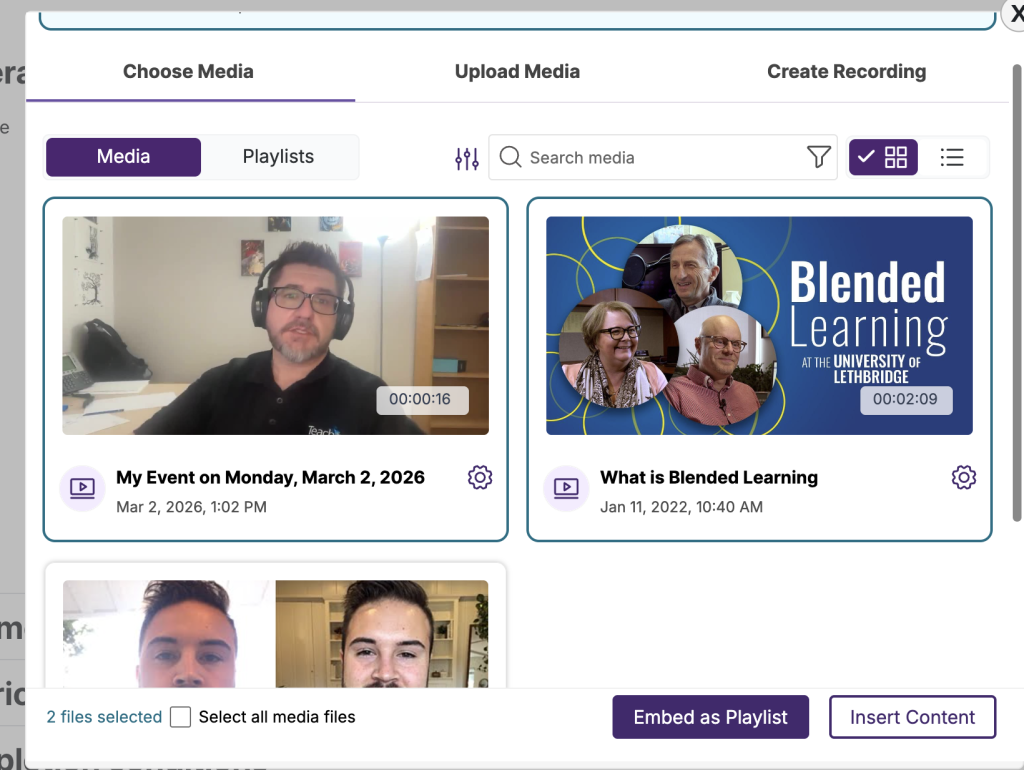
  4. Browse or search your media library, and click to select one or more videos.
    • Tip: To create an organized playlist, check the Embed As Dynamic Playlist option before selecting multiple videos OR Click the Insert Content button to embed the video(s) directly into your text area.

      The Media Chooser window will launch. Select the Choose Media tab.
  5. Add any additional text or description to the editor, then click Save and return to course to deploy the content.


Uploading a Zoom Cloud Recording to YuJa

If you have a video saved to the cloud in Zoom, you may want to add that video to YuJa in Moodle. This tutorial will walk you through the steps to manually add the video to your course using the external tool. 

(more…)