Initializing Your Course Channel
Navigate to your course homepage in Moodle and toggle Edit mode on (located in the top right corner).
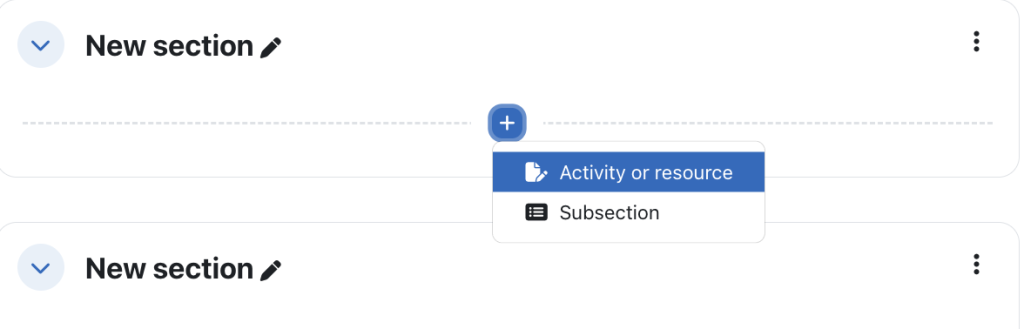
Add an activity or resource
- Locate the “Resources” section you wish to add to, and click Add an activity or resource.
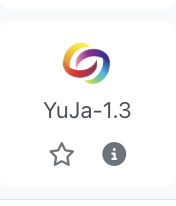
- In the activity chooser, select pre-configured YuJa 1.3
3. Under “Activity name,” type a recognizable title for students, such as “UOFL 1000 X – Video Channel.”
4. Scroll to the bottom, click Save, and return to Course.
Critical Final Step
- Click the newly created YuJa link on your course page.
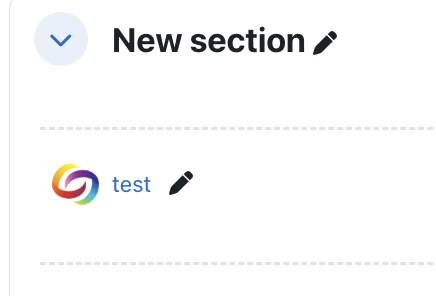
Click on this link to initialize Yuja in your course. - Clicking this link for the first time authenticates your account and automatically generates the course folder within the YuJa platform.

The following interface will open, displaying all course Yuja resources