Student Featured

Submitting and Resubmitting Papers to Turnitin as a Student

Sometimes instructors use the Turnitin assignment type to accept your submissions. This post explains how to submit these assignments types.

  1. Click the Turnitin assignment link in your Moodle course.
  2. Click the Upload Submission button in the assignment dashboard.
  3. Choose your file (Word, PDF, etc.) and click Upload and Review.
  4. Review the document preview to ensure formatting is correct, then click Submit to Turnitin.
  5. Resubmitting: If allowed by your instructor, click the Resubmit button. Note that resubmitting overwrites your previous file, and generating a new similarity report can take up to 24 hours.
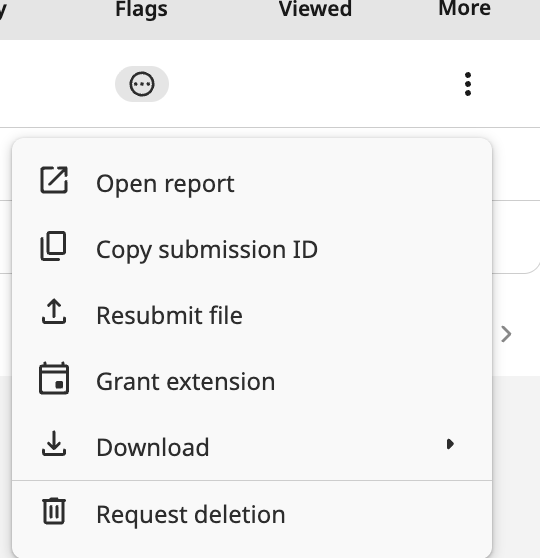

Requesting a Paper be Removed from the Repository

Students cannot directly delete papers from the institutional repository. If you submitted the wrong file or require a permanent deletion, you must contact your instructor. The instructor will evaluate the request and submit a formal deletion ticket to the University’s Turnitin Administrator.

Submitting to Turnitin & Crowdmark within the Moodle App

Desktop Recommended

For the best experience, it is highly recommended to use a desktop or laptop computer when completing assignments like Turnitin or Crowdmark. The University of Lethbridge is not the creator of the Moodle app. It was created by Moodle Developers

Mobile Web Browser Alternative

While third-party submission and feedback plugins are supported if the Moodle website has the appropriate remote add-on installed, these plugins typically open in an inset server window that can be difficult to navigate on a small screen. If you must use a mobile device, please access Moodle and the specific assignments via your mobile web browser (such as Chrome or Safari) rather than using the official Moodle app.

Official Moodle App Support Link

https://docs.moodle.org/502/en/Moodle_Mobile_assignment

Moodle Terms of Use Policy Agreement

Each semester you must agree to the Site Policy Agreement in order to use Moodle.

(more…)

Self Enrolment into a Moodle Course

You may be asked to enrol yourself into a course on Moodle. Below we will provide an explanation on how this process works.

(more…)

I Can’t See my Moodle Classes

At the University of Lethbridge, not all classes will have a Moodle course component. Instructors are given the option to use Moodle if they wish. If your instructor has informed you that the course will be online in Moodle but you are unable to see the course, please check the following.

(more…)

Did you know you can store files on Moodle?

Sometimes you have multiple sections on Moodle and your classes may have enough overlap that one assignment helps you complete another.

To make this a little easier you can upload these types of files to the private files area.

How can I see which students are in my Moodle Group?

As a student in Moodle, you may have courses where your instructor has assigned you to work in groups. This tutorial will show you where you can see who is in your course group in Moodle.

(more…)

How do I View my Grades in Moodle?

Some instructors choose to post their grades in Moodle. If your instructor has told you to check your grades online this is how to access them.

(more…)

Information About the Testing Centre

If you are new to taking exams in the Testing Centre, this article will walk you through the steps so that you know what to expect before your exam.

Fall Hours: 
Monday – Friday: 9am – 9pm
Saturday: 9am – 5pm
Closed: Sundays & holidays

Location:
E630. University Hall.