Instructor News

Administered or Assigned Assessments

 There are two types of assessments available in Crowdmark. Administered and Assigned. 

There are two types of assessments available in Crowdmark. Administered and Assigned. You will want to choose an Assigned assessment. The link below describes the difference between the two.

https://crowdmark.com/help/choosing-an-assessment-type/ (more…)
Crowdmark’s New Grading Interface (Fall/Winter 2025)

Crowdmark introduced a new interface back in the summer of 2023, but they have updated it again in October of 2025. All the same functions and features, but to give you more canvas space when grading, some features have been combined or appear in different menus.

Moodle Exam Set Up Reminders

Important Moodle Exam Information

Please check over ALL Moodle exam questions BEFORE the opening date of the exam. Once students attempt the exam, errors in the questions are not easily fixed.

(more…)

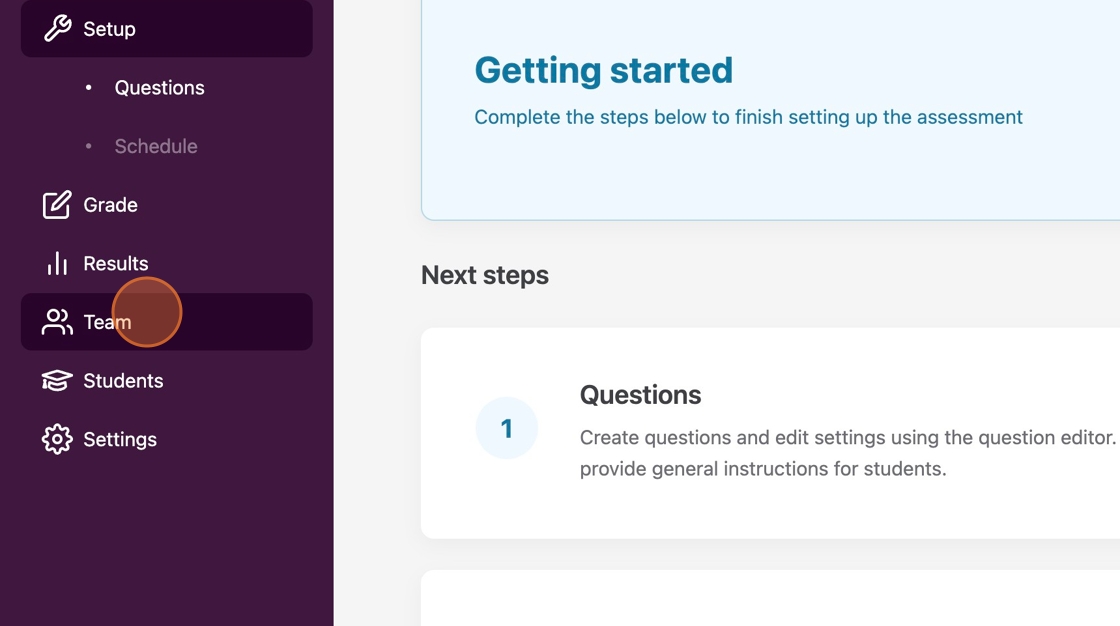
Importing Team Members from Moodle to Crowdmark

1. To add members such as graders or facilitators to your Crowdmark Team, Click “Team.”

(more…)

Create text answer questions in Crowdmark for exams

1. Once you add questions to your assessment, note that you can have students complete a text entry assessment.

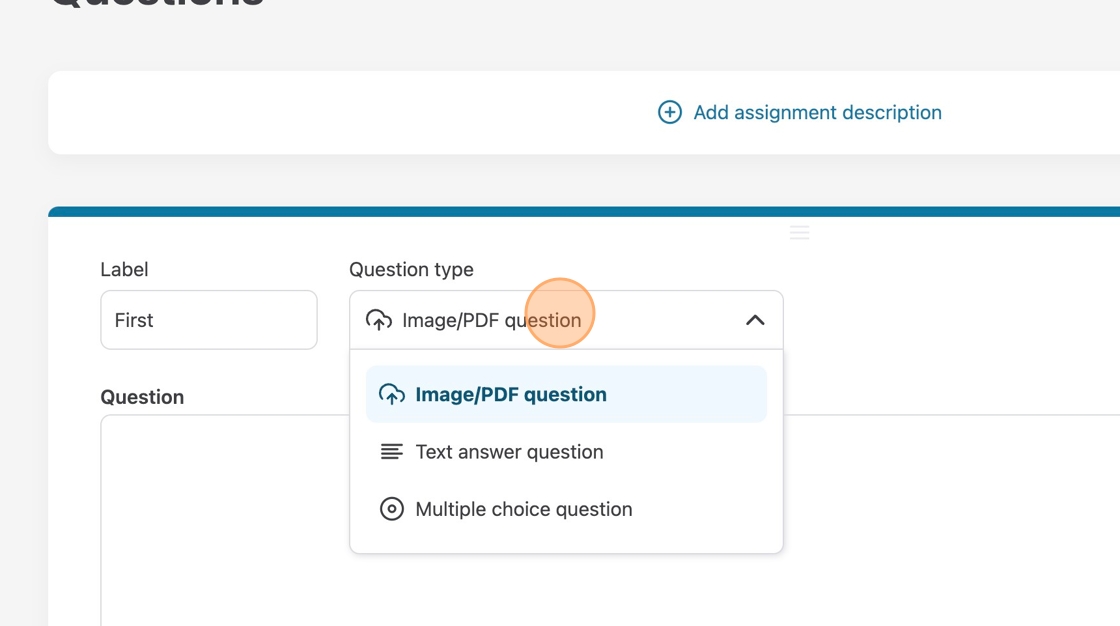
2. Choose “Text answer question” from the drop-down menu to switch to a text answer question.

(more…)

Creating Multiple-choice Questions in Moodle with Crowdmark

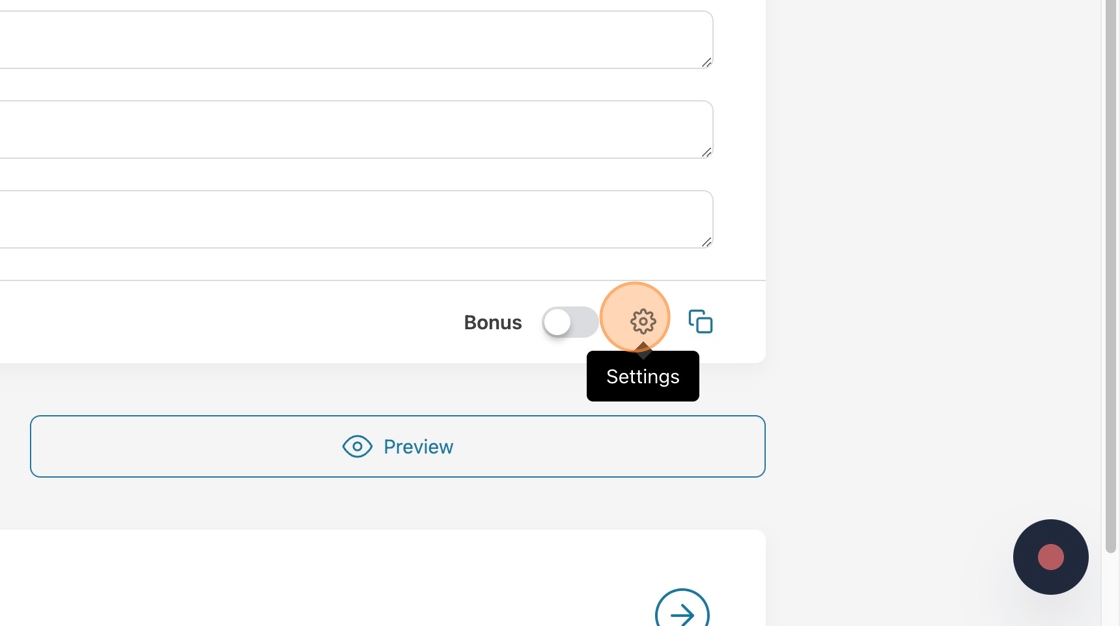
1. Crowdmark allows you to choose extra settings for your multiple-choice questions. Click “Settings.”

(more…)

Making Image/PDF Questions in Crowdmark

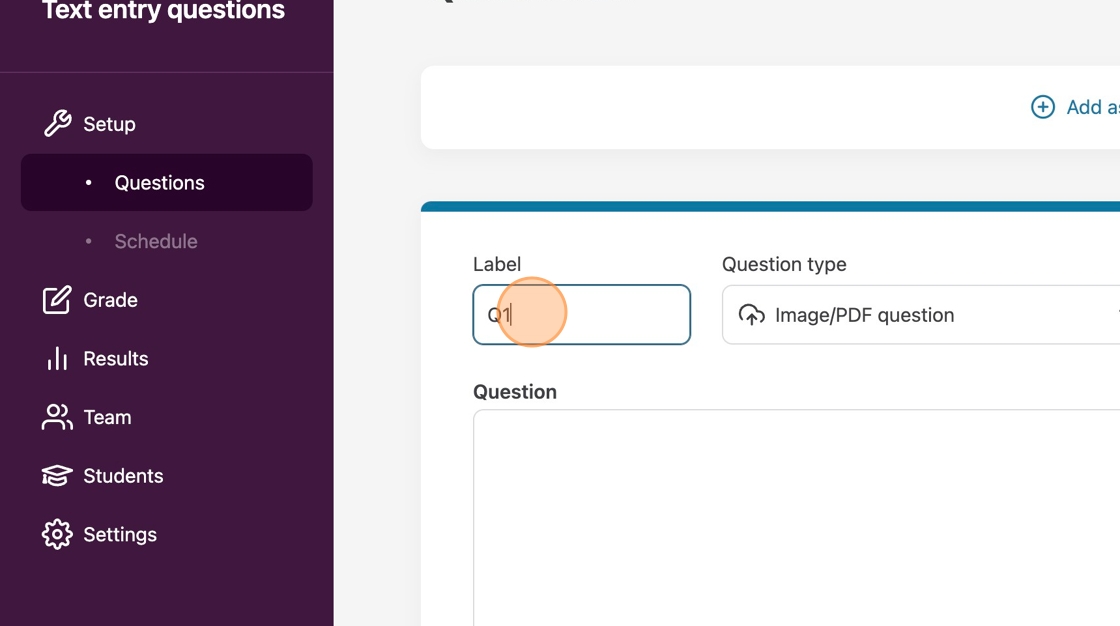
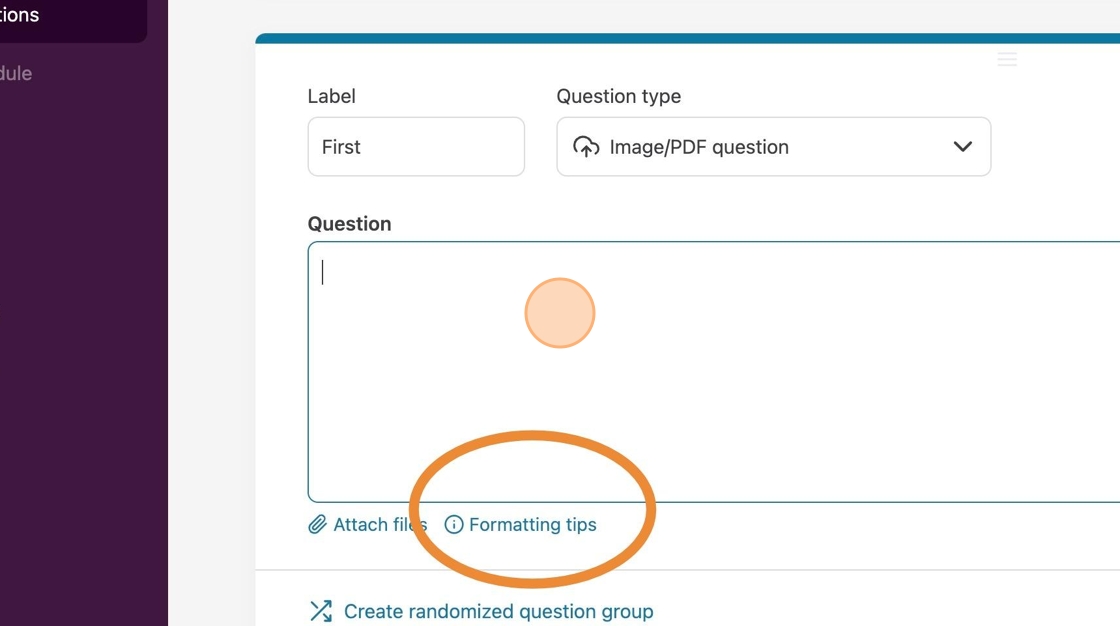
1. Click “add a question” and enter a label for the question if you wish for something different than the default.

2. Choose “Image/PDF question” from the question type drop-down menu.

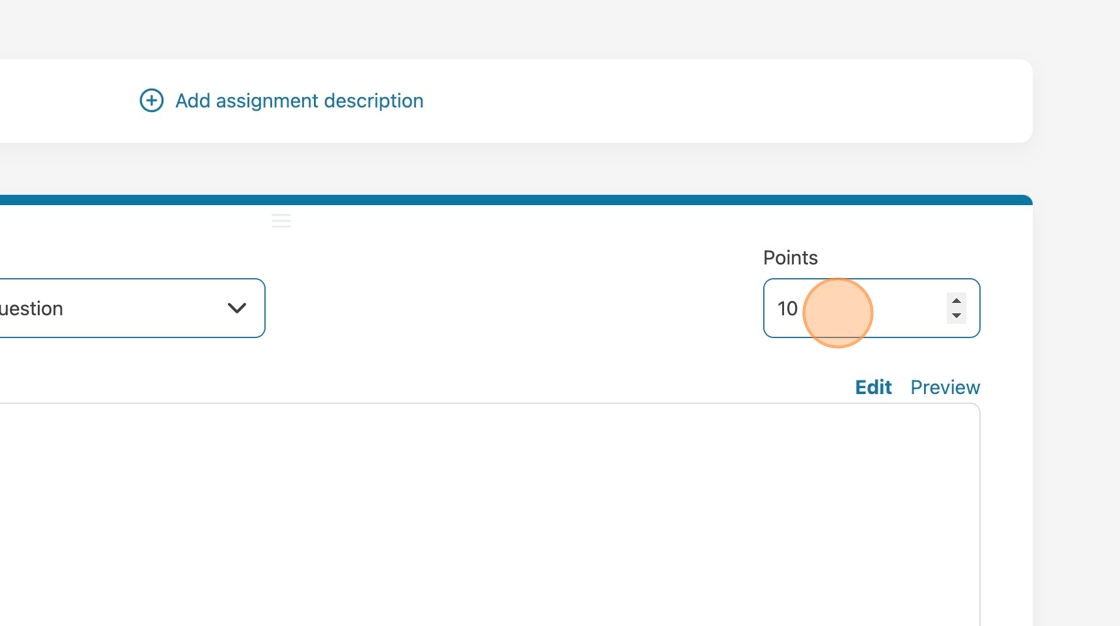
3. Choose how many points your question will be worth.

4. Click in the question field and enter your question or prompt. You can attach files, link websites, and use other formatting options. Click on the formatting tips below the Question field.

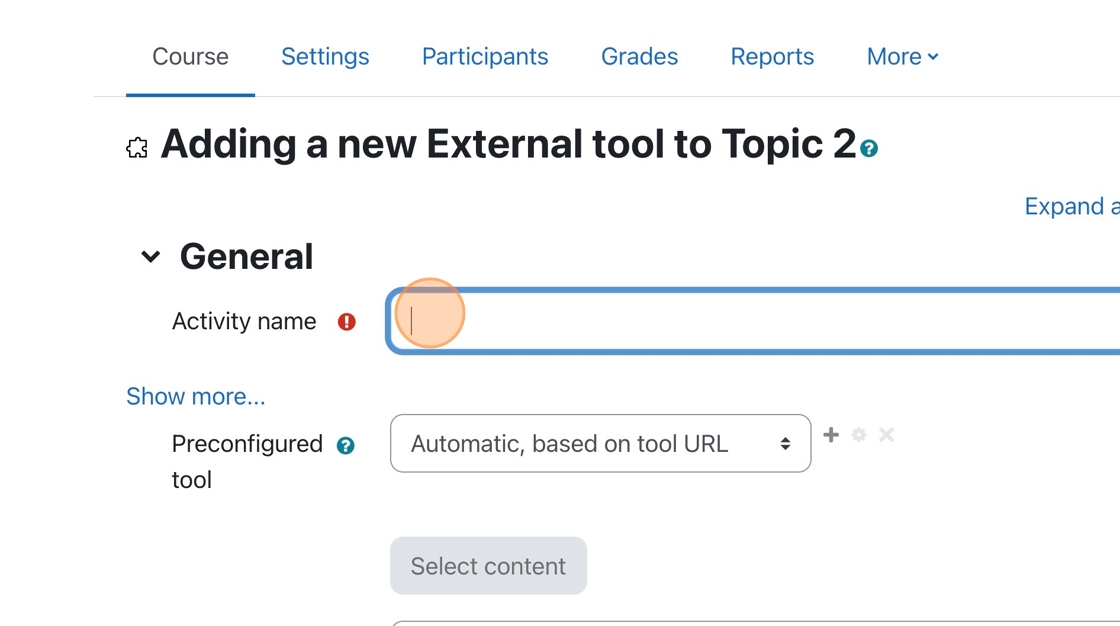
Adding a Crowdmark Activity in Moodle

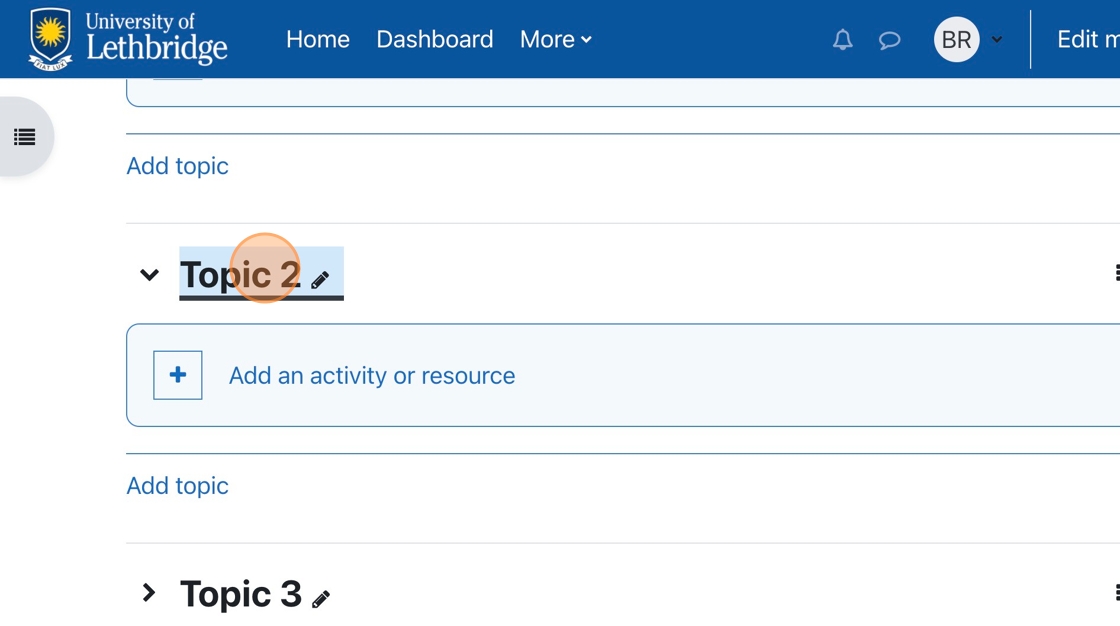
1. Go to the topic you wish to add the activity to.

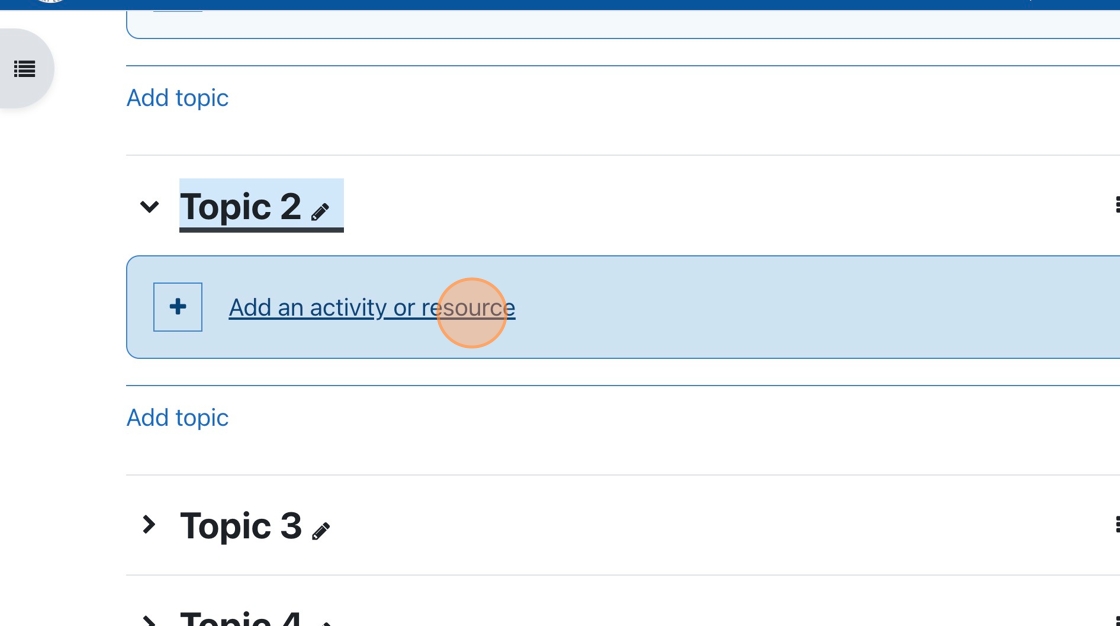
2. Click “Add an activity or resource.”

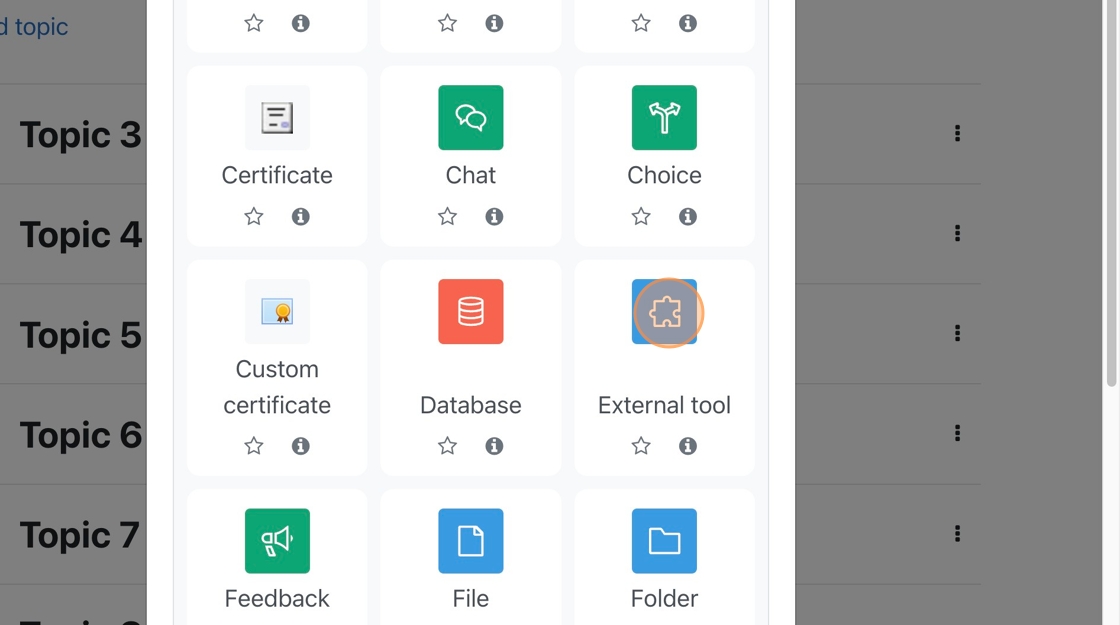
3. Choose External Tool from the menu of choices.

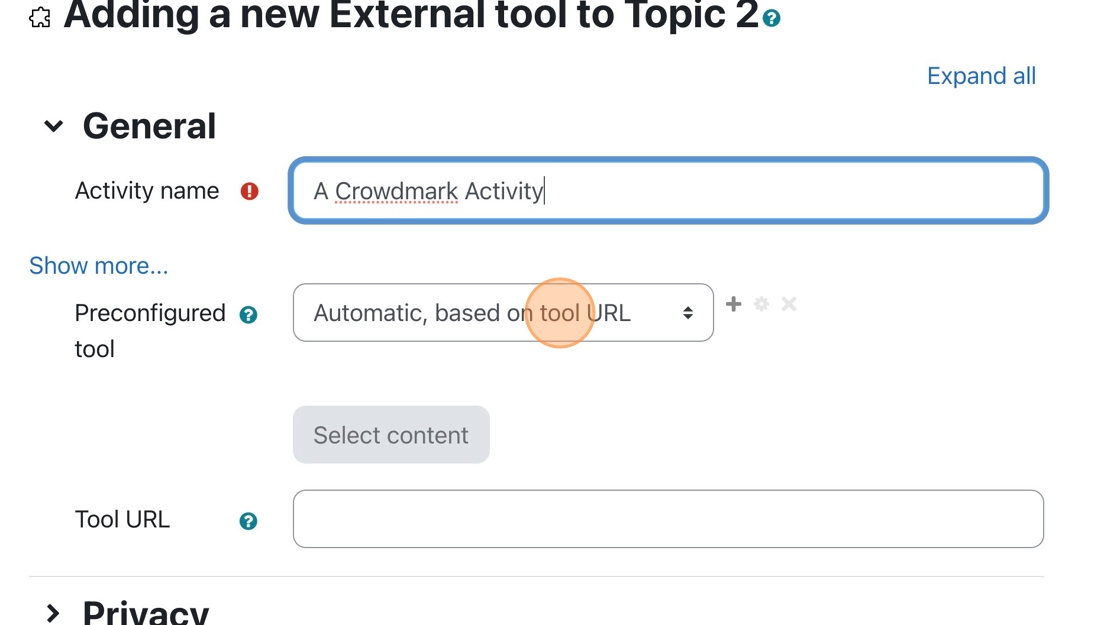
4. Click the “Activity name” field, and enter a name for the activity.

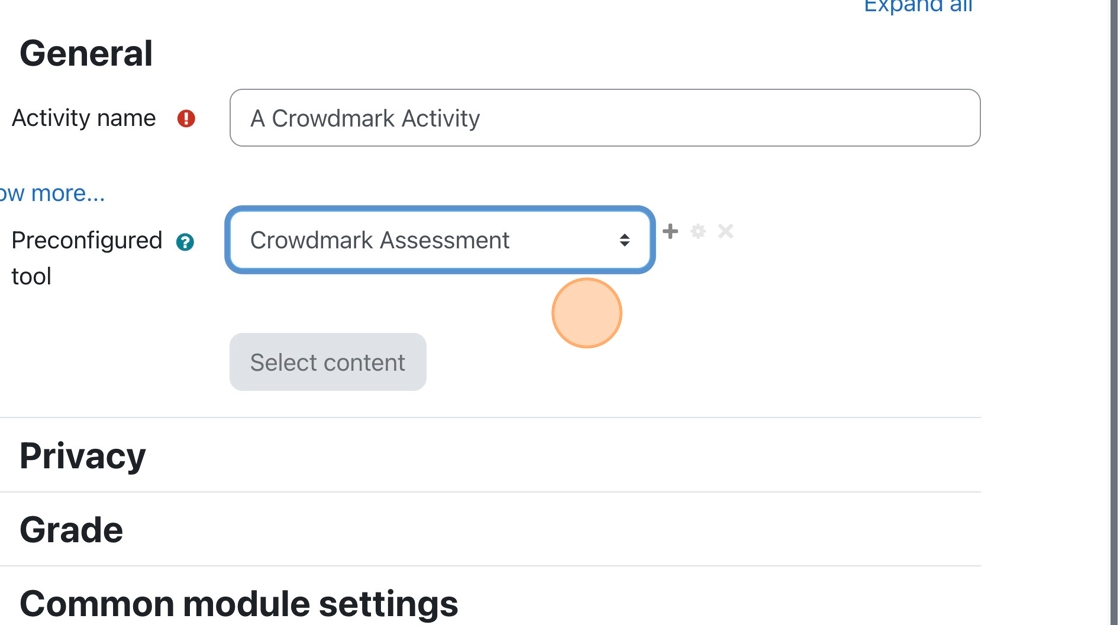
5. Click the Preconfigured tool dropdown menu.

6. Choose Crowdmark Assessment from the menu.

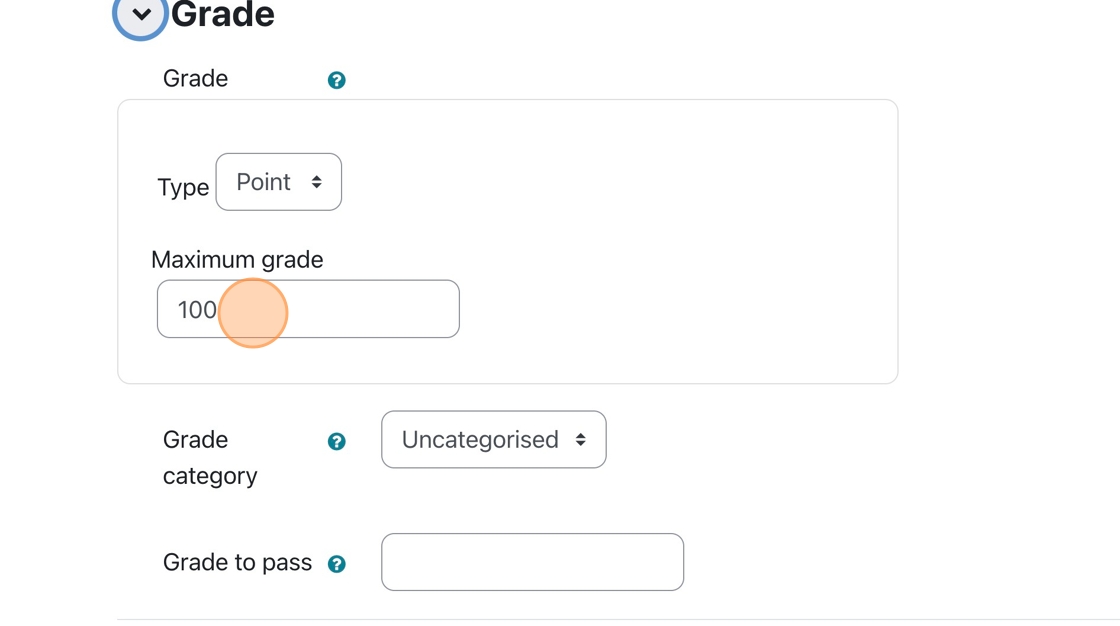
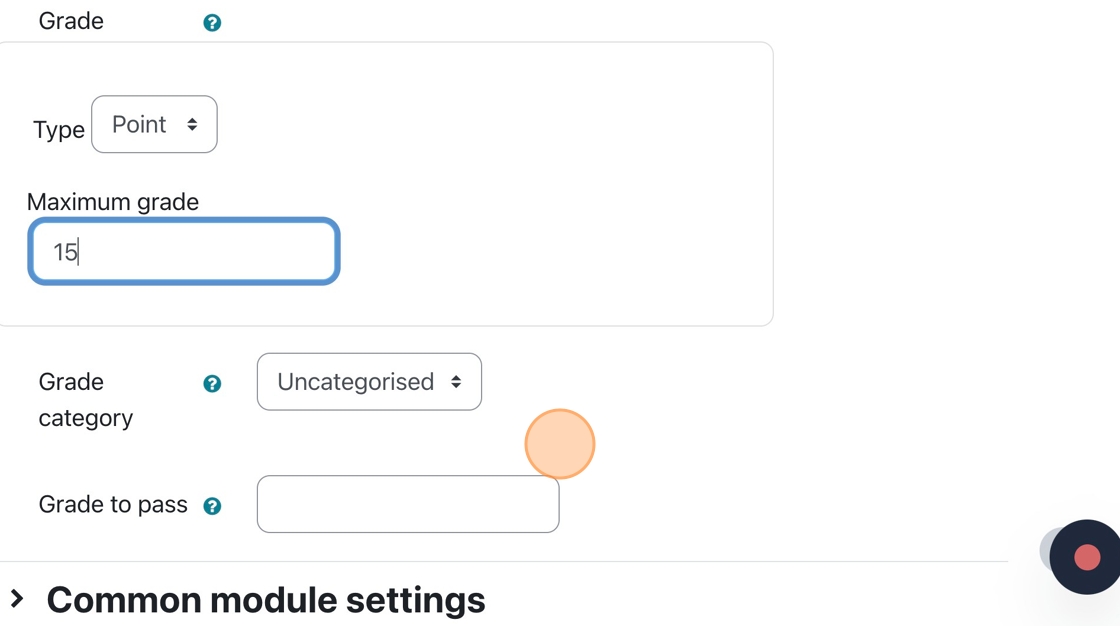
7. Click “Grade,” then modify the Maximum Grade so it is equivalent to the grade that will come from Crowdmark.

8. If you grade a Crowdmark assessment out of 15 but forget to change the maximum grade to 15 in Moodle, you must do so before syncing all the grades to Moodle. You may run into errors when syncing your grades if you do not.

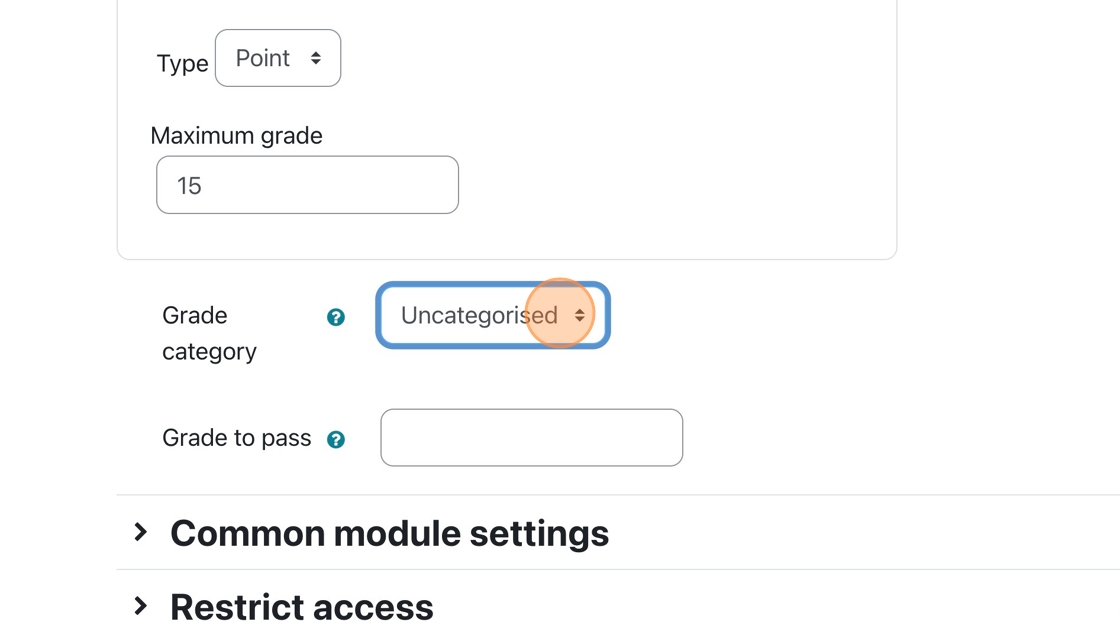
9. If you have different categories in Moodle’s grade area, you can choose the category to which the assessment belongs.

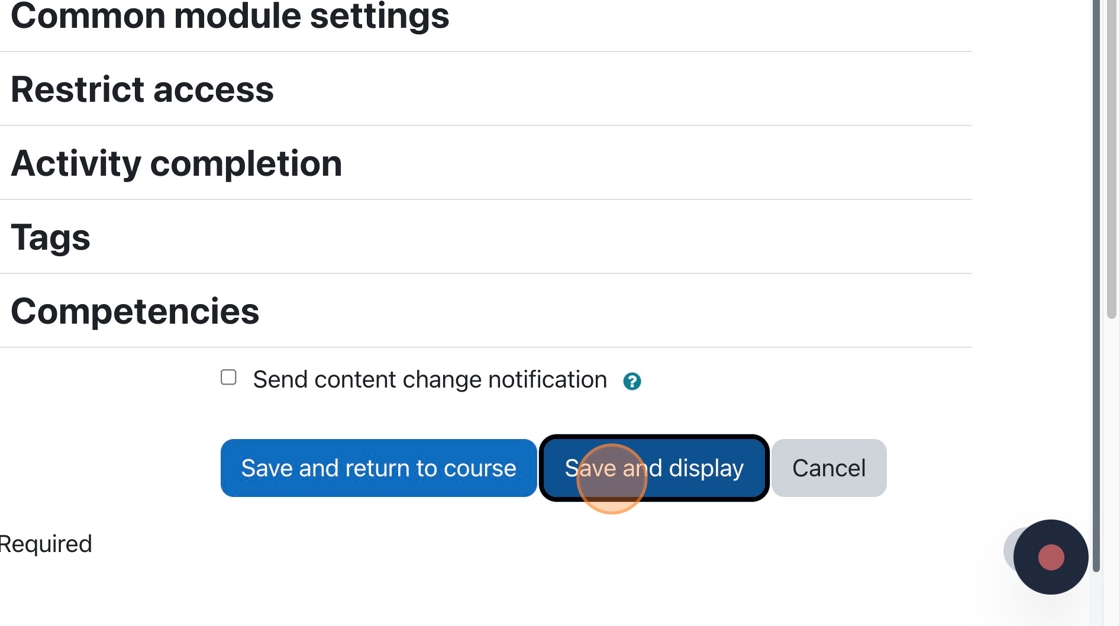
10. You are all finished the Moodle portion of the Crowdmark assessment setup

Tip: This tutorial set up the connection between Crowdmark and Moodle. You will still need to add questions to the assessment. This can be done when you click the Crowdmark assessment on the main course page.

A new Crowdmark window opens up. You can add questions and set the distribution factors in that window.

Creating a Crowdmark Assessment

The following tutorials will teach you how to set up and assessment using Crowdmark.

(more…)

Scheduling an Exam in the Testing Centre (INSTRUCTORS ONLY)

To schedule an exam in the Testing Centre, you will need to have the following information:

  • The requested dates for running your exam. We require all exams to run for a minimum of 3 business days. The scheduling works on a first come, first serve basis, so please get your exam dates to us as early as possible to get the dates you want.
  • The number of students in your class.
  • Your course name, number, and section.
  • If your exam contains any media clips.
    (more…)