instructor-tutorials

H5P: Adapting Existing Content in Moodle

If you have found an .h5p file online or received one from a colleague, you can upload and adapt it for your own course using Moodle’s built-in Content bank.

Step-by-Step Setup

  1. Download and save the .h5p file to your local computer.
  2. Navigate to your Moodle course and click on the Content bank link (usually located in the left-hand navigation drawer or the secondary course menu).
  3. Click the Upload button at the top of the Content bank.
  4. Use the file picker to select the .h5p file from your device, then click Save changes.
  5. The activity will automatically open in the H5P authoring tool. Make any necessary changes to the content, text, images, or behavioral settings to suit your specific course needs.
  6. Click Save at the top or bottom of the page. The adapted activity is now stored in your course’s Content bank.
  7. Return to your main course page, toggle Edit mode on, and click Add an activity or resource to deploy the newly adapted H5P activity using the Content bank repository.
Adding a Crowdmark Activity in Moodle

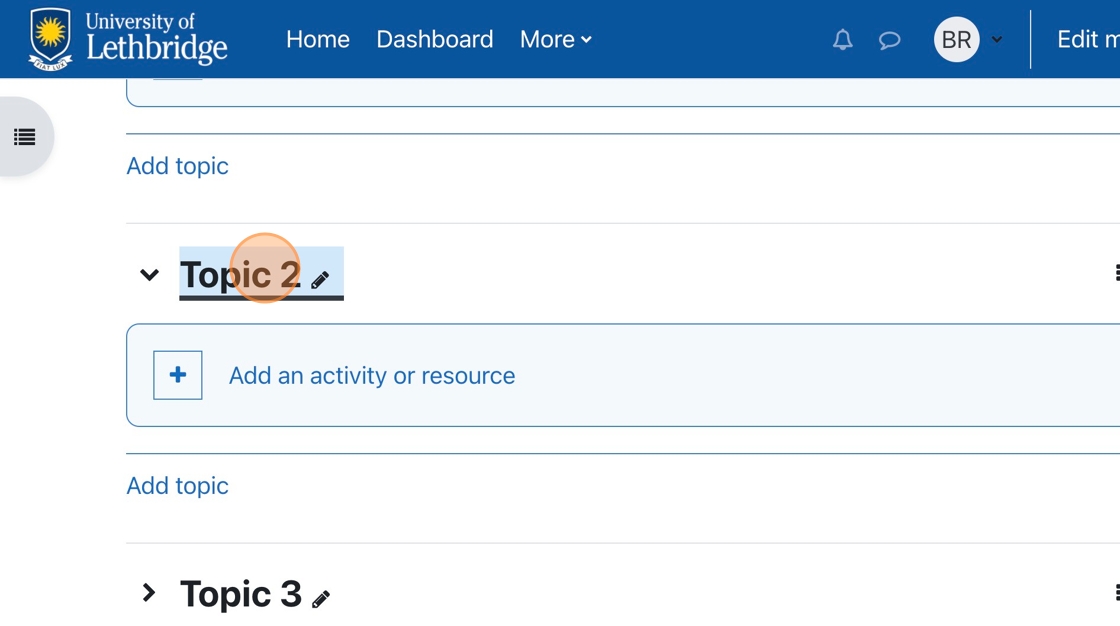
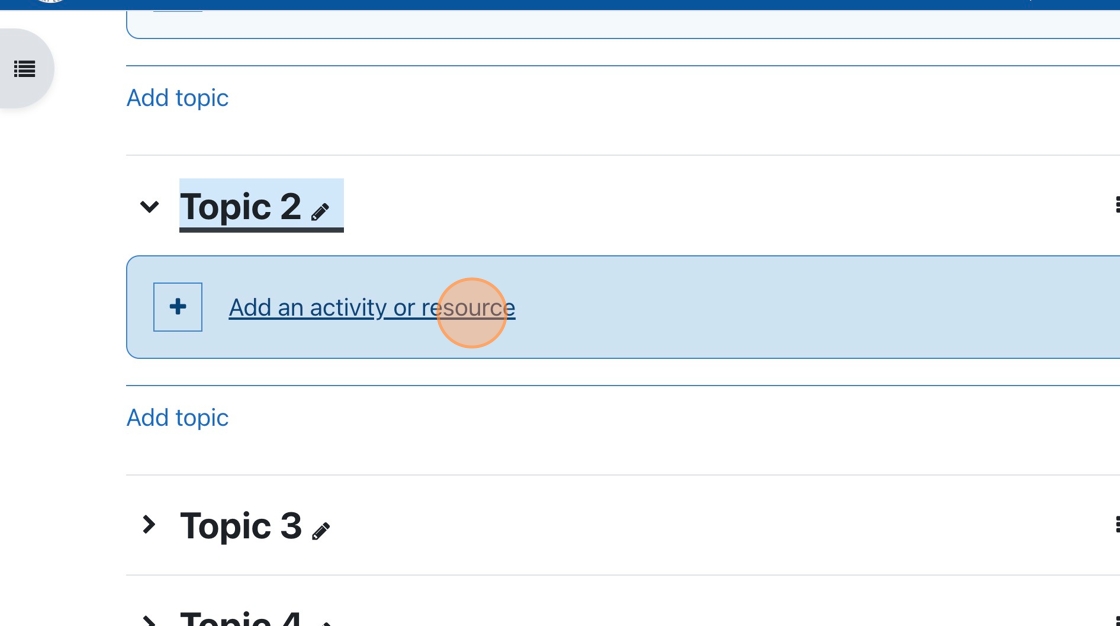
1. Go to the topic you wish to add the activity to.

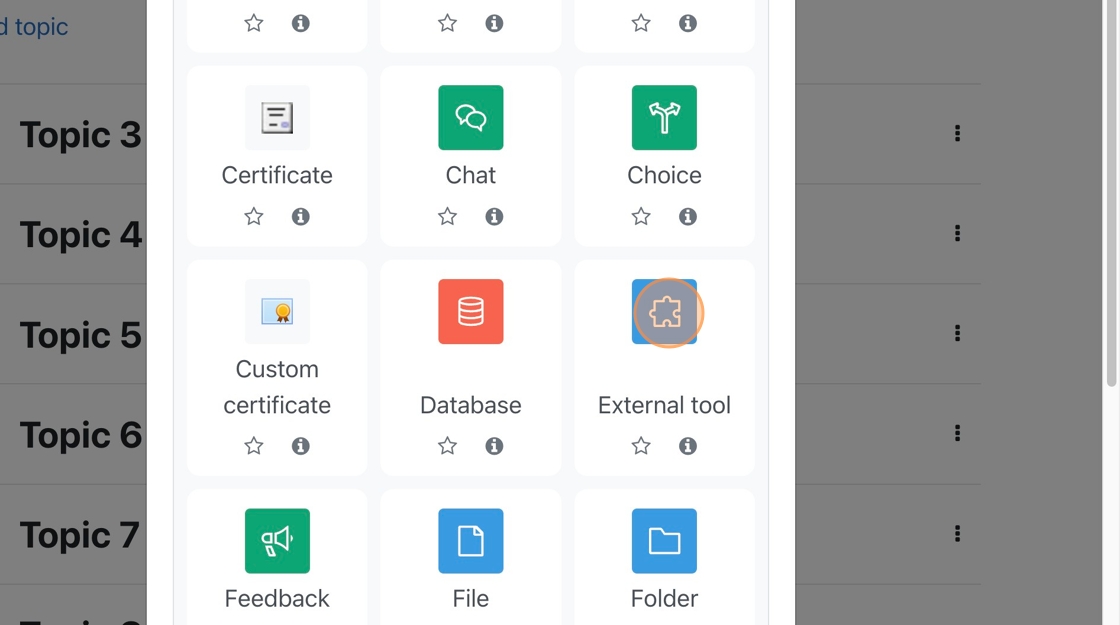
2. Click “Add an activity or resource.”

3. Choose External Tool from the menu of choices.

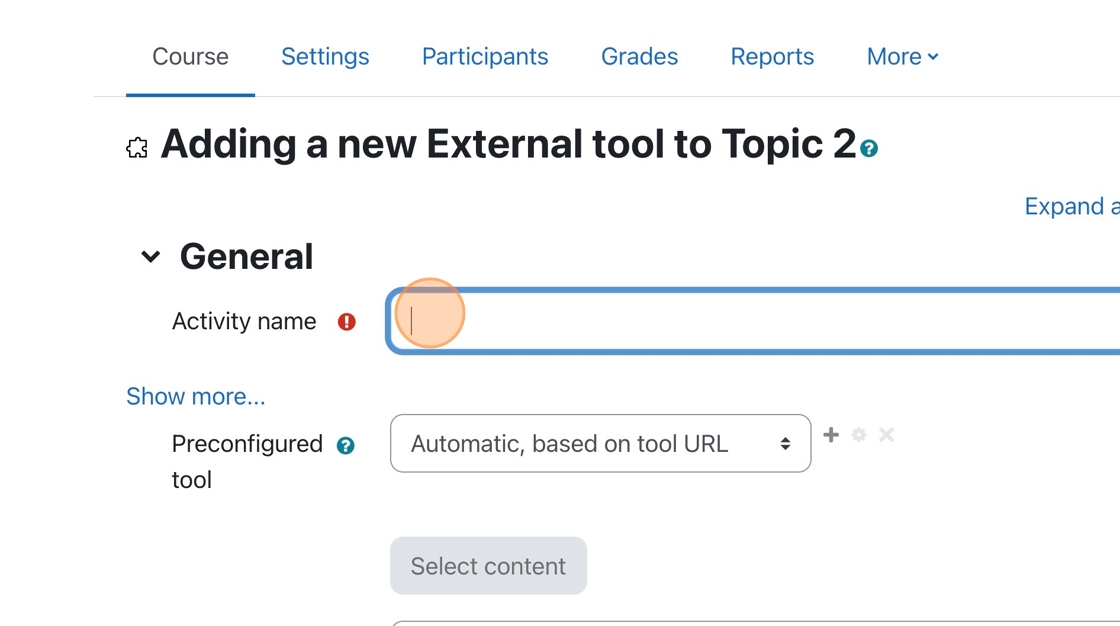
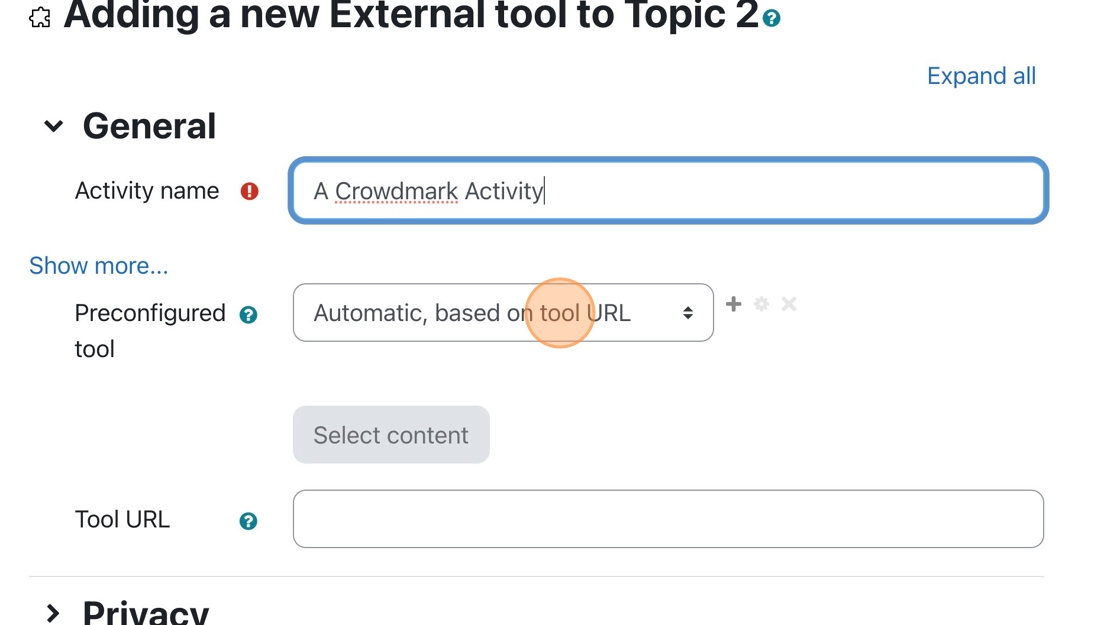
4. Click the “Activity name” field, and enter a name for the activity.

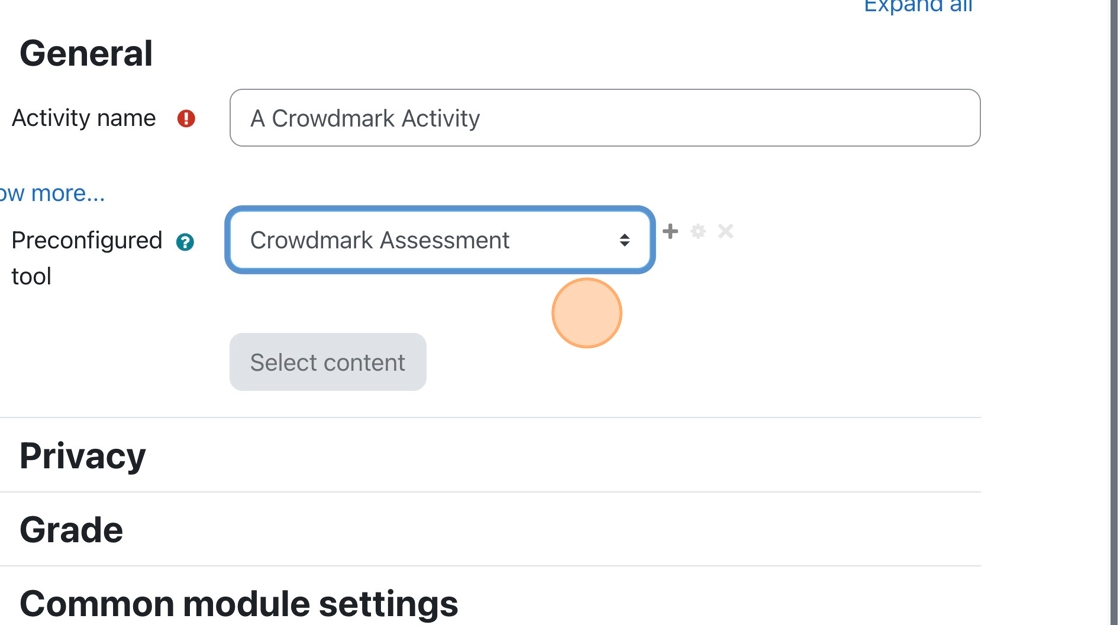
5. Click the Preconfigured tool dropdown menu.

6. Choose Crowdmark Assessment from the menu.

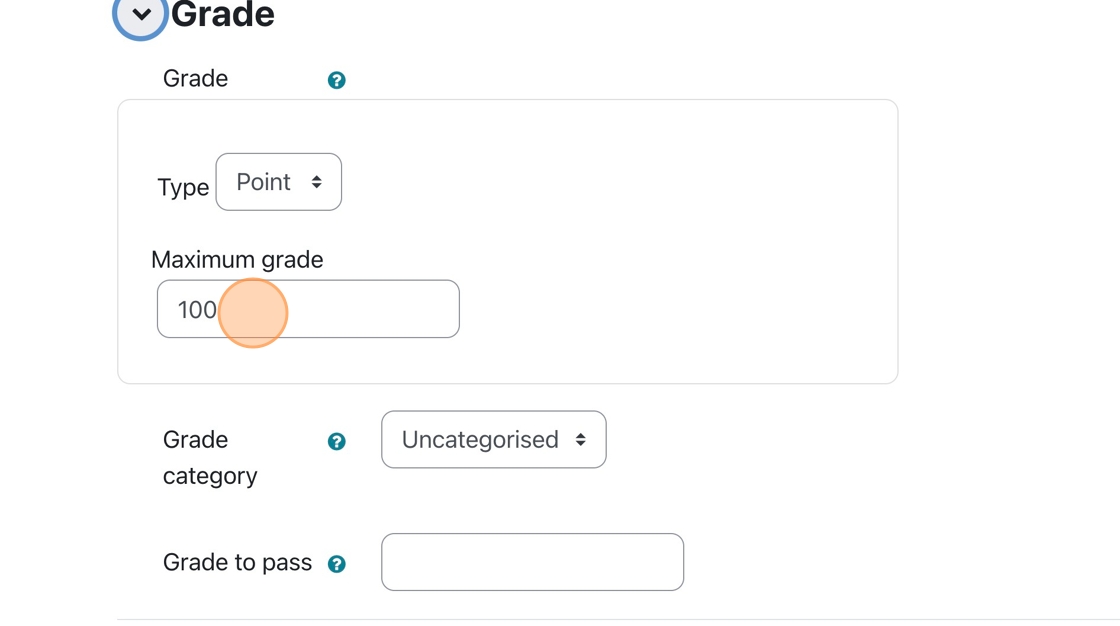
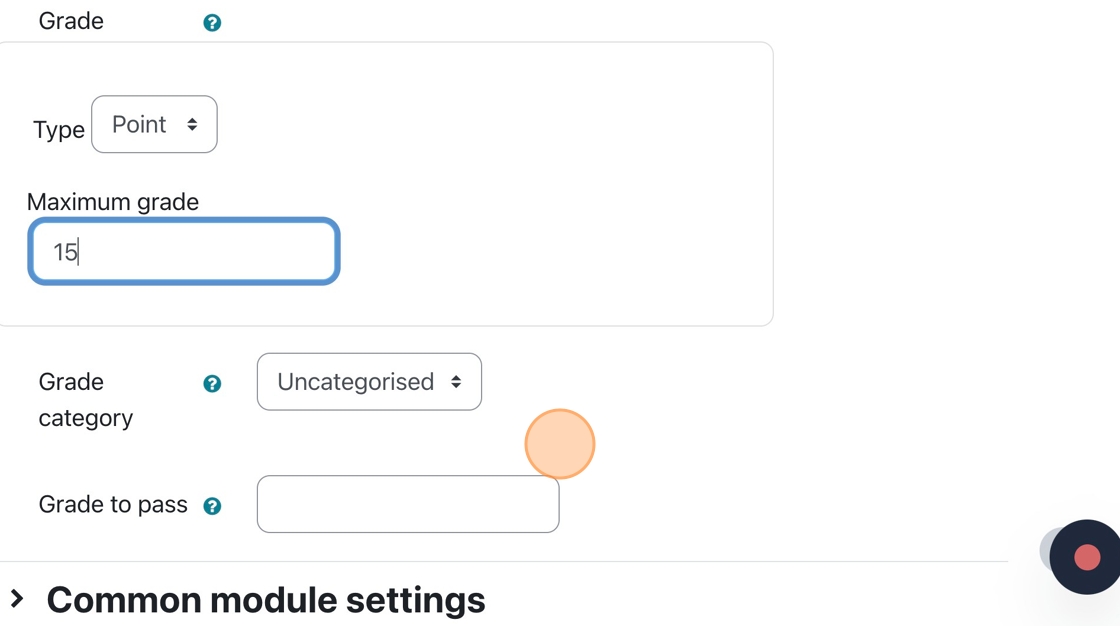
7. Click “Grade,” then modify the Maximum Grade so it is equivalent to the grade that will come from Crowdmark.

8. If you grade a Crowdmark assessment out of 15 but forget to change the maximum grade to 15 in Moodle, you must do so before syncing all the grades to Moodle. You may run into errors when syncing your grades if you do not.

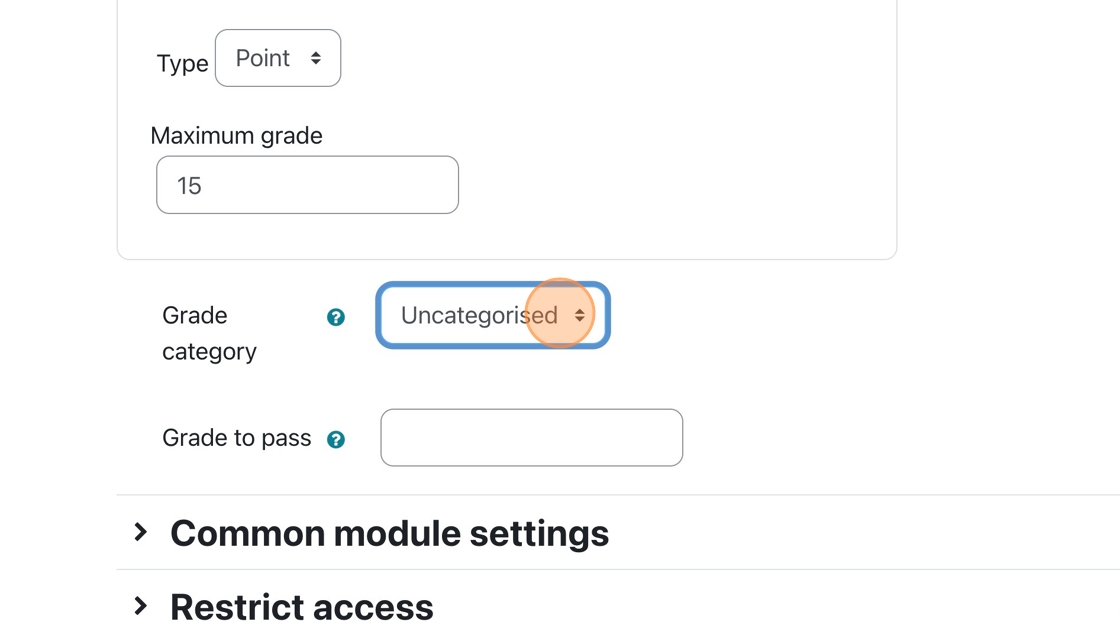
9. If you have different categories in Moodle’s grade area, you can choose the category to which the assessment belongs.

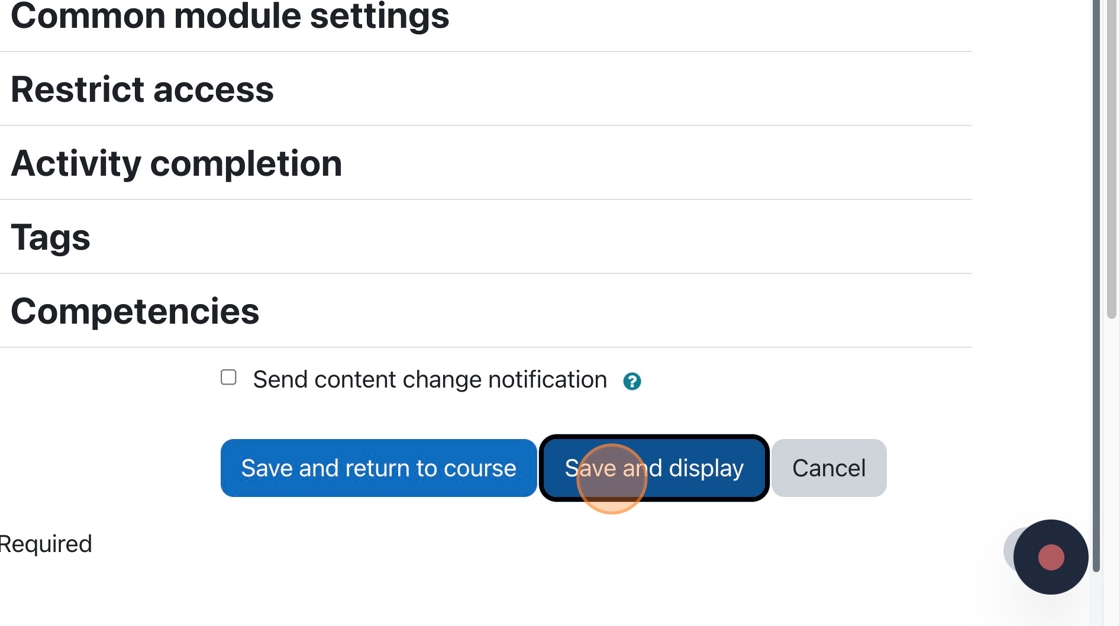
10. You are all finished the Moodle portion of the Crowdmark assessment setup

Tip: This tutorial set up the connection between Crowdmark and Moodle. You will still need to add questions to the assessment. This can be done when you click the Crowdmark assessment on the main course page.

A new Crowdmark window opens up. You can add questions and set the distribution factors in that window.

Creating a Rubric for an assignment

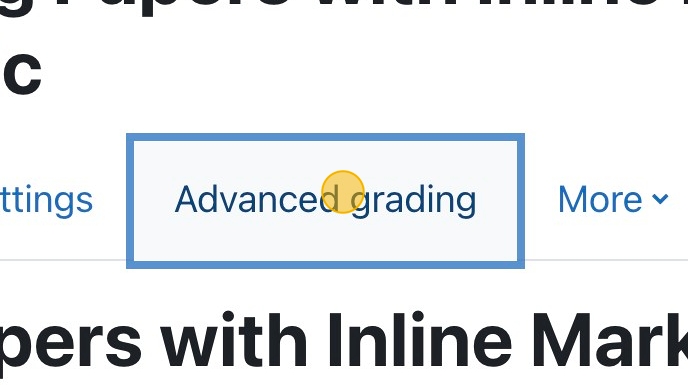
1. If you have already set the assignment settings, then click “Advanced grading.”

(more…)

Configure Assignment to only accept PDFs for Annotated Feedback

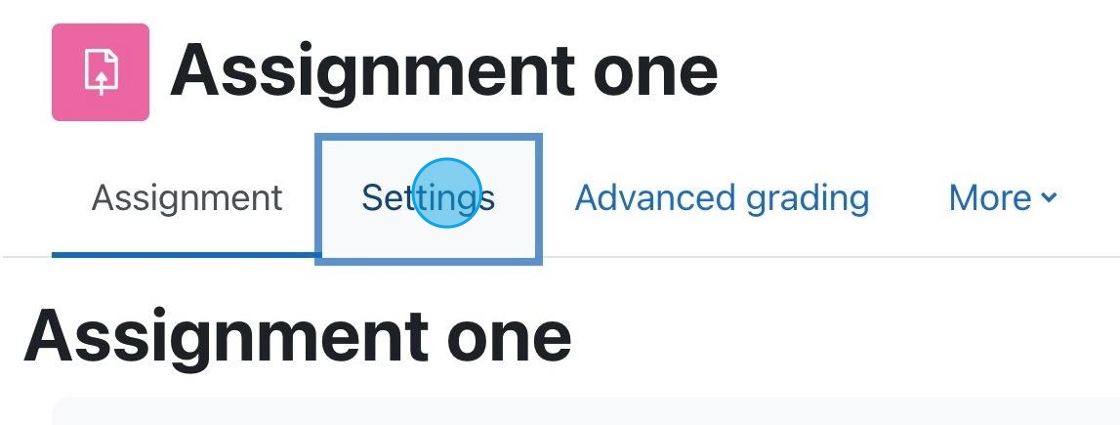
1. If you have an assignment for which you want to accept PDF submissions, click “Settings.”

(more…)