Instructor Featured

Scheduling Recurring Class Sessions in Moodle with Zoom

If you teach regular, weekly lectures throughout the semester, you can schedule a recurring Zoom meeting series directly inside your Moodle course. This creates a predictable schedule and avoids the need to build individual activities or links for each week.

If you haven’t added Zoom meeting as an activity or resource yet, do so now. See how to add Zoom meetings tutorial. Once added, continue with the instructions below for Recurring Class Session Step by Step Instructions

Recurring Class Sessions – Step-by-Step Instructions:

1. Open your course page and click on your Zoom Online Lectures activity link.

2. Inside the dashboard, click Schedule a New Meeting (or click on an existing meeting title and select Edit).

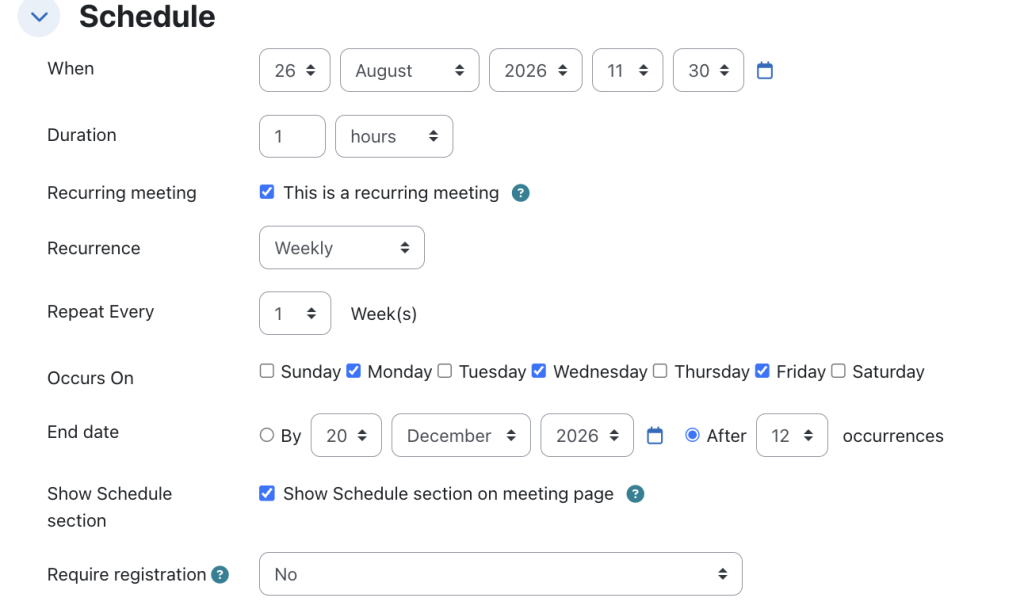
3. Scroll down below the time settings and check the checkbox next to Recurring meeting.

4. Configure the recurrence parameters:

  • Recurrence: From the dropdown menu, select Weekly (this is the most common setting for academic schedules).
  • Repeat every: Set to 1 week.
  • Occurs on: Check the specific days of the week your class meets (e.g., Tuesday and Thursday).
  • End Date: Select the date of your final class session of the semester. Moodle and Zoom will automatically calculate the total number of occurrences based on this date.
5. Check your security preferences and click Save.

The entire recurring series will now appear under the Upcoming Meetings tab for both you and your students, complete with individual dates and start times.
Automating Zoom Cloud Recording Transfers to YuJa

Instructors do not need to download massive Zoom video files to their computers and manually upload them into Moodle or YuJa. By enabling YuJa’s automated Zoom Integration Connector, any lectures recorded to the Zoom Cloud will automatically import, compress, auto-caption, and store securely in your personal YuJa Media Library. Enabling this rather than manually adding Zoom recordings to your Moodle course keeps the size of your course backup lower and less likely to fail when restoring your course to a different offering in a different semester.

Step-by-Step Instructions

1. Log into your University of Lethbridge YuJa account by going directly to https://uleth.yuja.com and using your UofL credentials.

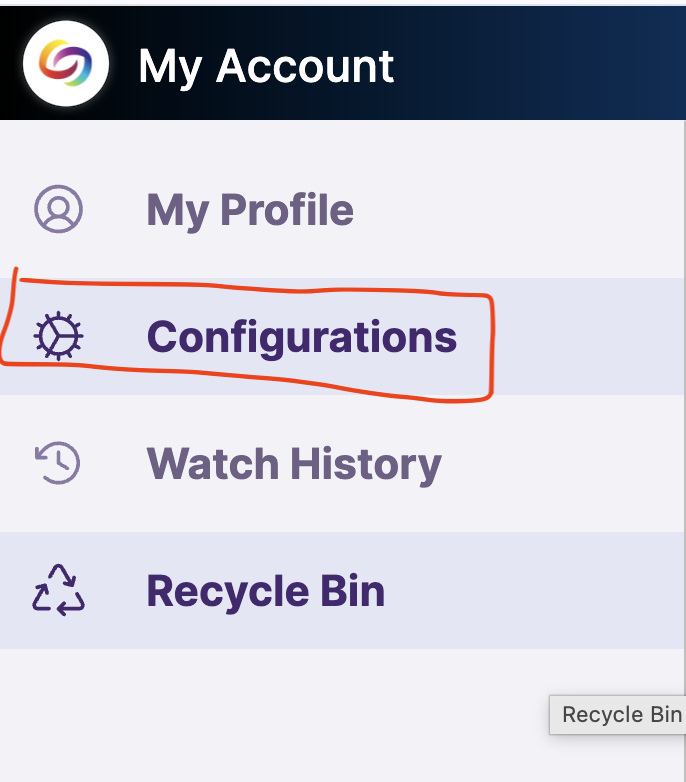
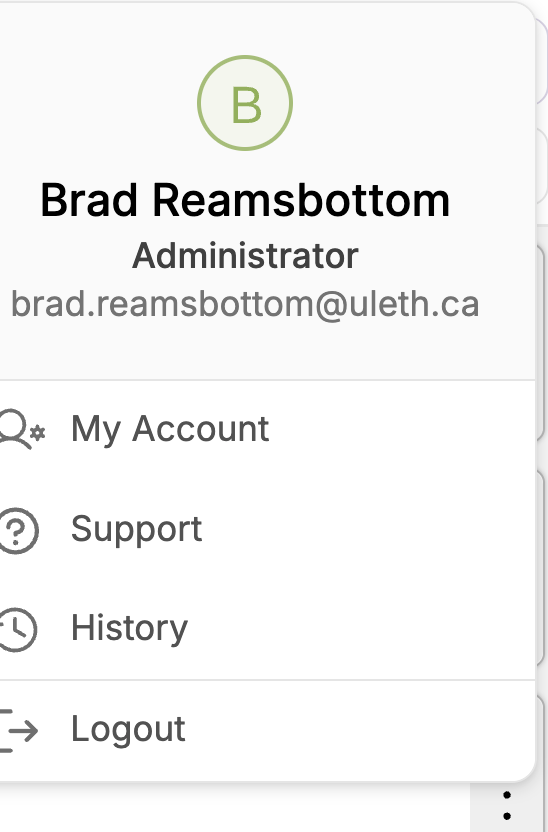
2. Once logged in, click on your Profile icon (Avatar) in the top-right corner of the page and select the My Account option.

3. Along the left-hand navigation sidebar, click on the Configurations icon

Note: If you do not see the Configurations icon, please contact the Teaching Centre at teachingsupport@uleth.ca so a support staff member can activate this permission on your account.

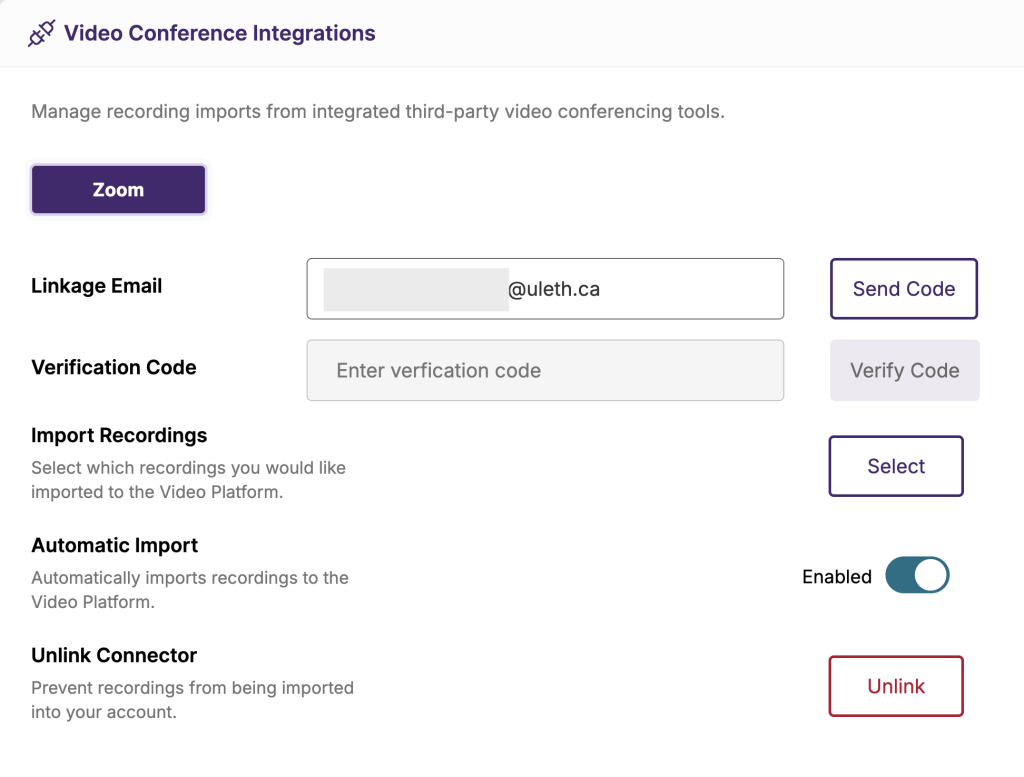
4. On the Integrations screen, locate the Video Conference Configurations section. Confirm that your UofL email address is correctly pre-populated in the Linkage Email field.

5. Click on the Send Verification Code button. This will send an automated, secure verification code directly to your University email address.

6. Open your university inbox, copy the unique Zoom verification code, return to YuJa, and paste it into the Verification Code field.

CRITICAL STEP

7. Before saving, locate the Automatic Import checkbox/toggle and ensure it is enabled. This tells the system to auto-transfer all future cloud recordings.

8. Click the blue Verify and Save button.

Now, all future Zoom recordings will be automatically transferred to your Yuja account and can be reviewed by you and your students when they access your Yuja course videos.

Copying an Exam from One Course Section to Another

(more…)

Transferring your Course Content

If you have a course previously taught in Moodle it is very easy to get your content moved over into a future/current semester. You are not required to create your online course component from scratch every semester, we can move your pervious course over to edit and revise as needed.

You will notice that when you login to the Moodle dashboard that you have access to the last semester from the drop down list available in the dashboard.

(more…) No Fields Found.

Emailing your Class in Moodle

Moodle currently does not have an internal email function associated with your course. 

To send an email to your entire class, you will have to use your University of Lethbridge email account.

(more…)

Scheduling an Exam in the Testing Centre (INSTRUCTORS ONLY)

To schedule an exam in the Testing Centre, you will need to have the following information:

  • The requested dates for running your exam. We require all exams to run for a minimum of 3 business days. The scheduling works on a first come, first serve basis, so please get your exam dates to us as early as possible to get the dates you want.
  • The number of students in your class.
  • Your course name, number, and section.
  • If your exam contains any media clips.
    (more…)