If you teach regular, weekly lectures throughout the semester, you can schedule a recurring Zoom meeting series directly inside your Moodle course. This creates a predictable schedule and avoids the need to build individual activities or links for each week.
If you haven’t added Zoom meeting as an activity or resource yet, do so now. See how to add Zoom meetings tutorial. Once added, continue with the instructions below for Recurring Class Session Step by Step Instructions
Recurring Class Sessions – Step-by-Step Instructions:
1. Open your course page and click on your Zoom Online Lectures activity link.
2. Inside the dashboard, click Schedule a New Meeting (or click on an existing meeting title and select Edit).
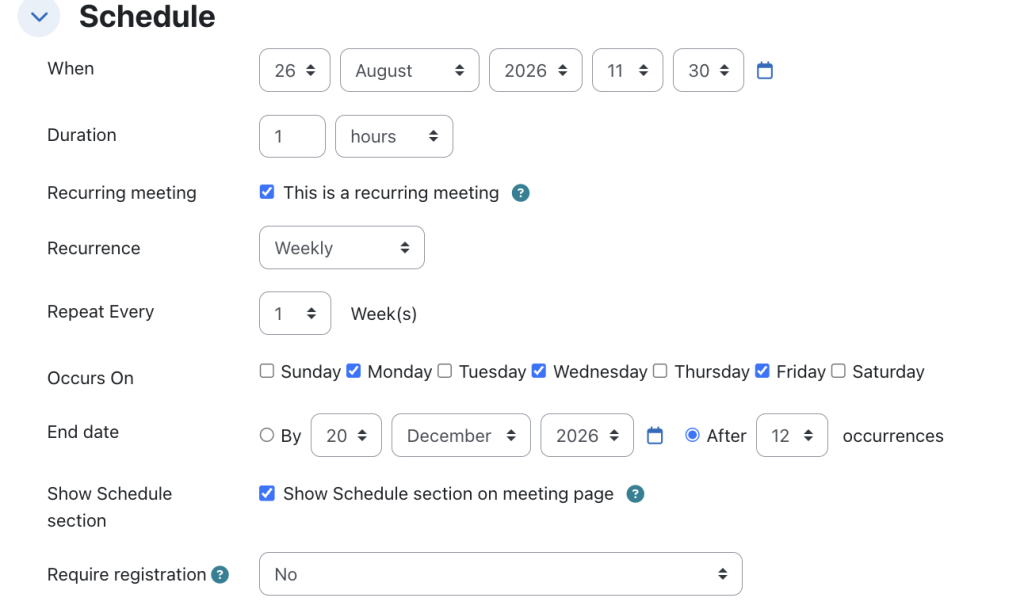
3. Scroll down below the time settings and check the checkbox next to Recurring meeting.
4. Configure the recurrence parameters:
- Recurrence: From the dropdown menu, select Weekly (this is the most common setting for academic schedules).
- Repeat every: Set to 1 week.
- Occurs on: Check the specific days of the week your class meets (e.g., Tuesday and Thursday).
- End Date: Select the date of your final class session of the semester. Moodle and Zoom will automatically calculate the total number of occurrences based on this date.
5. Check your security preferences and click Save.
The entire recurring series will now appear under the Upcoming Meetings tab for both you and your students, complete with individual dates and start times.