assignments

Administered or Assigned Assessments

 There are two types of assessments available in Crowdmark. Administered and Assigned. 

There are two types of assessments available in Crowdmark. Administered and Assigned. You will want to choose an Assigned assessment. The link below describes the difference between the two.

https://crowdmark.com/help/choosing-an-assessment-type/ (more…)
Importing Team Members from Moodle to Crowdmark

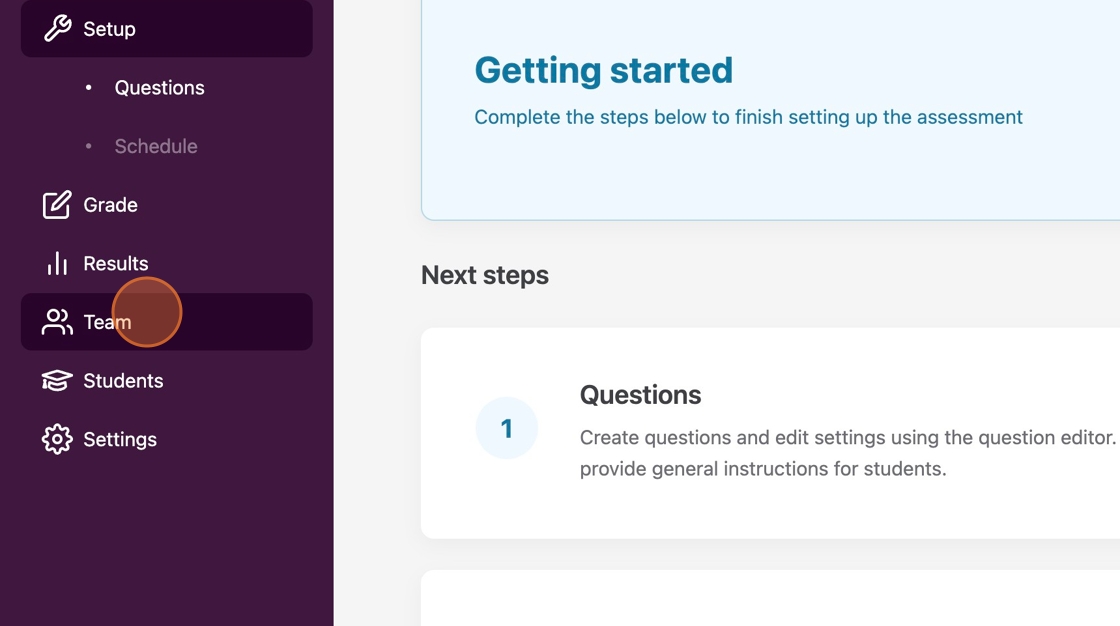
1. To add members such as graders or facilitators to your Crowdmark Team, Click “Team.”

(more…)

Create text answer questions in Crowdmark for exams

1. Once you add questions to your assessment, note that you can have students complete a text entry assessment.

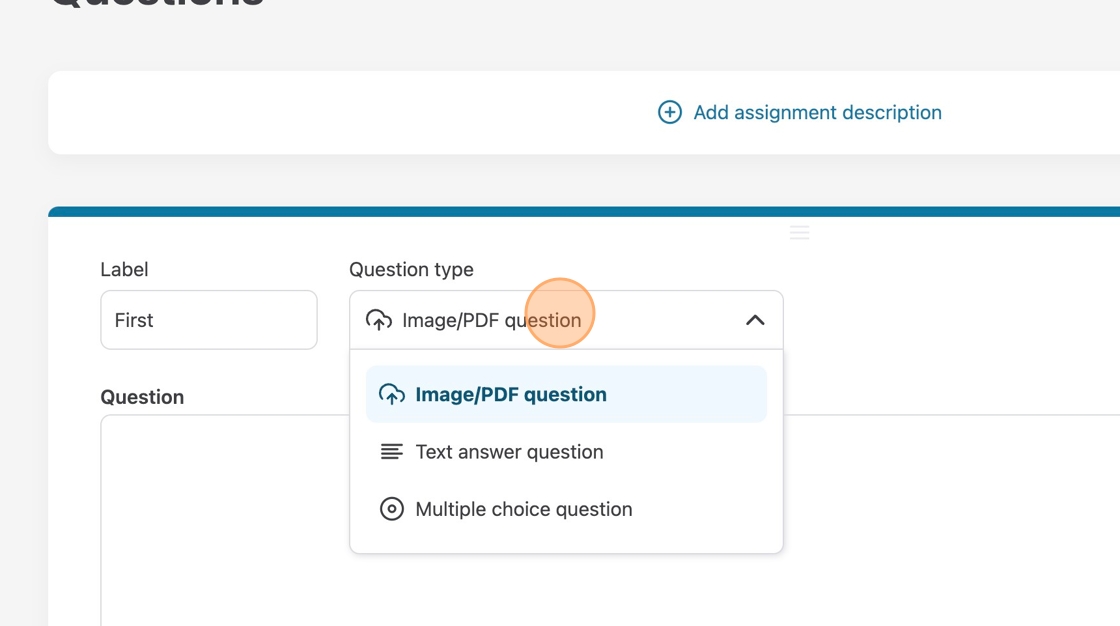
2. Choose “Text answer question” from the drop-down menu to switch to a text answer question.

(more…)

Creating Multiple-choice Questions in Moodle with Crowdmark

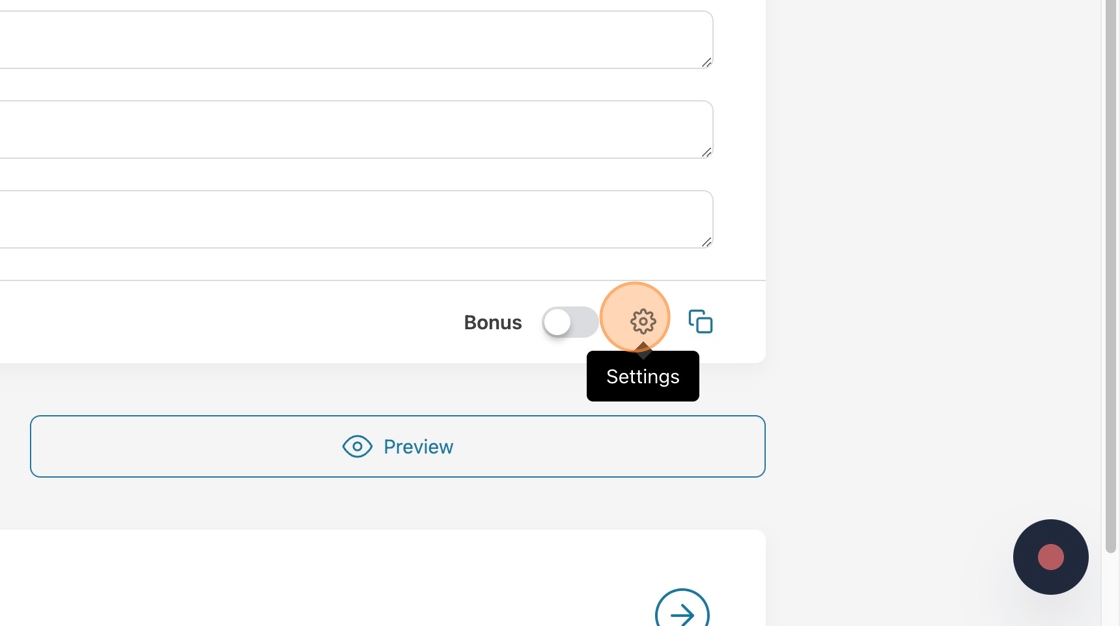
1. Crowdmark allows you to choose extra settings for your multiple-choice questions. Click “Settings.”

(more…)

Making Image/PDF Questions in Crowdmark

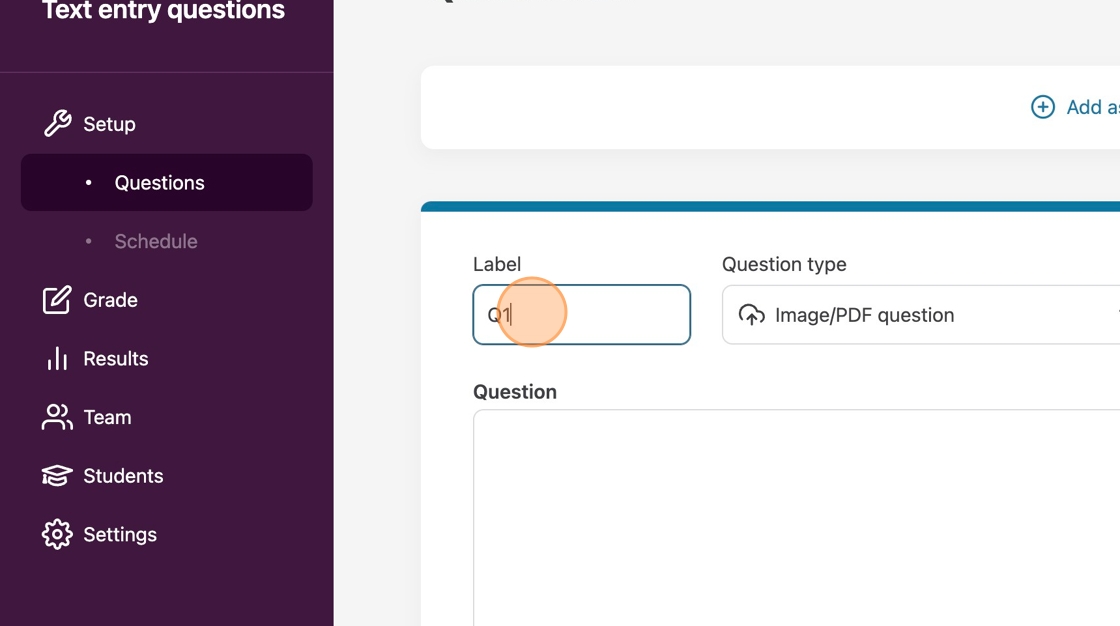
1. Click “add a question” and enter a label for the question if you wish for something different than the default.

2. Choose “Image/PDF question” from the question type drop-down menu.

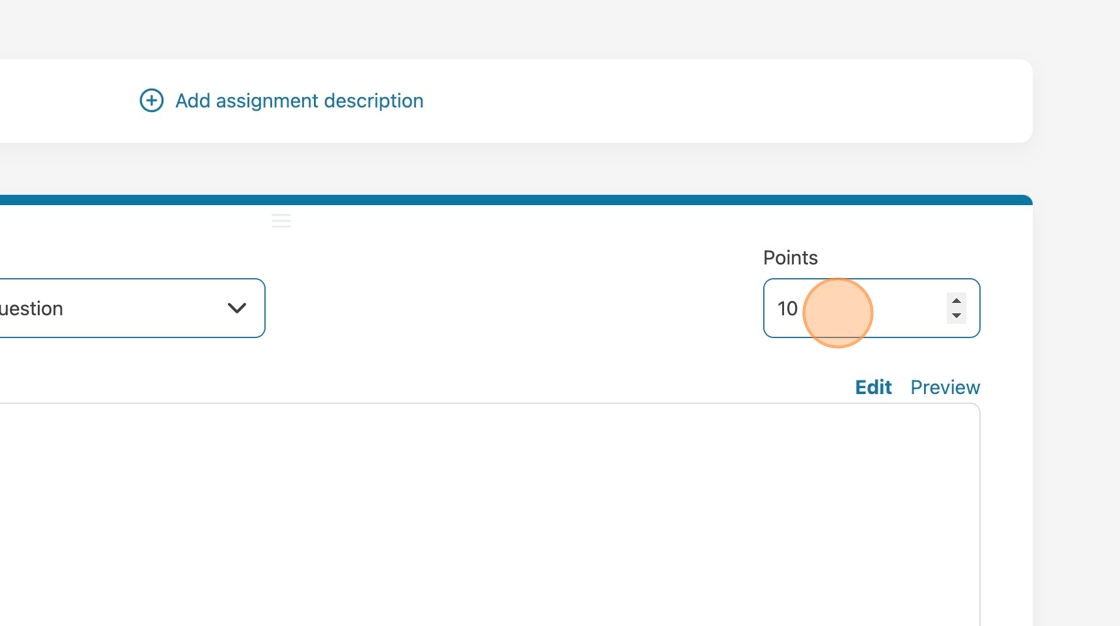
3. Choose how many points your question will be worth.

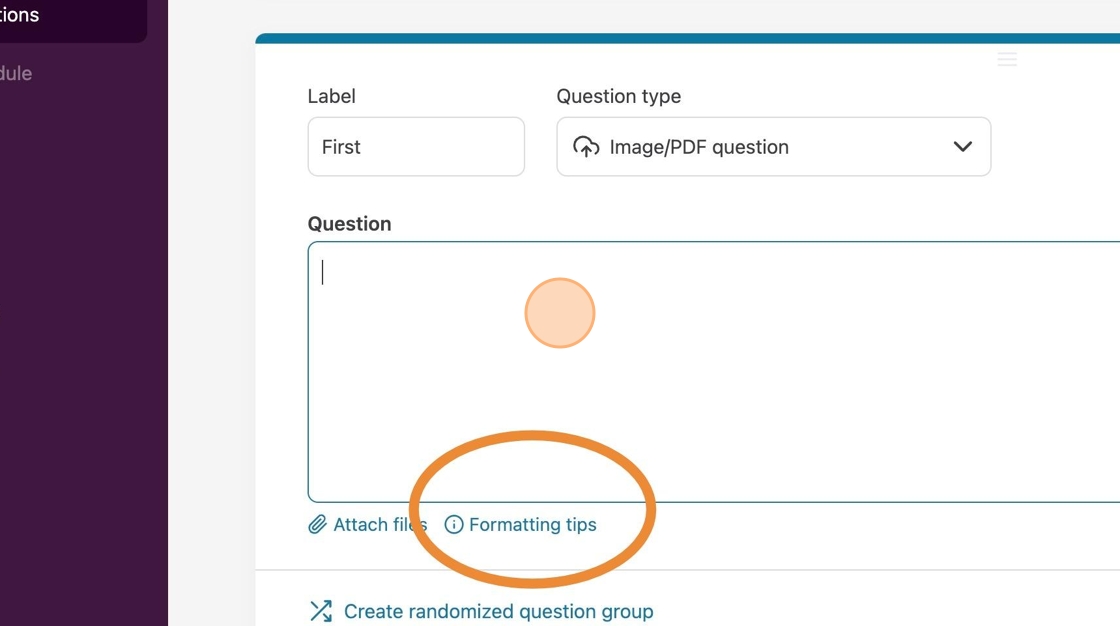
4. Click in the question field and enter your question or prompt. You can attach files, link websites, and use other formatting options. Click on the formatting tips below the Question field.

Grading with a Rubric

1. Now that the rubric is all setup, we can start grading the submissions.

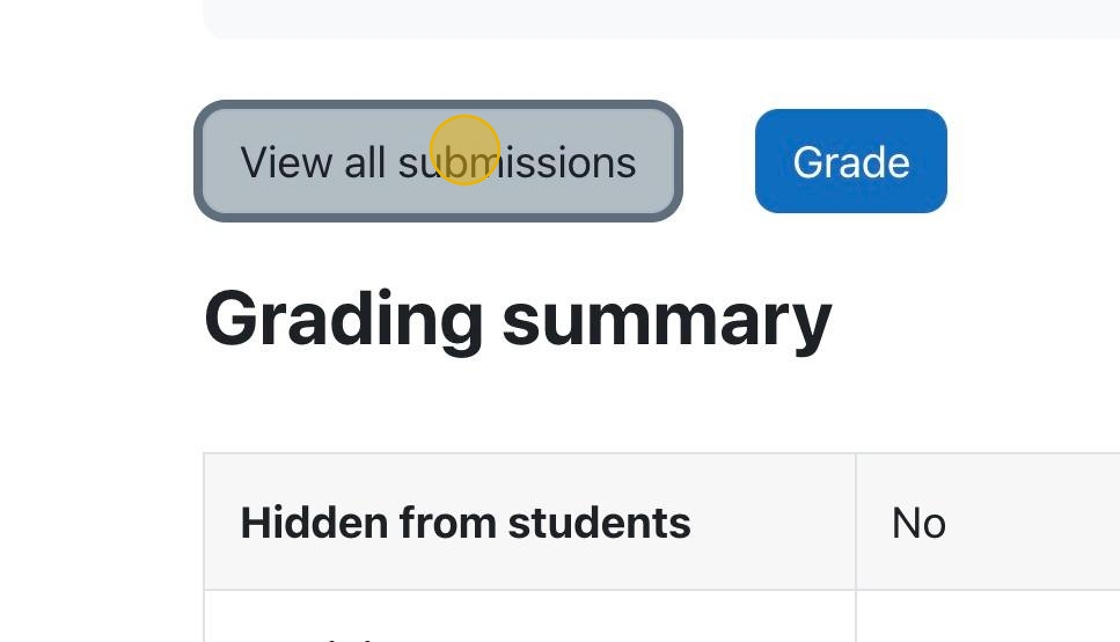
Click “View all submissions” to see all the submissions so you can select specific submissions to grade.

(more…)

Creating a Rubric for an assignment

1. If you have already set the assignment settings, then click “Advanced grading.”

(more…)

Assignment settings to use a Rubric

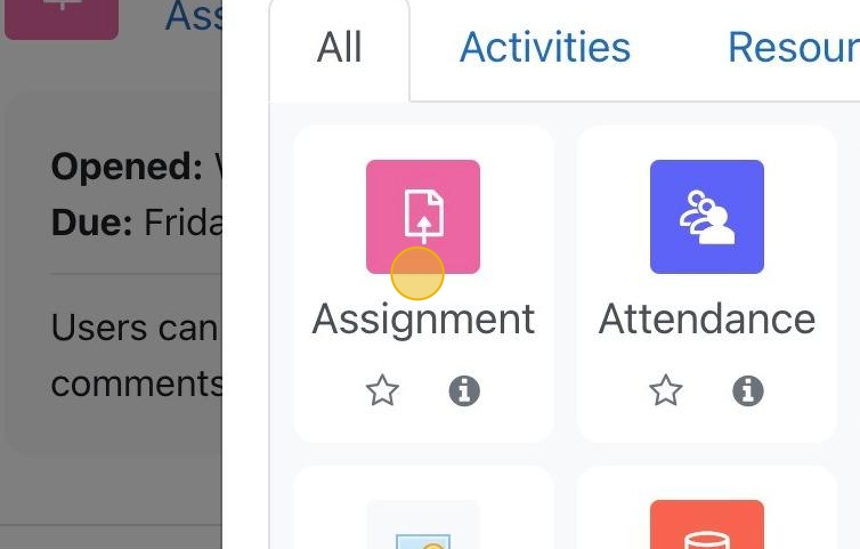
1. Click on an assignment to be taken to the assignment page. Alternatively, you can add a new activity or resource and choose “Assignment.”

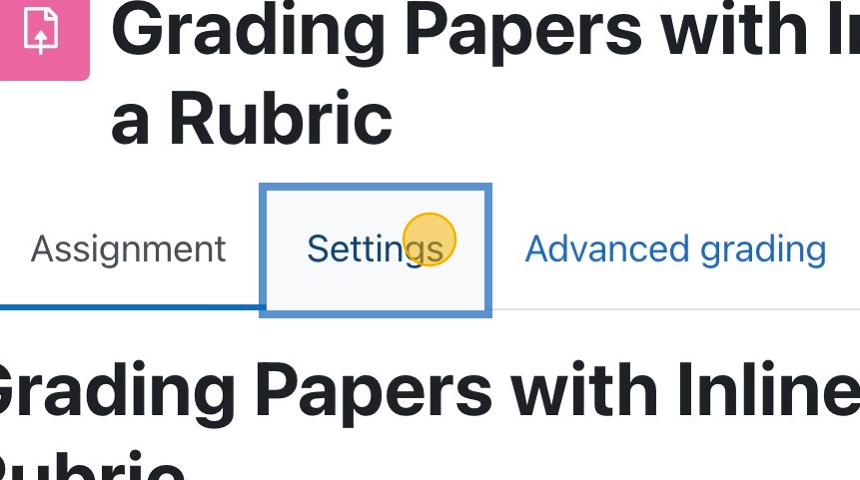
2. Click “Settings” to see ALL the assignment settings.

(more…)

Providing Feedback Files When Grading Moodle Assignments.

1. Navigate to the assignment you are grading.

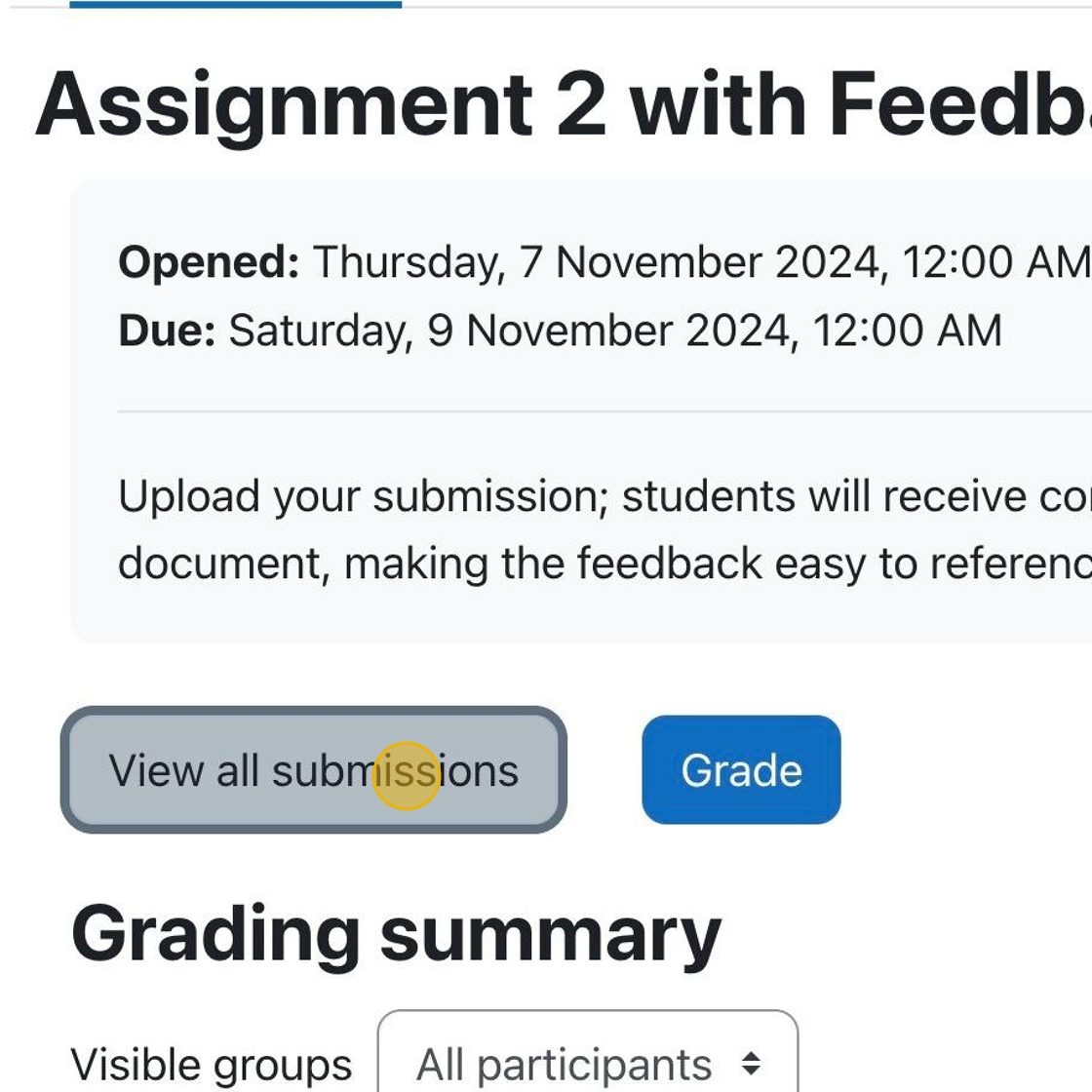
Click “View all submissions.”

(more…)