Instructors can embed YuJa media anywhere in Moodle that uses the rich text editor (such as Labels, Pages, or Forum posts) by utilizing the YuJa Media Chooser integration
Step-by-Step Setup:
- Navigate to your Moodle course and ensure Edit mode is turned on.
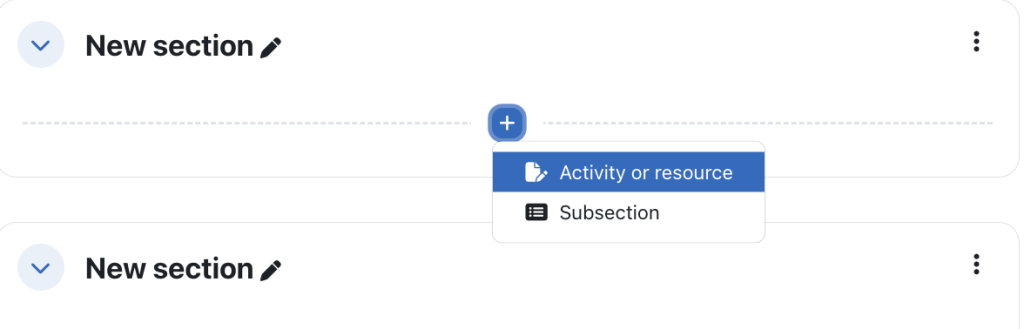
- Once you have chosen to add an activity or resource, select the Text and Media area from the Resources tab.
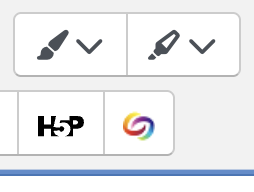
- In the Text and Media area, choose the YuJa Media Chooser icon from the toolbar.
- Browse or search your media library, and click to select one or more videos.
- Tip: To create an organized playlist, check the Embed As Dynamic Playlist option before selecting multiple videos OR Click the Insert Content button to embed the video(s) directly into your text area.
The Media Chooser window will launch. Select the Choose Media tab.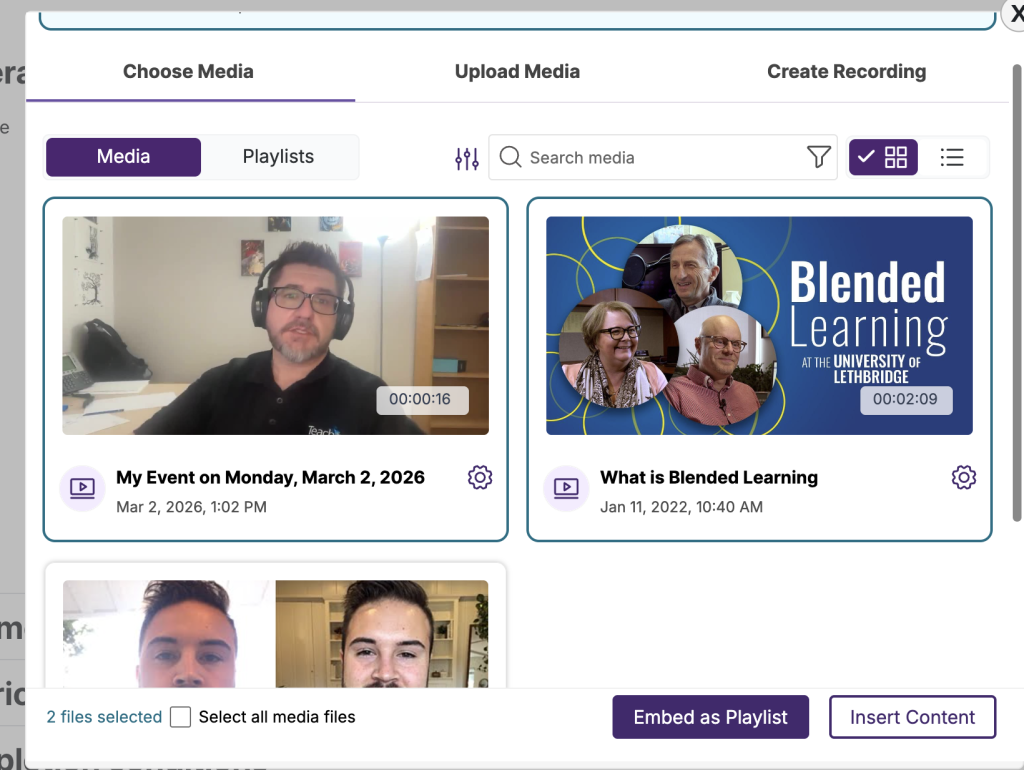
- Tip: To create an organized playlist, check the Embed As Dynamic Playlist option before selecting multiple videos OR Click the Insert Content button to embed the video(s) directly into your text area.
- Add any additional text or description to the editor, then click Save and return to course to deploy the content.