In the latest Turnitin LTI 1.3 update, the traditional “Match Overview” has been replaced by a more sophisticated system called Match Groups. Instead of just showing you a list of sources, Turnitin now automatically categorizes matching text based on how the student has used citations and quotation marks.
This allows you to quickly distinguish between accidental plagiarism, poor paraphrasing, and correctly cited work.
Understanding the 4 Match Groups
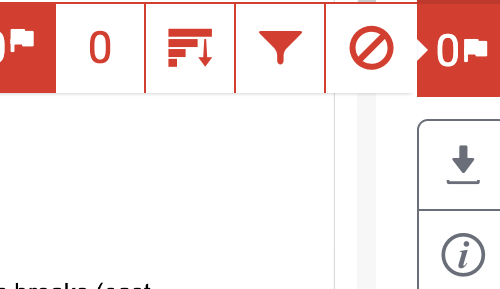
When you open the Similarity Report in the Next-Gen Feedback Studio, the right-hand panel (red icon) will display the Match Groups tab. The overall similarity score is now broken down into four distinct categories:
- Not Cited or Quoted (Red): The most critical group. This highlights text that matches a source but has no citation and no quotation marks. These are high-priority areas to review for potential plagiarism.
- Missing Quotation (Orange): Text that has an in-text citation but is not enclosed in quotation marks. This often indicates a student who has copied verbatim but forgot the quotes, or who has paraphrased too closely to the original.
- Missing Citation (Yellow): Text that is enclosed in quotation marks but lacks an in-text citation. This is usually a formatting error where the student attributed the words but forgot the source reference.
- Cited and Quoted (Blue): The “Safe” group. This highlights text that is correctly enclosed in quotes and has a corresponding citation.
Refining the Similarity Score
The most powerful feature of Match Groups is the ability to “clean up” the similarity score to see the true area of concern.
How to refine the report:
- In the Match Groups panel, you will see a percentage next to each of the four categories.
- Click the Eye Icon (Hide/Show) next to the Cited and Quoted group.
- The overall similarity percentage at the top of the screen will instantly recalculate, excluding the correctly cited material.
Tip: By hiding the “Cited and Quoted” and “Bibliography” groups, the remaining percentage reflects only the problematic areas (Not Cited or Missing Quotes), giving you a much more accurate “integrity score” at a glance.
Navigating Source Cards
Clicking on any of the Match Groups will open a list of Source Cards related to that specific category.
- Ranked List: Sources are ranked by the amount of matching text within that specific group.
- Navigation Arrows: Use the
<and>arrows on a source card to jump directly to each instance of that match within the student's paper. - Match Details: Each card tells you the total word count and the percentage of the paper that matches that specific source.
Match Groups vs. The "Sources" Tab
While Match Groups is the best tool for checking integrity and finding teachable moments, you can still access the traditional view:
- The Sources Tab: Located next to the Match Groups tab at the top of the sidebar.
- What it does: It provides a simple, descending list of every source found in the paper, regardless of how it was cited. Use this if you want to see if a student has over-relied on a single source (e.g., if one source accounts for 40% of the entire paper).