- Navigate to your Moodle course and click on the Turnitin Assignment.
- In the Assignment Inbox, look for the Download button located in the top right corner of the submission list.
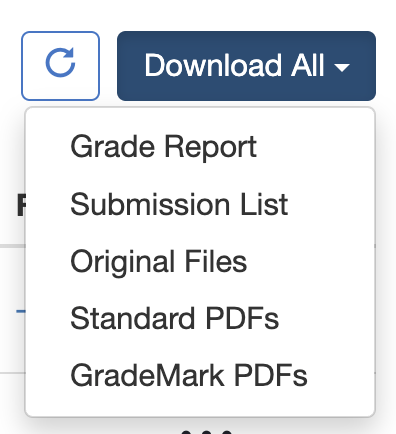
Choosing the Right Export Type
Turnitin offers five distinct ways to download your class data.
- Grade Report: Download an XLSX file, so you can keep track of grades in your own way.
- Submission List: A CSV file that contains the student names and whether or not they submitted
- Original Files: Creates a ZIP file of all submissions in their original format, and appends the student’s name to the associated file included in the ZIP.
- Standard PDF’s: Takes the original submission and converts it to standard PDF files, appends the student’s name and compresses all PDFs in a ZIP file.
- Grademark PDFs: Creates PDF files from the original submissions, adds the Grademark report to the PDF, and compresses all the files in a ZIP file for download.
The Download Process
When you initiate a bulk download (especially for “All Reports and Files” or large classes), Turnitin processes the request in the background.
- Compression: You will see a notification stating that your files are being compressed into a ZIP file.
- Stay on the Page: For LTI 1.3, it is best to keep the browser tab open while the “Preparing Download” message is visible; however, the message also says you can close the window. But “best results” suggest keeping the window open.
- The Zip File: Once ready, the ZIP file will automatically download to your computer’s “Downloads” folder.
- Note: For large classes (500 students), Turnitin may split the download into multiple ZIP files.