February 10, 2026

Troubleshooting Grade Sync Issues

Grades are passed from Turnitin to the Moodle Gradebook via a secure “handshake.” While this is generally more reliable than older versions, you may occasionally find that a grade appears in the Turnitin Inbox but is missing from your Moodle Gradebook. Below are the most common causes and the steps you can take to fix them.

1. The “Self-Fix”: Resend Grades to LMS

If a specific grade (or the whole class) is missing from Moodle, your first step should be to manually trigger a sync. This “pokes” Moodle to look for new data from Turnitin.

  • Enter the Turnitin Assignment Inbox in Moodle.
  • Look for the Sync Roster icon (circular arrows) or the Resend Grades to LMS button in the top right header.

  • Click the button and wait for the “Success” notification.
  • Check your Moodle Gradebook to see if the marks have appeared.

2. Max Grade Conflict

A sync failure occurs when the maximum possible points in Turnitin and Moodle are different values.

If Turnitin has a “Max Grade” of 100 but the Moodle Activity is set a Max Grade of 0, the sync will fail.

Go to Edit Settings for the assignment in Moodle. Check the Grade section. Ensure the “Type” is set to “Point” and the “Maximum grade” matches the value you set in the Turnitin settings.

Be sure to “Save” and then Resync.

3. Anonymous Marking & The Release Date

If your assignment has Anonymous Marking enabled, grades are intentionally blocked from syncing to Moodle to protect student identities during the grading process.

Grades will not sync with Moodle until the Feedback Release Date passes. If you need the grades in Moodle sooner, you must set the Feedback Release Date in Turnitin to a time in the past. This will force all student names to be revealed and push all grades to Moodle.

4. The “Refresh Roster” Trick

Sometimes a student is enrolled in Moodle but hasn’t been “seen” by Turnitin yet, which prevents their grade from being assigned a value.

  1. In the Turnitin Inbox, click the Refresh Roster icon (usually next to the Sync button).
  2. This forces Turnitin to check the Moodle participant list.
  3. Once the student’s name appears correctly in the Turnitin list, their grade should sync within a few minutes.
Bulk Downloads via Turnitin assignments

  1. Navigate to your Moodle course and click on the Turnitin Assignment.
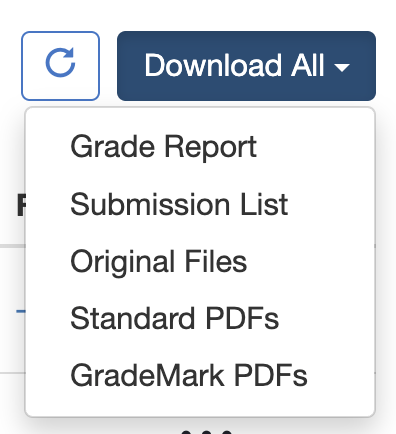
  2. In the Assignment Inbox, look for the Download button located in the top right corner of the submission list.

Choosing the Right Export Type

Turnitin offers five distinct ways to download your class data.

  • Grade Report: Download an XLSX file, so you can keep track of grades in your own way.
  • Submission List: A CSV file that contains the student names and whether or not they submitted
  • Original Files: Creates a ZIP file of all submissions in their original format, and appends the student’s name to the associated file included in the ZIP.
  • Standard PDF’s: Takes the original submission and converts it to standard PDF files, appends the student’s name and compresses all PDFs in a ZIP file.
  • Grademark PDFs: Creates PDF files from the original submissions, adds the Grademark report to the PDF, and compresses all the files in a ZIP file for download.

The Download Process

When you initiate a bulk download (especially for “All Reports and Files” or large classes), Turnitin processes the request in the background.

  1. Compression: You will see a notification stating that your files are being compressed into a ZIP file.
  2. Stay on the Page: For LTI 1.3, it is best to keep the browser tab open while the “Preparing Download” message is visible; however, the message also says you can close the window. But “best results” suggest keeping the window open.
  3. The Zip File: Once ready, the ZIP file will automatically download to your computer’s “Downloads” folder.
    • Note: For large classes (500 students), Turnitin may split the download into multiple ZIP files.

Enabling Anonymous Marking

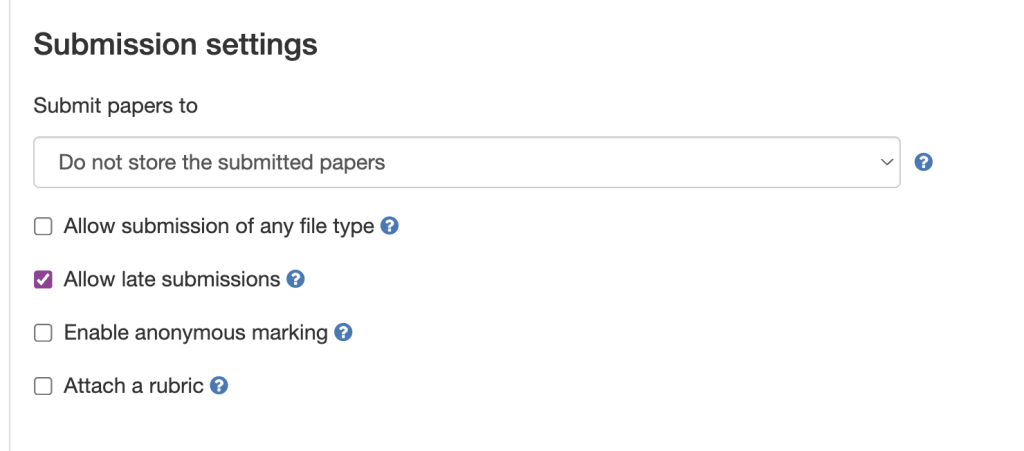
To use anonymous marking, you must enable it before any student submits. Once a single paper is submitted, this setting is locked and cannot be turned on for that assignment.

  1. Create a Turnitin activity in Moodle.
  2. Click Save and Display to launch the Turnitin window.
  3. Go to Settings (gear icon) > Optional Settings.

Check Enable anonymous marking

  1. Check the “Enable Anonymous Marking” box.
  2. Click Submit.

Grading Anonymously

In your Assignment Inbox, student names will be replaced by a placeholder like “Anonymous User” or “Student 1.” * Feedback Studio View: When you open a paper to grade, the name at the top left will also show as “Anonymous.”

  • Similarity Report: The report will function normally, but the author’s identity will remain hidden within the match details.

Video

Anonymous marking in Turnitin
This video provides a walkthrough of managing submissions and identifying matches in the Feedback Studio interface, the environment where you will be grading during an anonymous session.

Grade Syncing and the Feedback Release Date

The most important administrative rule for anonymous marking is how it handles the Moodle Gradebook.

The “Hidden” Grade: In an anonymous assignment, grades will not sync to the Moodle Gradebook while anonymity is active.

All student names and their corresponding grades are revealed and pushed to the Moodle Gradebook the moment the Feedback Release Date passes.

  • Manual Reveal: If you need the grades in Moodle before the scheduled release date, you must change the Feedback Release Date to a time in the past or use the “Reveal all identities” toggle in the settings.

Missing Names After Release Date

If the Feedback Release Date has passed but names are still showing as “Anonymous” in Moodle, click the Refresh Roster icon in the Turnitin Inbox.

Using Match Groups & Match Overviews in Turnitin

In the latest Turnitin LTI 1.3 update, the traditional “Match Overview” has been replaced by a more sophisticated system called Match Groups. Instead of just showing you a list of sources, Turnitin now automatically categorizes matching text based on how the student has used citations and quotation marks.

This allows you to quickly distinguish between accidental plagiarism, poor paraphrasing, and correctly cited work.

Understanding the 4 Match Groups

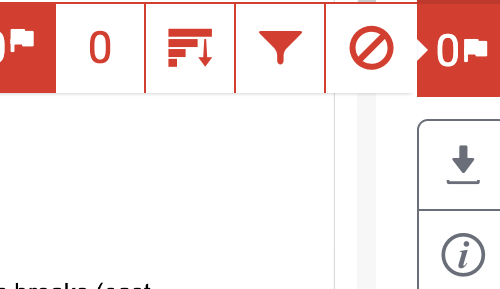
When you open the Similarity Report in the Next-Gen Feedback Studio, the right-hand panel (red icon) will display the Match Groups tab. The overall similarity score is now broken down into four distinct categories:

  1. Not Cited or Quoted (Red): The most critical group. This highlights text that matches a source but has no citation and no quotation marks. These are high-priority areas to review for potential plagiarism.
  2. Missing Quotation (Orange): Text that has an in-text citation but is not enclosed in quotation marks. This often indicates a student who has copied verbatim but forgot the quotes, or who has paraphrased too closely to the original.
  3. Missing Citation (Yellow): Text that is enclosed in quotation marks but lacks an in-text citation. This is usually a formatting error where the student attributed the words but forgot the source reference.
  4. Cited and Quoted (Blue): The “Safe” group. This highlights text that is correctly enclosed in quotes and has a corresponding citation.

Refining the Similarity Score

The most powerful feature of Match Groups is the ability to “clean up” the similarity score to see the true area of concern.

How to refine the report:

  • In the Match Groups panel, you will see a percentage next to each of the four categories.
  • Click the Eye Icon (Hide/Show) next to the Cited and Quoted group.
  • The overall similarity percentage at the top of the screen will instantly recalculate, excluding the correctly cited material.

Tip: By hiding the “Cited and Quoted” and “Bibliography” groups, the remaining percentage reflects only the problematic areas (Not Cited or Missing Quotes), giving you a much more accurate “integrity score” at a glance.

Navigating Source Cards

Clicking on any of the Match Groups will open a list of Source Cards related to that specific category.

  • Ranked List: Sources are ranked by the amount of matching text within that specific group.
  • Navigation Arrows: Use the < and > arrows on a source card to jump directly to each instance of that match within the student's paper.
  • Match Details: Each card tells you the total word count and the percentage of the paper that matches that specific source.

Match Groups vs. The "Sources" Tab

While Match Groups is the best tool for checking integrity and finding teachable moments, you can still access the traditional view:

  • The Sources Tab: Located next to the Match Groups tab at the top of the sidebar.
  • What it does: It provides a simple, descending list of every source found in the paper, regardless of how it was cited. Use this if you want to see if a student has over-relied on a single source (e.g., if one source accounts for 40% of the entire paper).

Uploading on a Student’s Behalf

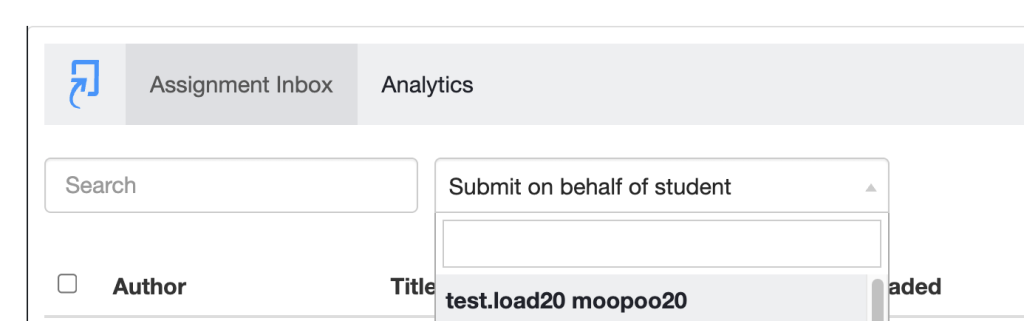
Navigate to your Moodle course and click on the Turnitin Assignment.

In the Assignment Inbox, locate the name of the student you are submitting for.

On the far right of the student’s row, click the Options menu (three dots).

Select Submit File.

Choose a student to upload a file for.

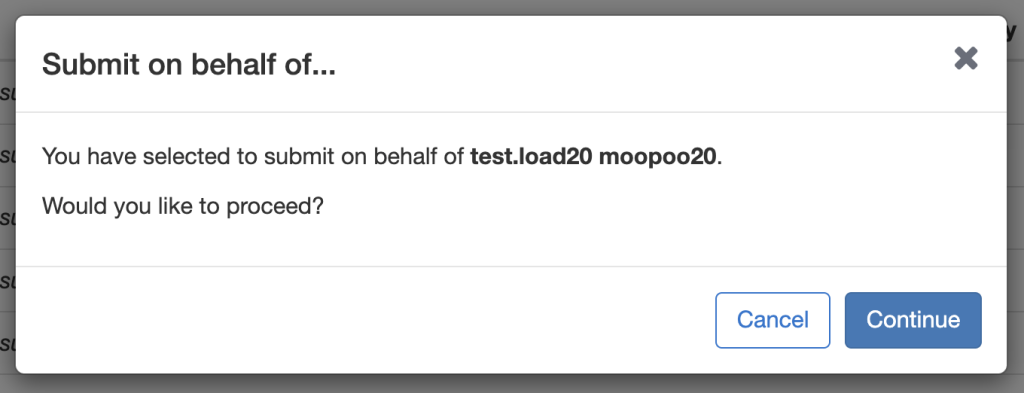
Click Continue to proceed.

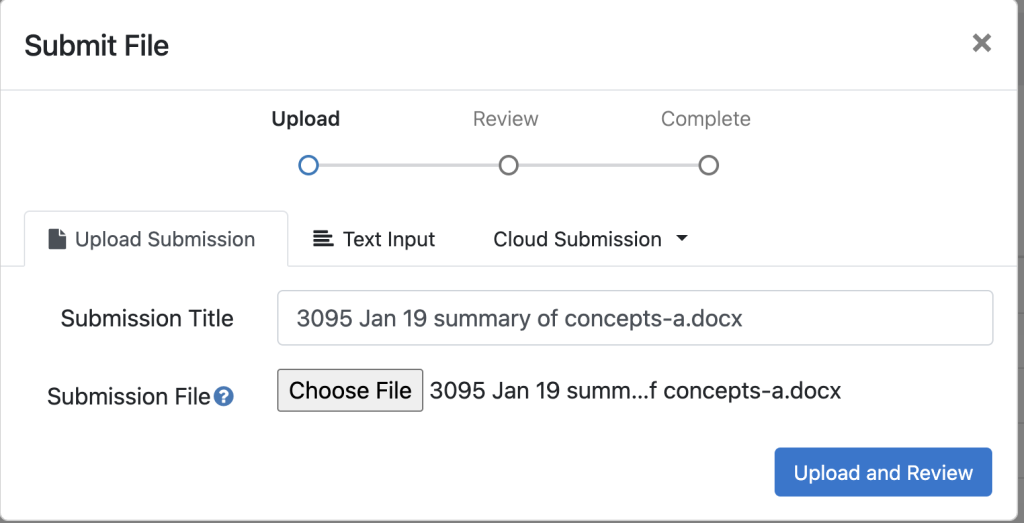
Choose a file to upload, or copy and paste text. Click Upload and Review.

After this is complete, you will see that this upload can be accessed again for grading via the link in the assignment inbox.