Connecting Crowdmark to your Moodle course allows you to seamlessly sync your student roster and push final grades directly into your Moodle Gradebook. Setting up this connection correctly from the start prevents the most common grading sync errors.
Here is how to add a Crowdmark assessment to your course page and configure the grading settings.
Step 1: Add the External Tool
- Navigate to your course page in Moodle and toggle Edit mode on (top right corner).
- Hover over the section where you want the assessment to appear and click + Add an activity or resource.
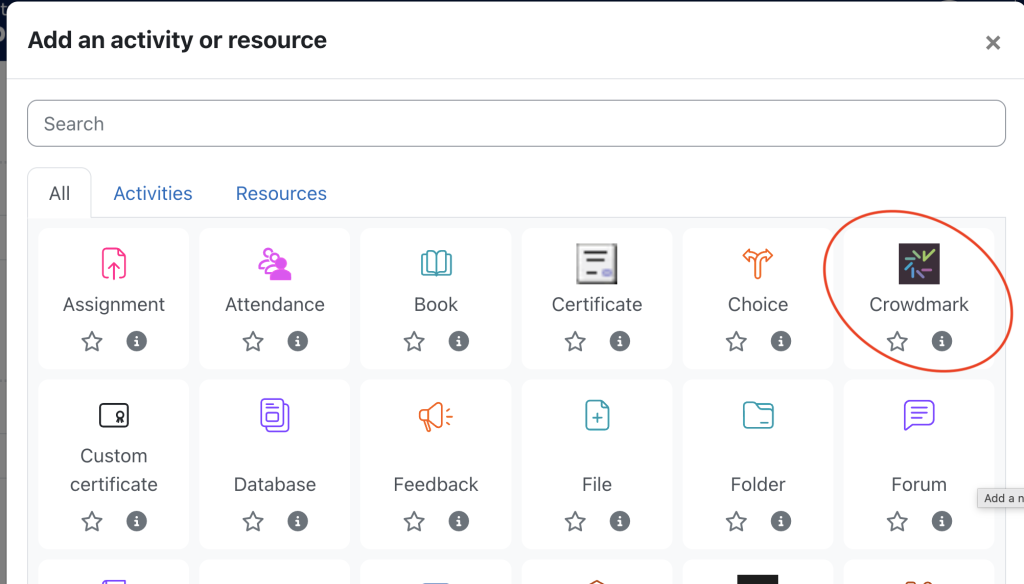
- From the activity chooser, select Crowdmark
Step 2: Configure the General Settings
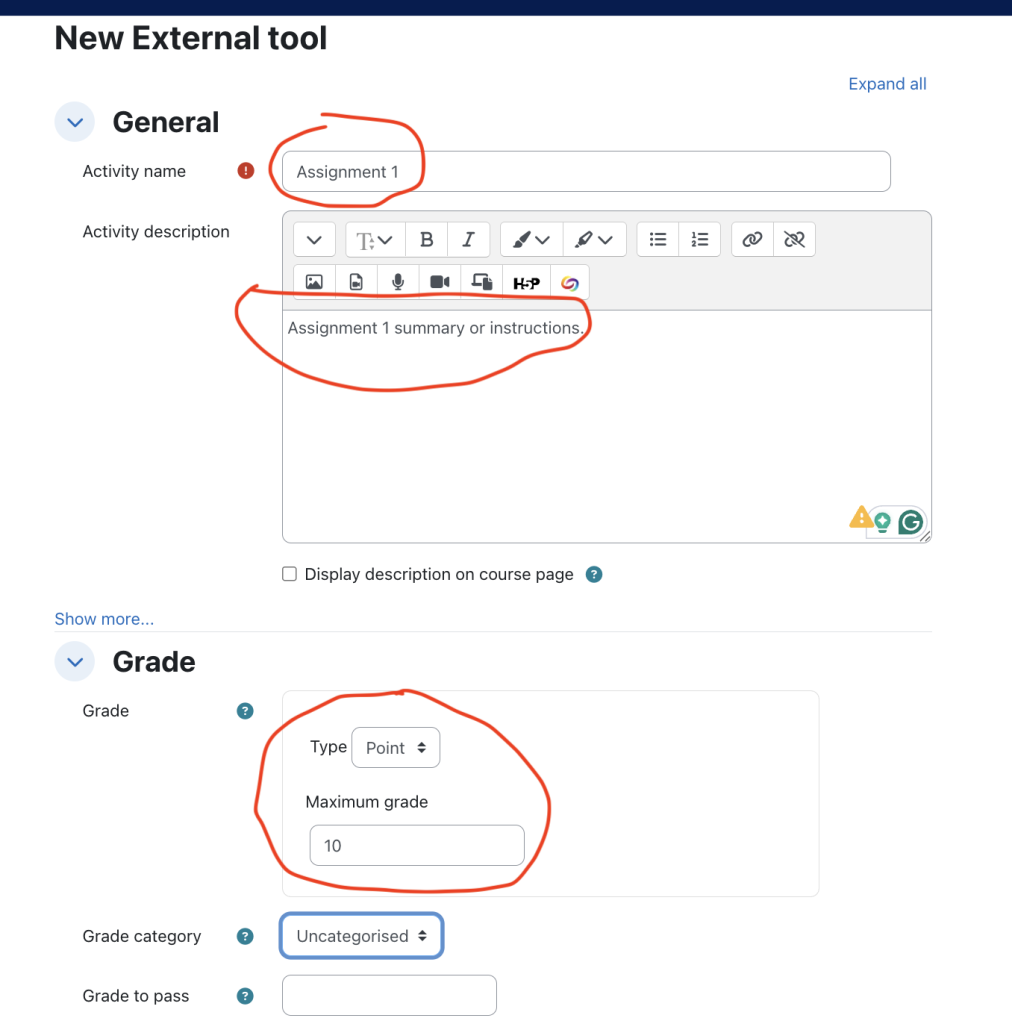
- Activity Name: Enter the title of your assessment (e.g., “Midterm Exam” or “Assignment 1”). This is the name students will click on.
Step 3: Set the Maximum Grade (Critical Step)
Moodle and Crowdmark need to agree on how many points the assessment is worth before any grading begins. By default, Moodle sets all new activities to 100 points. If your assessment is out of 40 points, but Moodle is set to 100, a student who scores 40/40 in Crowdmark will sync to Moodle as a 40/100.
- Scroll down and expand the Grade section.
- Ensure the Type is set to Point.
- Under Maximum grade, change the default “100” to match the exact total points your assessment will be worth in Crowdmark.
- Expand the Common module settings section and ensure Availability is set to Hide from students while you are building the assessment. Remember that you must make it available again before distributing the assignment.
Step 4: Save and Launch
- Scroll to the bottom and click Save and display.
- You will be redirected to the Crowdmark interface to finish setting up your assessment.
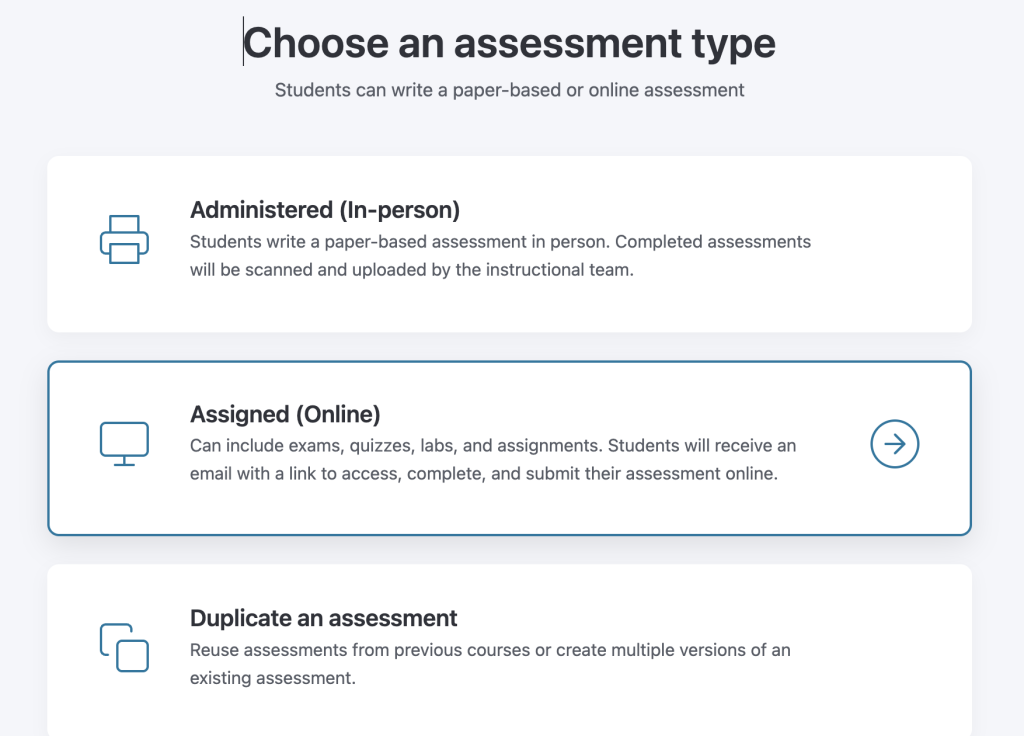
- Crowdmark will ask you to select the type of assessment you are creating (Assigned or Administered).
- If you have created an assessment in the past and want to use it again, choose Duplicate Assessment
Important Reminder
If you ever need to change the total points of your assessment after creating it, you must update the Maximum Grade in Moodle and the total points in Crowdmark to ensure the final grades sync accurately.