Once you have added a Crowdmark link to your Moodle course, your next step is to pull your student roster and teaching team into the Crowdmark environment. Crowdmark uses an active connection with Moodle to do this, but you must manually trigger the sync to ensure your lists are up to date—especially during the add/drop period.
Here is how to launch Crowdmark for the first time and sync your users.
1. The Initial Launch
To begin, you must access Crowdmark through the link you just created in Moodle.
- Navigate to your Moodle course page.
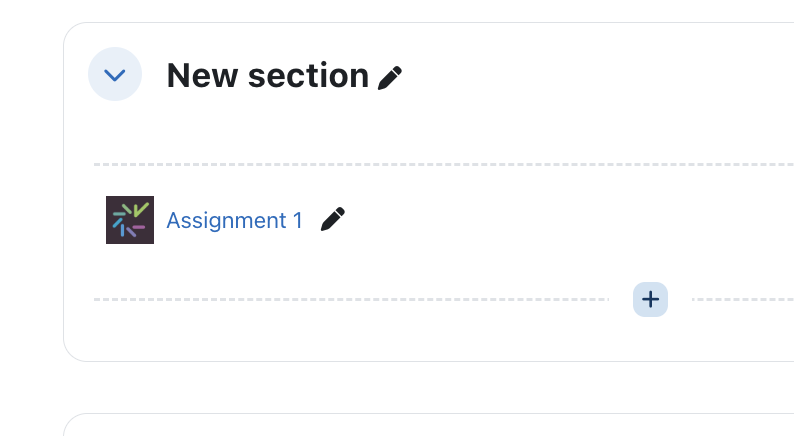
- Click on the Crowdmark assessment link you previously added.
- Because this is your first time launching the tool for this course, Crowdmark will automatically generate the course shell on their end and may prompt you immediately to sync your roster.
2. Syncing Your Student Roster
It is highly recommended that you re-sync your roster right before an exam or assignment to capture any last-minute Moodle enrollment changes.
1. Navigate to the Course Students panel inside the Crowdmark interface.
Once you are in your Crowdmark course, look at the left-hand sidebar menu and click on Students.
2. Trigger the LMS sync:
In the upper right corner of the screen, click the Sync with Moodle button.
3. Confirm the update:
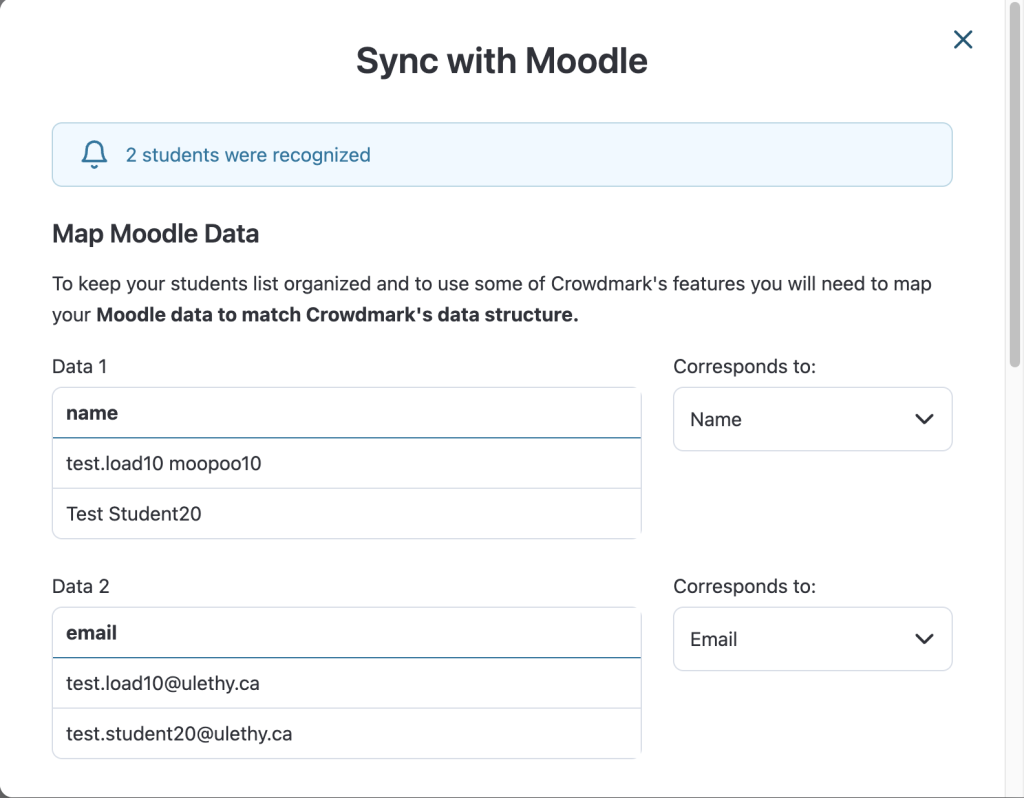
A window will pop up showing the number of students found in your Moodle course. It will list any students who are being added or disenrolled. Click Update students to confirm the sync.
Key insight
Crowdmark pulls the student’s Name and Email address from Moodle. If you need to organize grading by specific lab sections, you can upload a CSV file with section headers directly into the Students tab. Importing a CSV will not break your Moodle connection as long as the student email addresses match.
3. Importing Your Grading Team
If you have TAs, Lab Coordinators, or Co-Instructors enrolled in your Moodle course, you need to sync them into Crowdmark separately and assign them the correct grading permissions.
Students that will act as Graders should be added as Advanced Teaching Assistant within Moodle before they can sync with the Crowdmark Team Panel
1. Navigate to the Team panel:
In the left-hand sidebar menu of Crowdmark, click on Team.
2. Trigger the LMS sync:
REMEMBER
Before triggering the LMS you must add your team members in your Moodle roster first before they can be synced to Crowdmark from Moodle as team members.
Click the Sync with LMS button in the upper right corner. A modal window will appear listing the teaching staff pulled from your Moodle roster.
3. Assign roles: Critical step for grading permissions.
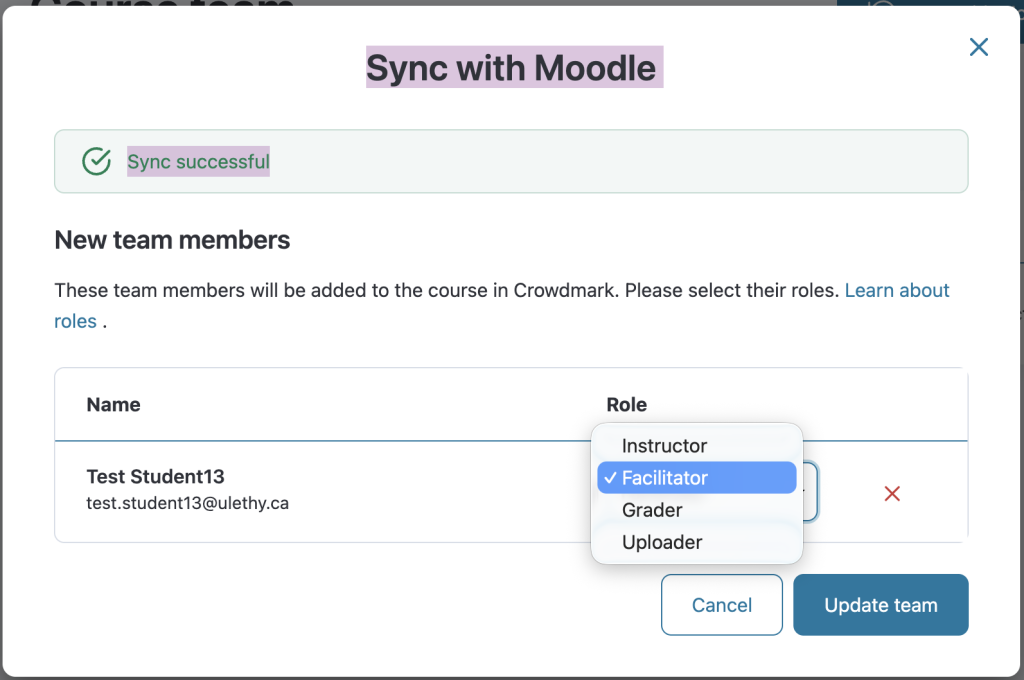
Under the Role column next to each person’s name, use the drop-down menu to select their permission level. (See the role breakdown below). If you do not want to import a specific person, click the x next to their name.
4. Finalize the team:
Click the Add team members button. Crowdmark will automatically email them an invitation link to access the course.
Understanding Team Roles
When assigning roles during the sync, choose the level of access that matches their responsibilities:
- Facilitator: Has full administrative control. They can edit the assessment, sync rosters, manage the team, and override grades. Best for Co-Instructors.
- Grader: Can view student submissions, leave feedback, and enter scores, but cannot alter the assessment setup or manage other team members. Best for TAs.
**Uploader: Can only upload scanned PDF booklets to an Administered assessment. They cannot see grades or evaluate student work. Best for administrative support staff or external print shops.
NOTE: If you cannot see your team members in Crowdmark, you will have to make sure the team members are added as advanced teaching assistants, instructors, or non editing teacher in Moodle first, then try to add them to the roster in Crowdmark.