If you must attend or host a Zoom meeting but aren’t sure how to get started, this tutorial will walk you through the steps to join or host a Zoom meeting.
To begin: Go to U of L’s Zoom website: https://uleth.zoom.us/

Joining a Meeting
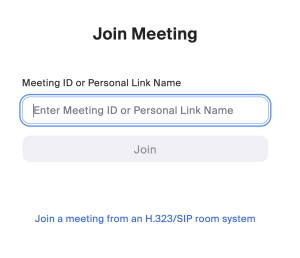
1. Click the “Join” button on the screen
2. Enter the meeting ID or Personal Link Name into the field and click “Join”
Hosting a Meeting
1. Click the Join button to join a meeting hosted by someone else.
2. Click the Host button to start a Zoom meeting, or click the Join button to connect to another host’s meeting.

3. Choose to use the Zoom App or the Zoom Web App
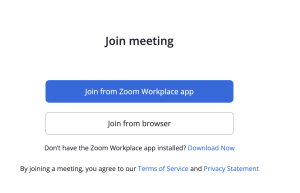
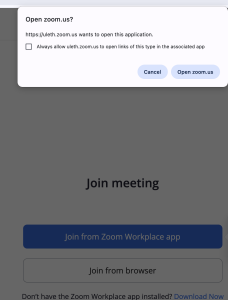
3. To use the Zoom App, choose “Join from Zoom Workplace app.” This will prompt the system’s Zoom App to open up. Click the “Open zoom.us” button when prompted.
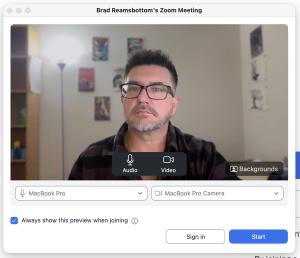
4. Once you have opened the Zoom App, you will need to turn your audio and video on or off and select Start to begin the meeting.
To Use the Web App
When starting a meeting from the web app, choose Join from Browser instead of the Zoom Workplace app.
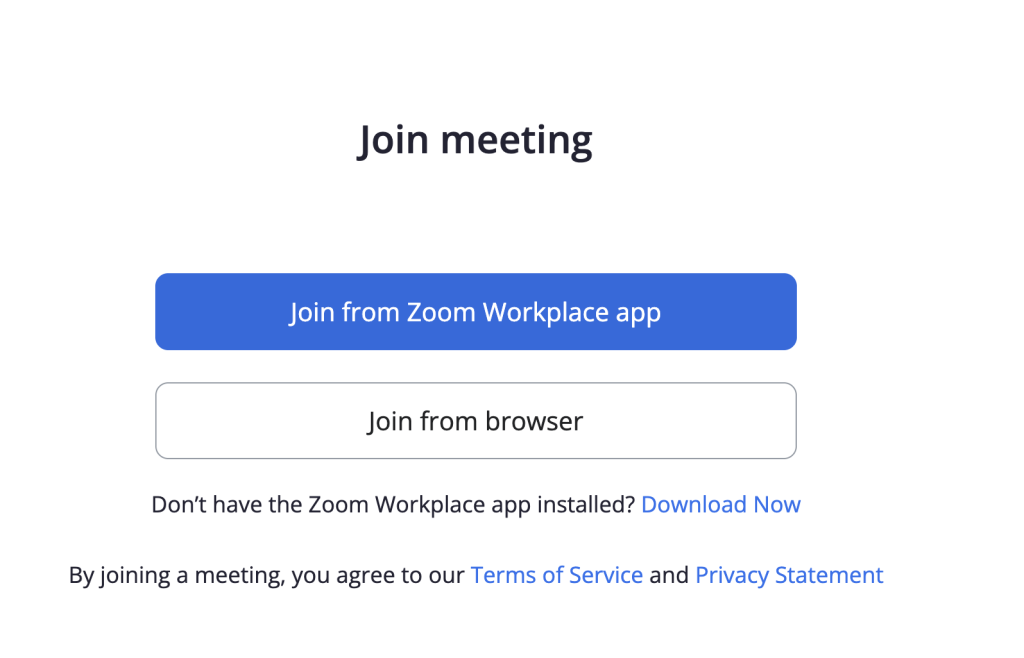
Although you are clicking ‘Join from browser’, you will actually still be hosting the meeting. Your meeting will open in the browser. The same interface for Zoom occurs in the browser as in the Zoom Workplace App.