
Moodle allows you to create custom resources and content in many areas. Two such areas are labels and pages. This tutorial will walk you through how to build a custom page within Moodle, how to add and resize images, and how to add a YouTube video. At the end of this tutorial, you will know how to manipulate different types of content utilizing the WYSIWYG (What You See Is What You Get) editor.
Instructor Tutorials
Adding an Activity or Resource to your Course
Moodle allows you to add a variety of files and activities to course sections. To add an activity or resource to your course you must turn editing on. This tutorial will show you how to add a file such as a PowerPoint, .pdf or Word documents, and will instruct you on how to get started on creating activities.
Adding & Removing Sections

By default, Moodle displays 14 sections. You may add more sections if required, or you may remove sections you will not be using.
Scheduling an Exam in the Testing Centre (INSTRUCTORS ONLY)

To schedule an exam in the Testing Centre, you will need to have the following information:
- The requested dates for running your exam. We require all exams to run for a minimum of 3 business days. The scheduling works on a first come, first serve basis, so please get your exam dates to us as early as possible to get the dates you want.
- The number of students in your class.
- Your course name, number, and section.
- If your exam contains any media clips.
(more…)
Understanding Moodle’s Calendar Block

The Calendar block can be found on the right hand column of most courses, although instructors are free to move that if they wish.
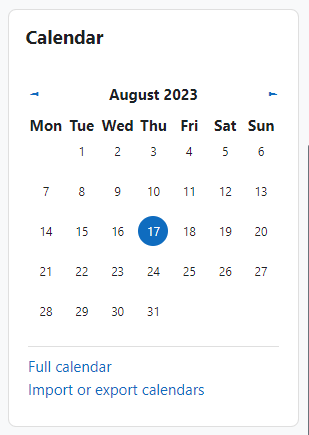
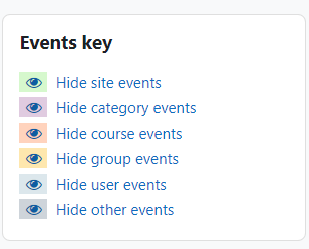
If you go to the full Calendar (see link above), Moodle provides users with an integrated calendar that can hold 4 different types of events.
Global (event viewable in all courses – created by admin users)
Course (event viewable only to course members – created by teachers)
Group (event viewable only by members of a group – created by teachers)
User (personal event a student user can create – viewable only by the user)
Using Rubrics in the Moodle Forum Tool

Moodle now allows the use of rubrics in the Forum tool. In this tutorial, we will show you how to set up your rubrics and grade the forum with them.
Displaying Grades as Letter Grades

Moodle’s default is to display the Course Total as a numeric grade based on a percentage. You may wish to display this as a letter grade or both.
Using Crowdmark

Crowdmark is an online tool that allows students to submit pictures of handwritten/hand-drawn work. Below are links that contain articles and videos that can help you understand the process of setting up a Crowdmark Assessment.
Manually Entering Grades in Moodle’s Gradebook

You can manually enter grades into Moodle’s Gradebook using Grade Items.
(more…)Allowing Students to Copy/Paste into an Exam/Quiz
If you have an exam outside of the Testing Centre, and would like to allow students to copy/paste content into a Moodle quiz, you will have to adjust the security settings.