assignment

Using Match Groups & Match Overviews in Turnitin

In the latest Turnitin LTI 1.3 update, the traditional “Match Overview” has been replaced by a more sophisticated system called Match Groups. Instead of just showing you a list of sources, Turnitin now automatically categorizes matching text based on how the student has used citations and quotation marks.

This allows you to quickly distinguish between accidental plagiarism, poor paraphrasing, and correctly cited work.

Understanding the 4 Match Groups

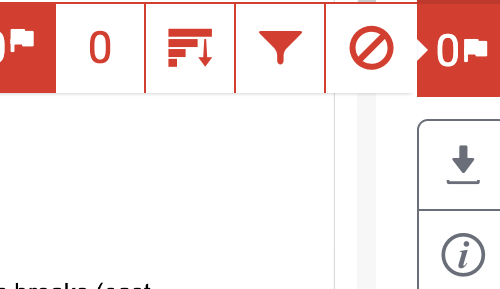
When you open the Similarity Report in the Next-Gen Feedback Studio, the right-hand panel (red icon) will display the Match Groups tab. The overall similarity score is now broken down into four distinct categories:

  1. Not Cited or Quoted (Red): The most critical group. This highlights text that matches a source but has no citation and no quotation marks. These are high-priority areas to review for potential plagiarism.
  2. Missing Quotation (Orange): Text that has an in-text citation but is not enclosed in quotation marks. This often indicates a student who has copied verbatim but forgot the quotes, or who has paraphrased too closely to the original.
  3. Missing Citation (Yellow): Text that is enclosed in quotation marks but lacks an in-text citation. This is usually a formatting error where the student attributed the words but forgot the source reference.
  4. Cited and Quoted (Blue): The “Safe” group. This highlights text that is correctly enclosed in quotes and has a corresponding citation.

Refining the Similarity Score

The most powerful feature of Match Groups is the ability to “clean up” the similarity score to see the true area of concern.

How to refine the report:

  • In the Match Groups panel, you will see a percentage next to each of the four categories.
  • Click the Eye Icon (Hide/Show) next to the Cited and Quoted group.
  • The overall similarity percentage at the top of the screen will instantly recalculate, excluding the correctly cited material.

Tip: By hiding the “Cited and Quoted” and “Bibliography” groups, the remaining percentage reflects only the problematic areas (Not Cited or Missing Quotes), giving you a much more accurate “integrity score” at a glance.

Navigating Source Cards

Clicking on any of the Match Groups will open a list of Source Cards related to that specific category.

  • Ranked List: Sources are ranked by the amount of matching text within that specific group.
  • Navigation Arrows: Use the < and > arrows on a source card to jump directly to each instance of that match within the student's paper.
  • Match Details: Each card tells you the total word count and the percentage of the paper that matches that specific source.

Match Groups vs. The "Sources" Tab

While Match Groups is the best tool for checking integrity and finding teachable moments, you can still access the traditional view:

  • The Sources Tab: Located next to the Match Groups tab at the top of the sidebar.
  • What it does: It provides a simple, descending list of every source found in the paper, regardless of how it was cited. Use this if you want to see if a student has over-relied on a single source (e.g., if one source accounts for 40% of the entire paper).

Feedback Studio Upgrades

Turnitin has upgraded Feedback Studio. They have gathered feedback on instructor and student experiences for quite a while and have now released an updated version that implements the input they received. As of May 8th, 2025, users who utilize https://turnitin.com or the Turnitin assessment module within Moodle will use the updated version of Feedback Studio.

If you would like an update on the layout of the new features in the Feedback Studio regarding the feedback experience, please visit the link below.
https://guides.turnitin.com/hc/en-us/articles/35446790262541-Navigating-the-new-grading-and-feedback-experience#h_01JQP2T4BG2HADG262WRWJFC03

You can also keep reading for some highlights on the Next-Gen Interface for Feedback Studio

Using Feedback Studio

The interface is now more intuitive, moving away from text-heavy menus to a streamlined, icon-driven sidebar designed to maximize the grading space.

The Icon-Driven Sidebar: A Visual Refresh

The traditional vertical text labels on the right-hand side have been replaced with a minimalist icon dock. This “Visual Refresh” keeps the student’s paper the central focus while providing quick access to grading tools.

  • Similarity Layer (Red Icon): Access the redesigned Similarity Report and Match Groups.
  • QuickMarks (Blue Lightning Icon): Open your library of reusable comments.
  • Feedback Summary (Blue Speech Bubble Icon): Leave overall text or audio feedback and view Pinned Feedback.
  • Rubrics (Blue Grid Icon): Access the attached rubric or grading form to apply scores.

Prioritizing with Pinned Feedback

The Pinned Feedback feature is a major efficiency tool in the Next-Gen interface. It allows you to “pin” the most critical comments—such as a recurring grammar issue or a particularly strong insight—to ensure they don’t get lost in the margin.

How to Pin a Comment:

  1. Click on any QuickMark or Speech Bubble comment you have placed on the paper.
  2. In the floating comment card that appears, click the Options menu (three dots) in the top right corner.
  3. Select Pin Comment.
  4. A yellow pushpin icon will now appear at the top left of that specific comment card in the margin.

Why Pinning Matters:

Pinned comments are automatically aggregated at the bottom of the Feedback Summary side panel. When a student opens their report, they see these “priority” comments immediately below your overall Summary Comment, creating a clear “Action Item” list for their next revision.

Understanding Feedback Cards and Badges

In the margin of the paper, feedback is now displayed in “cards.” These cards use a new Badging System to tell you at a glance what kind of feedback is inside:

  • Speech Bubble: Standard text comment.
  • Lightning Bolt: A QuickMark from your library.
  • Number Icon: Indicates the feedback is linked to a specific Rubric criterion.
  • Yellow Pushpin: Indicates the feedback has been Pinned for priority.

Tip: You can now customize the color of your feedback cards (Blue, Green, or Pink). Many instructors use these to categorize feedback (e.g., Blue for grammar, Green for strong arguments).

Creating a Turnitin Assignment in Moodle

This tutorial demonstrates the LTI 1.3 for Turnitin assignments

In your Moodle course, toggle Edit mode on (top right).

In the desired week or section, click Add an activity or resource.

Select the Turnitin Assignment icon from the list of choices.

General Settings:

  • Activity name: Enter the title of the assignment.
  • Description: Provide instructions for your students (optional).

Click Show more… and make sure the Custom parameters field is empty.

With the LTI 1.3, the grades and user IDs are configured for you. No need to enter the LMS URL; everything is synced via deep linking.

Click Save and Display.

Once you click Save and Display, the Turnitin LTI 1.3 interface will launch within Moodle. You must complete this second stage to set your dates and similarity settings.

Click on the gear icon in the top left of the screen

Set Dates: Define your Start Date, Due Date, and Feedback Release Date.

  • Note: The Feedback Release Date is when students can see their marks and comments.

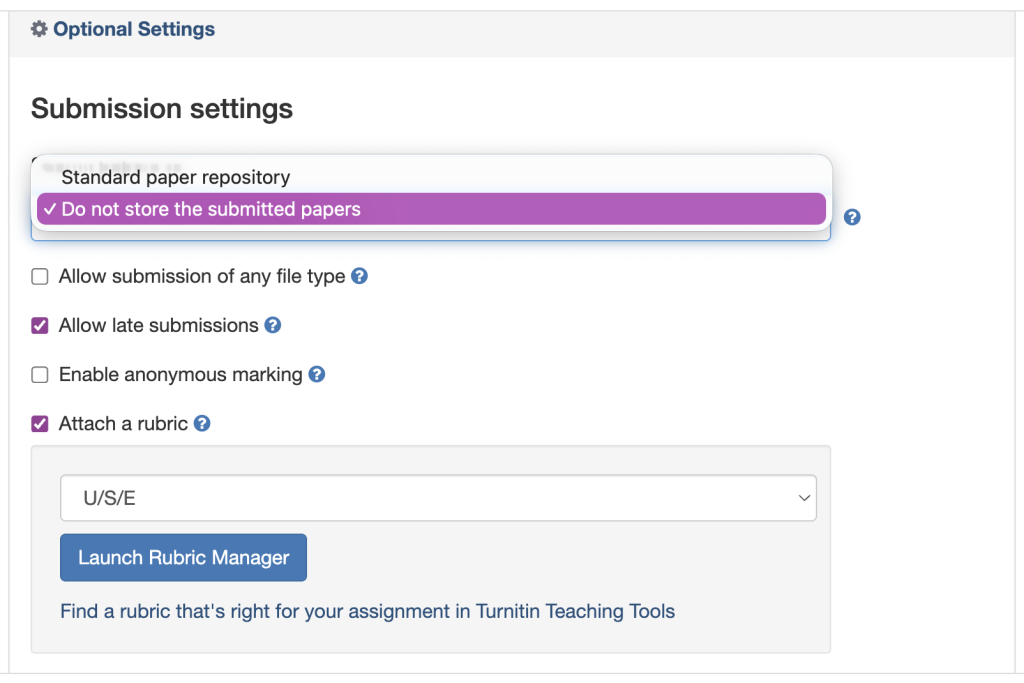
Optional Settings: Click the gear icon or “Optional Settings” link to configure:

  • Submission Storage: Choose whether to add papers to the standard repository. 
  • Similarity Report: Decide whether students can see their reports and whether you want to exclude small matches or bibliographies.

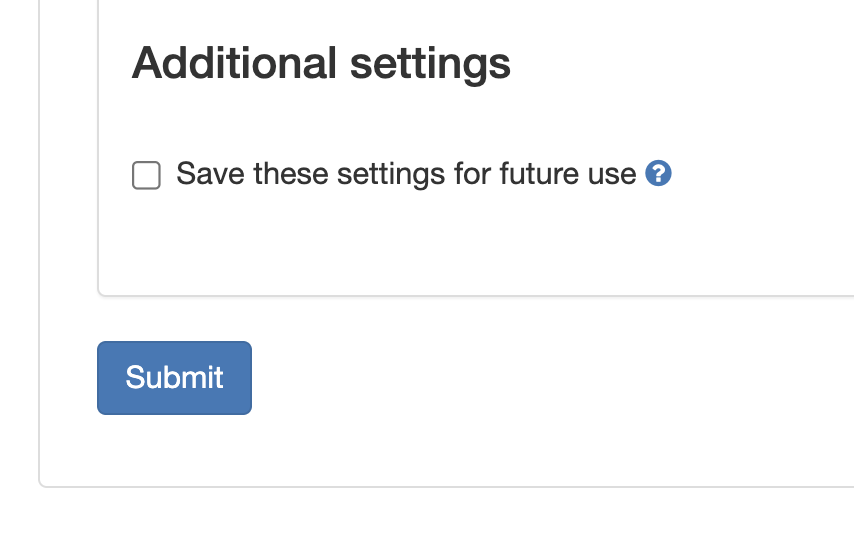
Once everything has been set to your specifications, be sure to click Submit. You can also choose whether to save these settings for future assignments.

Your assignment is now set up and ready to be synced with your student roster.

Using Peermark Within a Turnitin Assignment

PeerMark is a peer-review tool that allows students to read, review, and evaluate one or more papers submitted by their classmates. In the updated LTI 1.3 integration, the workflow for setting up PeerMark and syncing those grades to Moodle has changed significantly from the older Direct V2 plugin.

Setting Up a PeerMark Assignment

Unlike the old version, where PeerMark was an “Assignment Part,” in LTI 1.3, it is a sub-tool enabled within a standard Turnitin assignment.

  1. Create your Turnitin Assignment in Moodle (using the Turnitin Assignment activity).
  2. Click Save and Display to launch the Turnitin Inbox.
  3. Click the Settings (gear icon) in the top right.
  4. Scroll down to Optional Settings and check the box for Enable PeerMark.
  5. Click Submit. A new tab labelled PeerMark Setup will now appear at the top of your inbox.

Grade Passback

PeerMark generates its own distinct data set that must communicate with the Moodle Gradebook via the “LTI Advantage” protocol.

Critical Note on Grade Syncing: PeerMark grades do not always automatically sync to the Moodle Gradebook in the same way regular paper grades do. Because the LTI tool primarily “owns” the main assignment grade, the secondary PeerMark score requires specific conditions to pass back successfully:

  • The Feedback Release Date: Grades will typically sync only after the Feedback Release Date for the PeerMark assignment has passed.
  • Manual Trigger: If grades are missing from Moodle after the release date, you must use the “Resend Grades to LMS” button found in the PeerMark inbox to force a sync.

IMPORTANT: Mapping Issues

LTI 1.3 creates one primary grade column. If you want a separate column for the paper and a separate column for the peer review, you may need to create two distinct Turnitin assignments: one for the submission and one specifically for the PeerMark exercise.

Step-by-Step Sync Troubleshooting

If your student’s peer review scores are not appearing in Moodle:

  1. Open the PeerMark Inbox.
  2. Verify that you have assigned a grade to the student’s review.
  3. Ensure the PeerMark Feedback Release Date has passed.
  4. Click the Sync Grades icon (circular arrows) or the Resend Grades button.
  5. Refresh your Moodle Gradebook Setup to see if the column has updated.

Importing Team Members from Moodle to Crowdmark

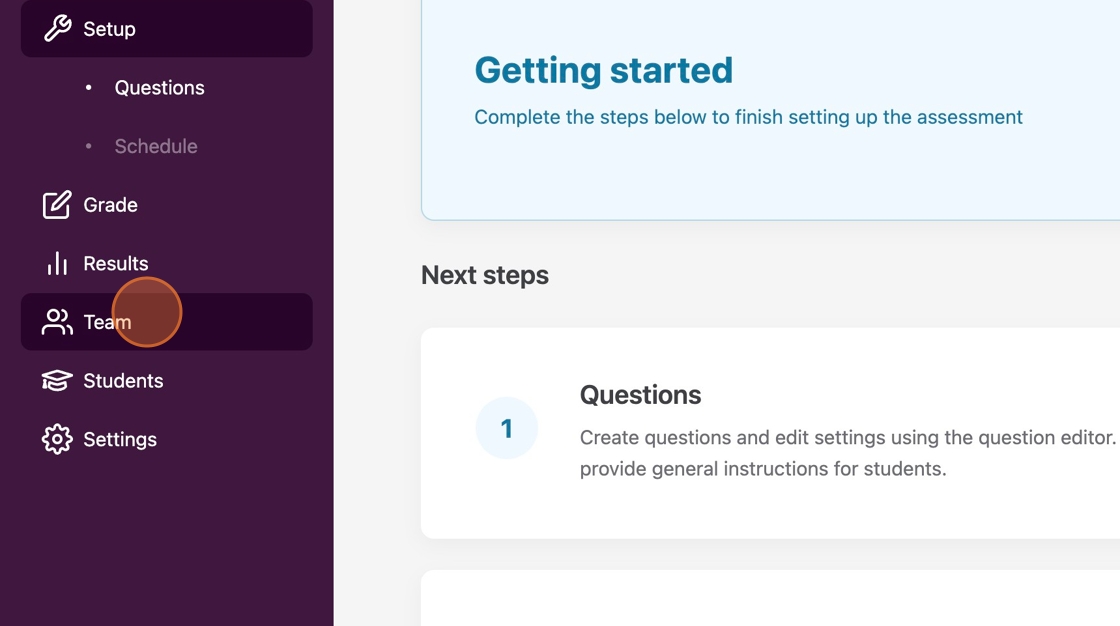
1. To add members such as graders or facilitators to your Crowdmark Team, Click “Team.”

(more…)

Create text answer questions in Crowdmark for exams

1. Once you add questions to your assessment, note that you can have students complete a text entry assessment.

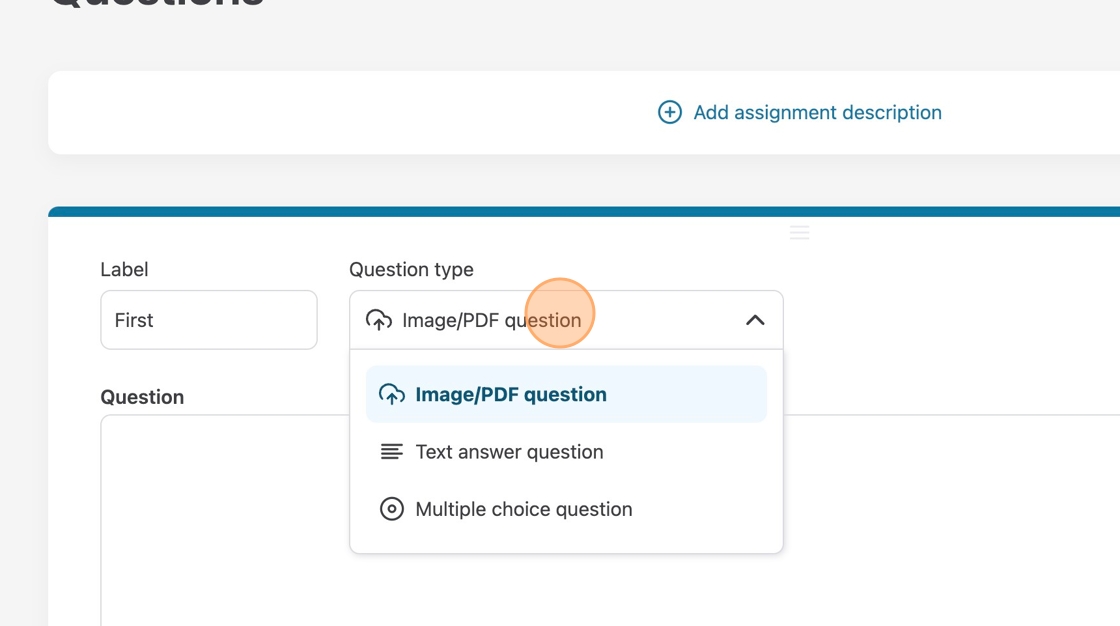
2. Choose “Text answer question” from the drop-down menu to switch to a text answer question.

(more…)

Creating Multiple-choice Questions in Moodle with Crowdmark

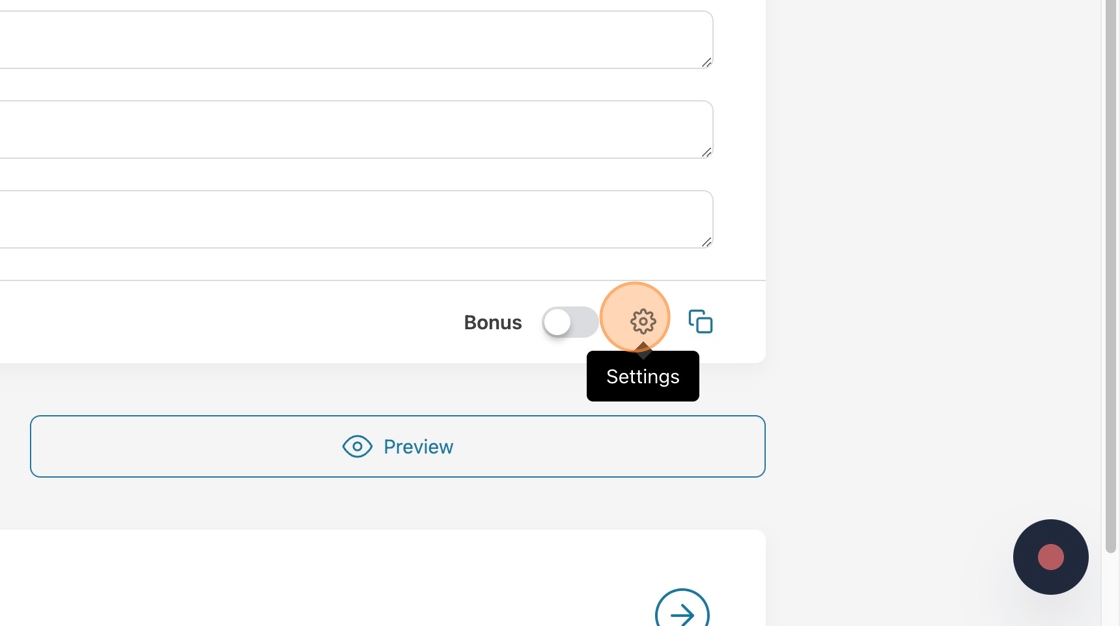
1. Crowdmark allows you to choose extra settings for your multiple-choice questions. Click “Settings.”

(more…)

Making Image/PDF Questions in Crowdmark

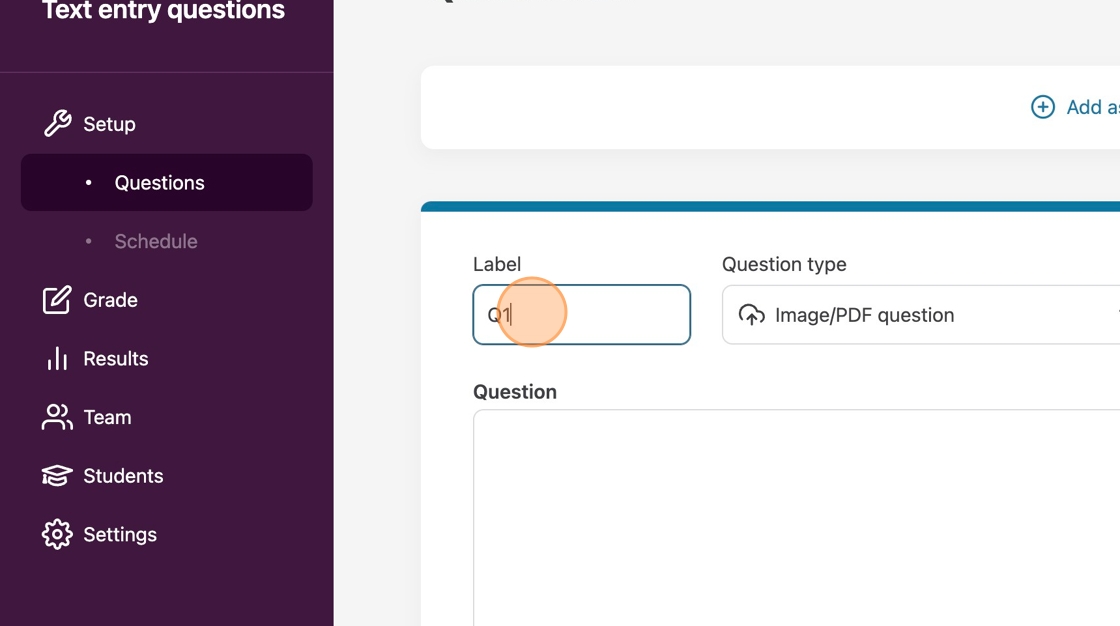
1. Click “add a question” and enter a label for the question if you wish for something different than the default.

2. Choose “Image/PDF question” from the question type drop-down menu.

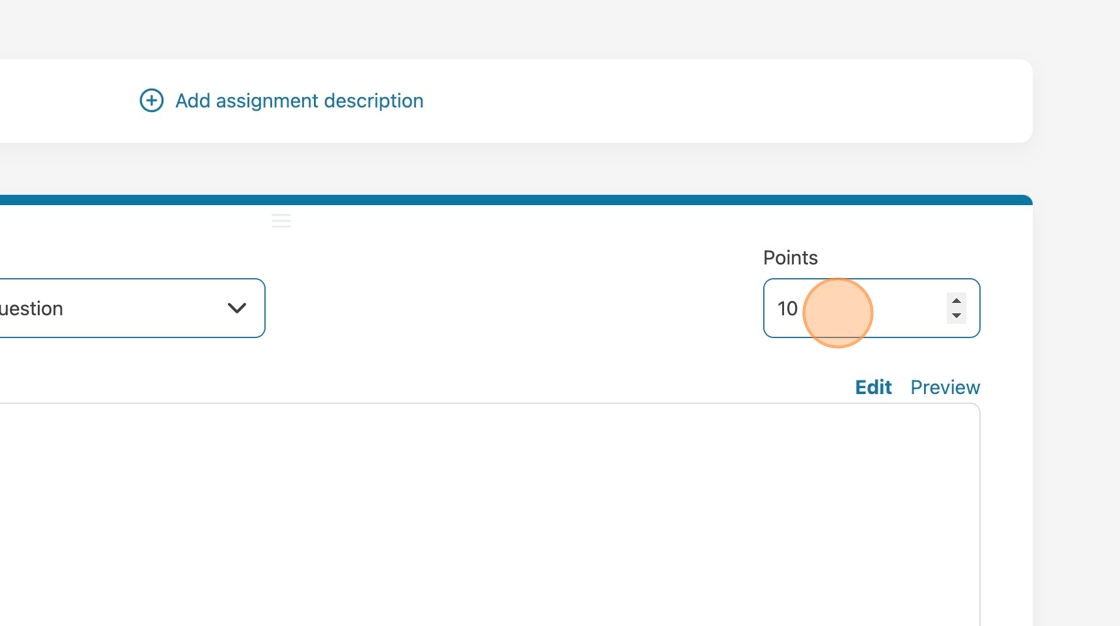
3. Choose how many points your question will be worth.

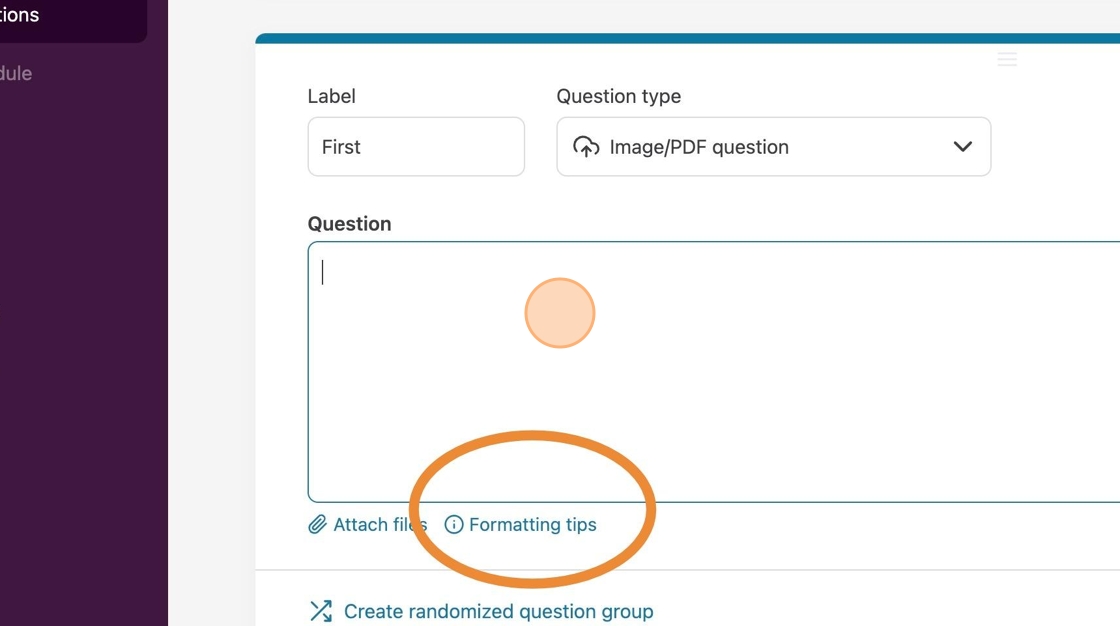
4. Click in the question field and enter your question or prompt. You can attach files, link websites, and use other formatting options. Click on the formatting tips below the Question field.

Adding a Crowdmark Activity in Moodle

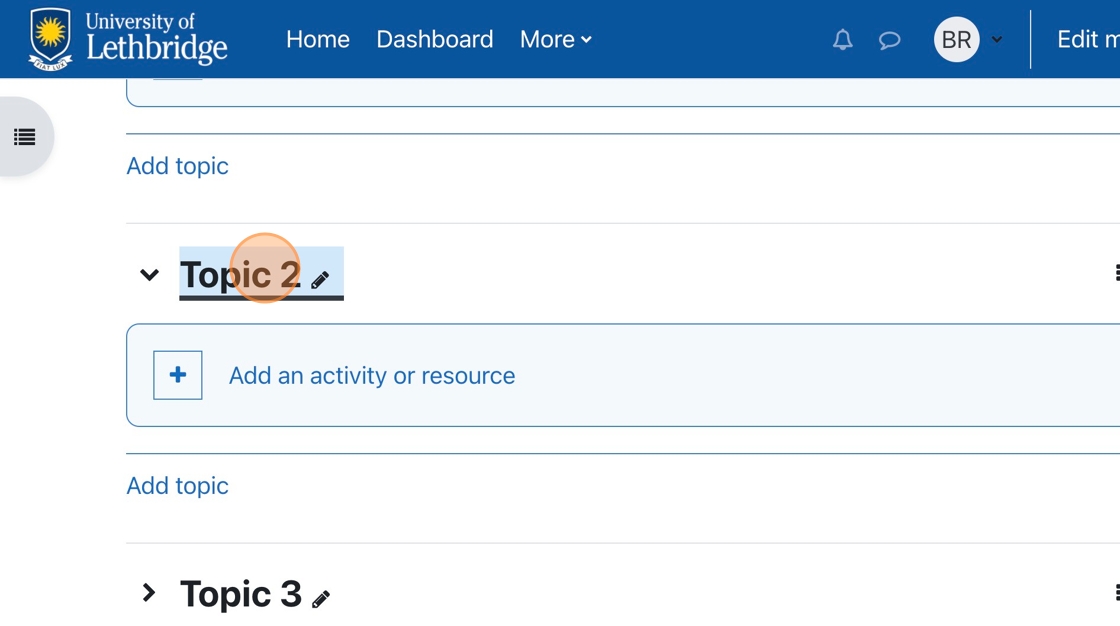
1. Go to the topic you wish to add the activity to.

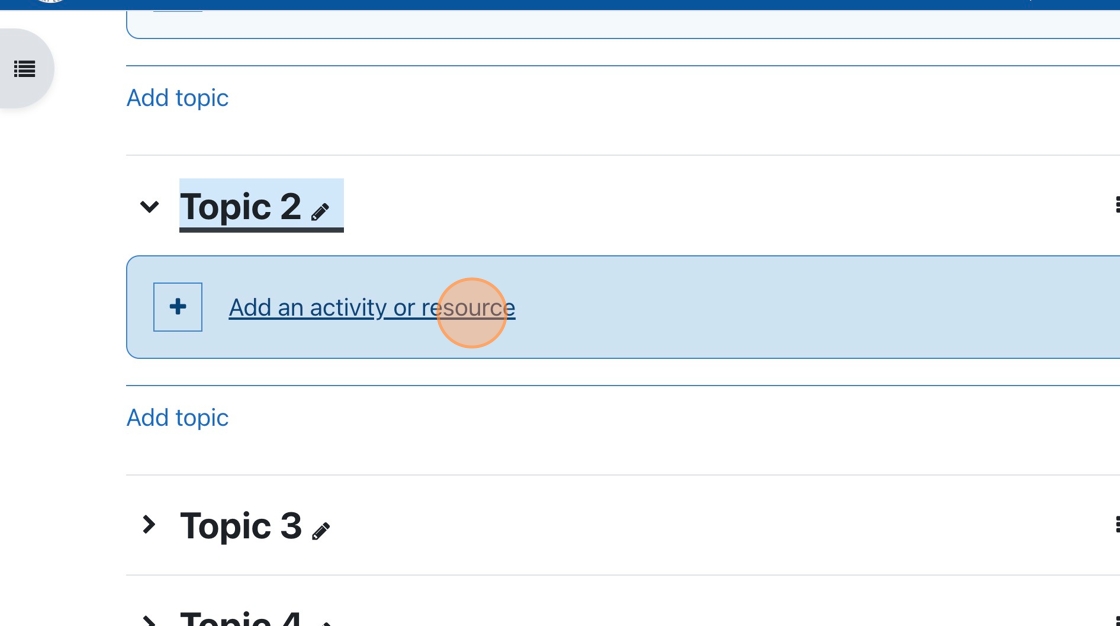
2. Click “Add an activity or resource.”

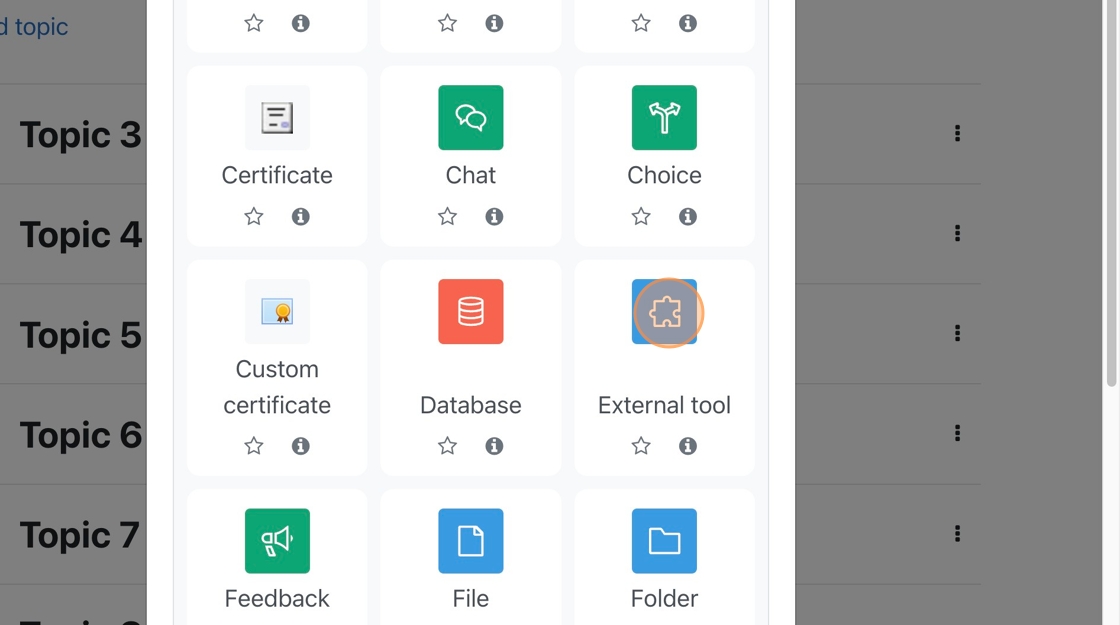
3. Choose External Tool from the menu of choices.

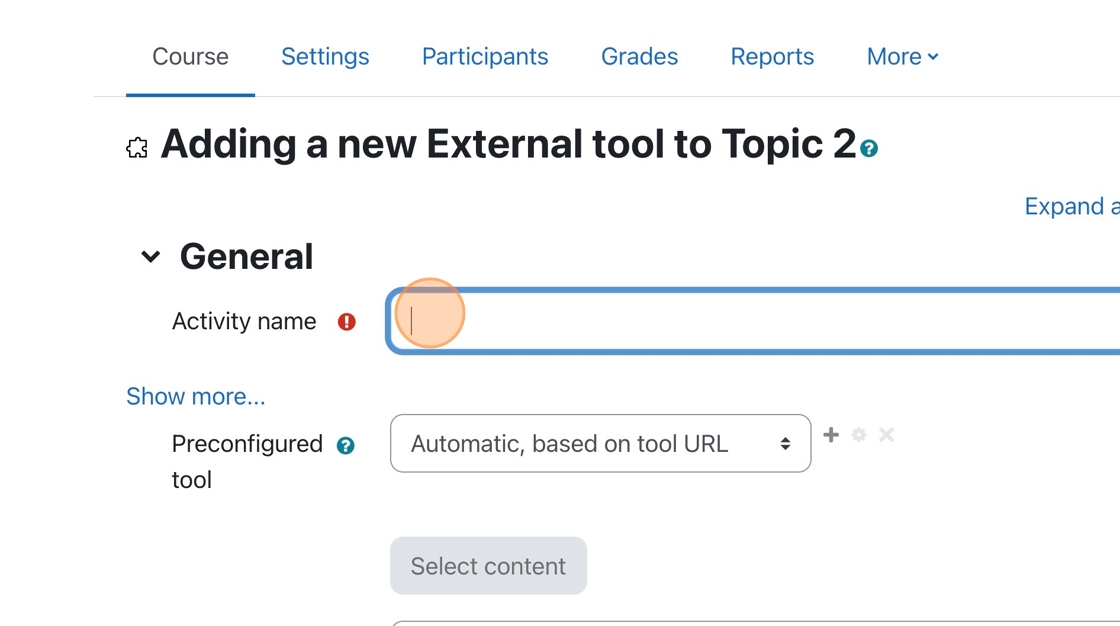
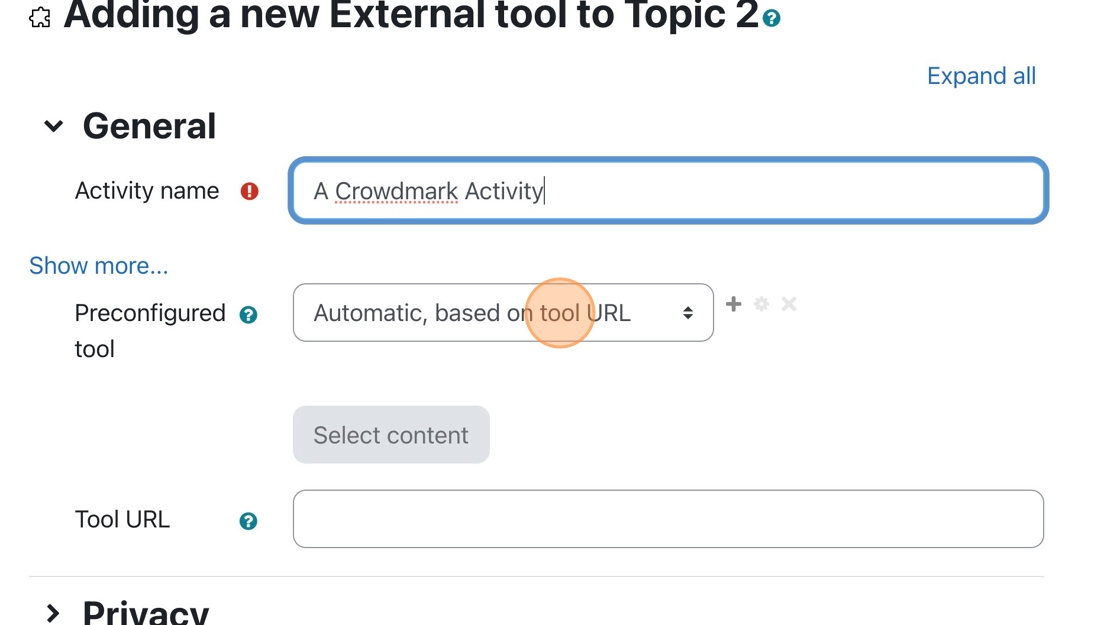
4. Click the “Activity name” field, and enter a name for the activity.

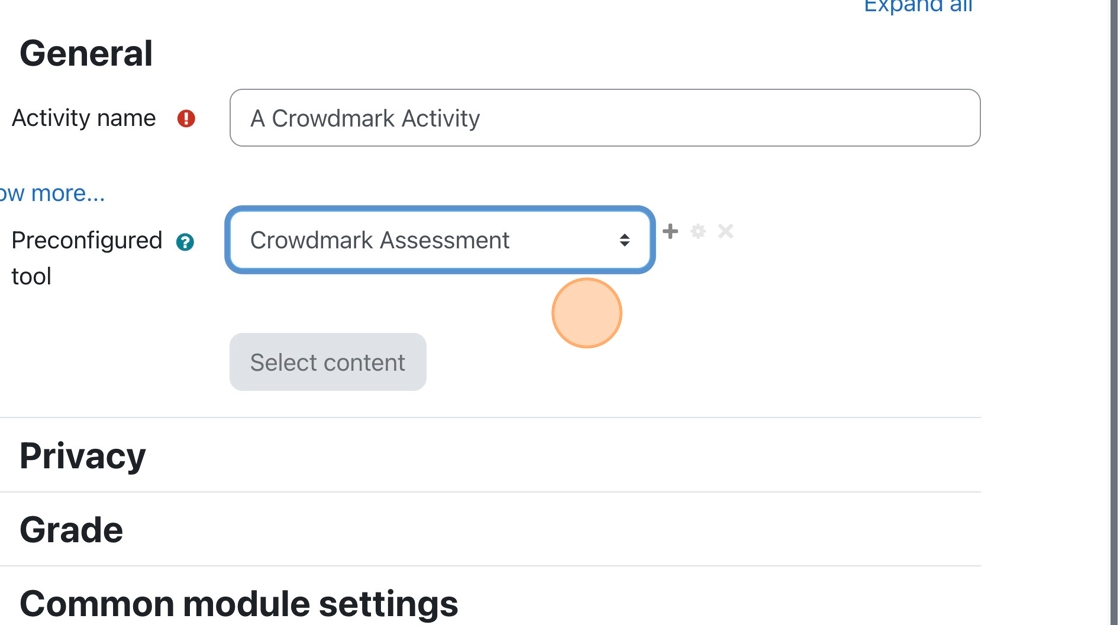
5. Click the Preconfigured tool dropdown menu.

6. Choose Crowdmark Assessment from the menu.

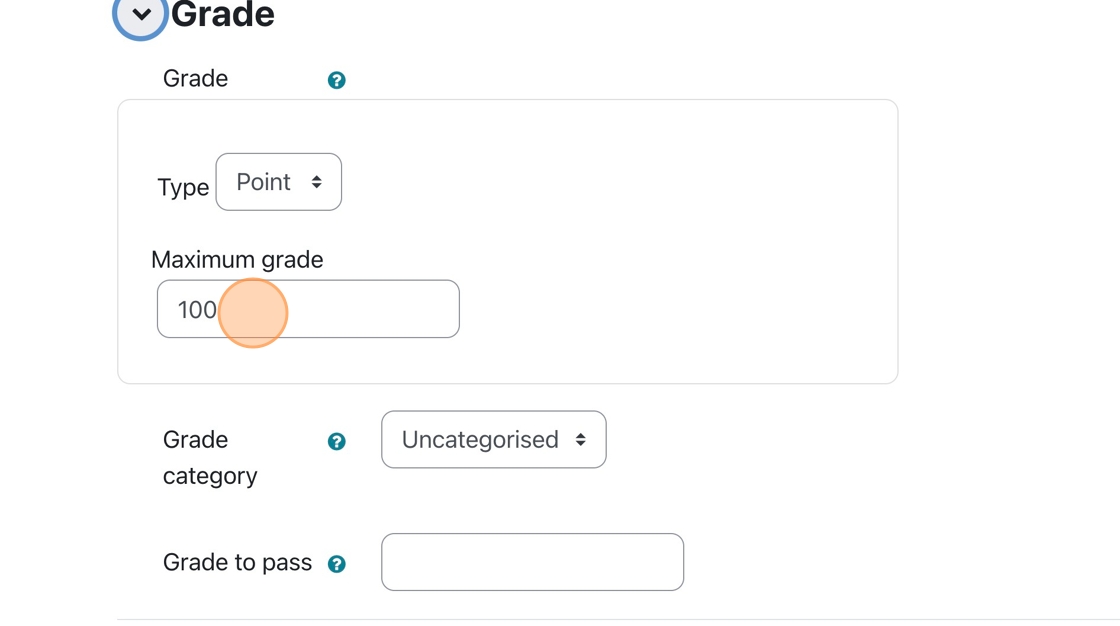
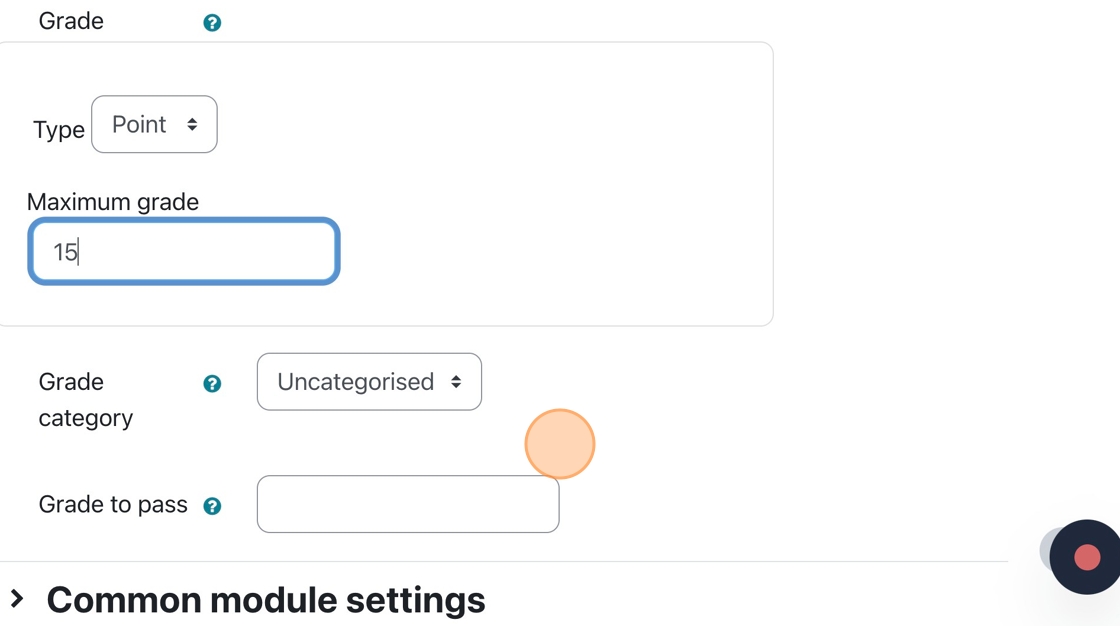
7. Click “Grade,” then modify the Maximum Grade so it is equivalent to the grade that will come from Crowdmark.

8. If you grade a Crowdmark assessment out of 15 but forget to change the maximum grade to 15 in Moodle, you must do so before syncing all the grades to Moodle. You may run into errors when syncing your grades if you do not.

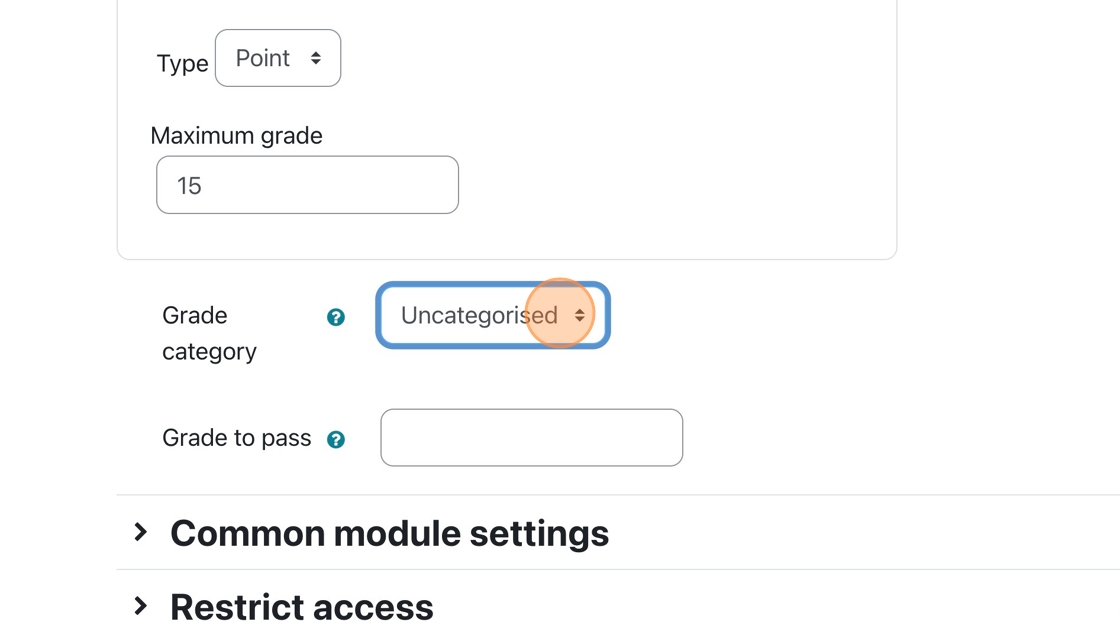
9. If you have different categories in Moodle’s grade area, you can choose the category to which the assessment belongs.

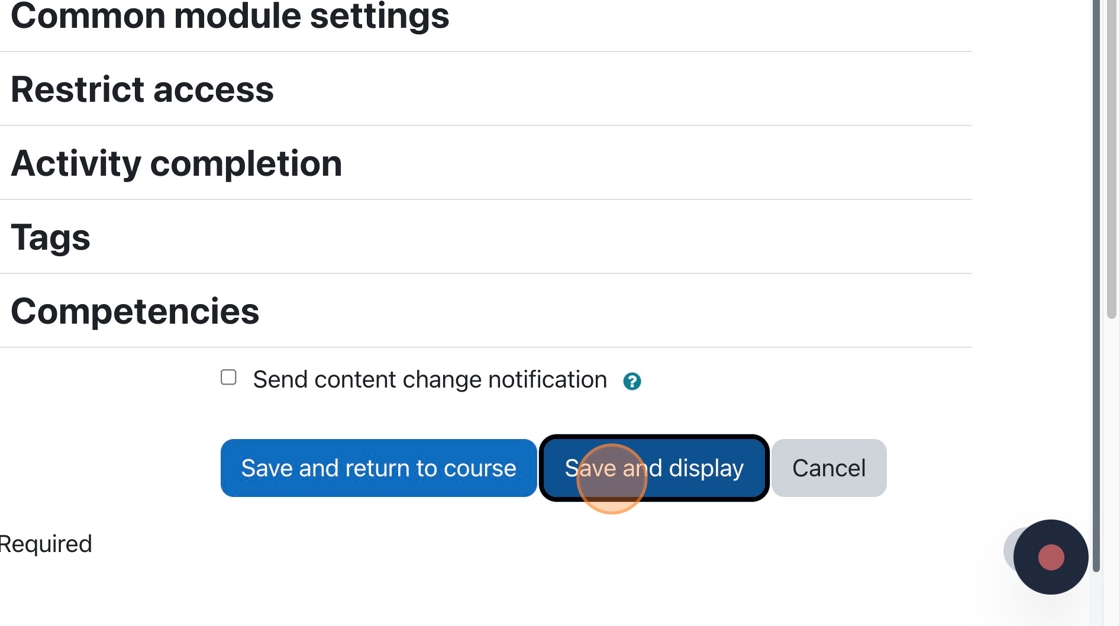
10. You are all finished the Moodle portion of the Crowdmark assessment setup

Tip: This tutorial set up the connection between Crowdmark and Moodle. You will still need to add questions to the assessment. This can be done when you click the Crowdmark assessment on the main course page.

A new Crowdmark window opens up. You can add questions and set the distribution factors in that window.

Grading with a Rubric

1. Now that the rubric is all setup, we can start grading the submissions.

Click “View all submissions” to see all the submissions so you can select specific submissions to grade.

(more…)